WordPress to Blogger XML Converter Online Free
July 7, 2026 Written by Nitish Kumar


July 7, 2026 Written by Nitish Kumar
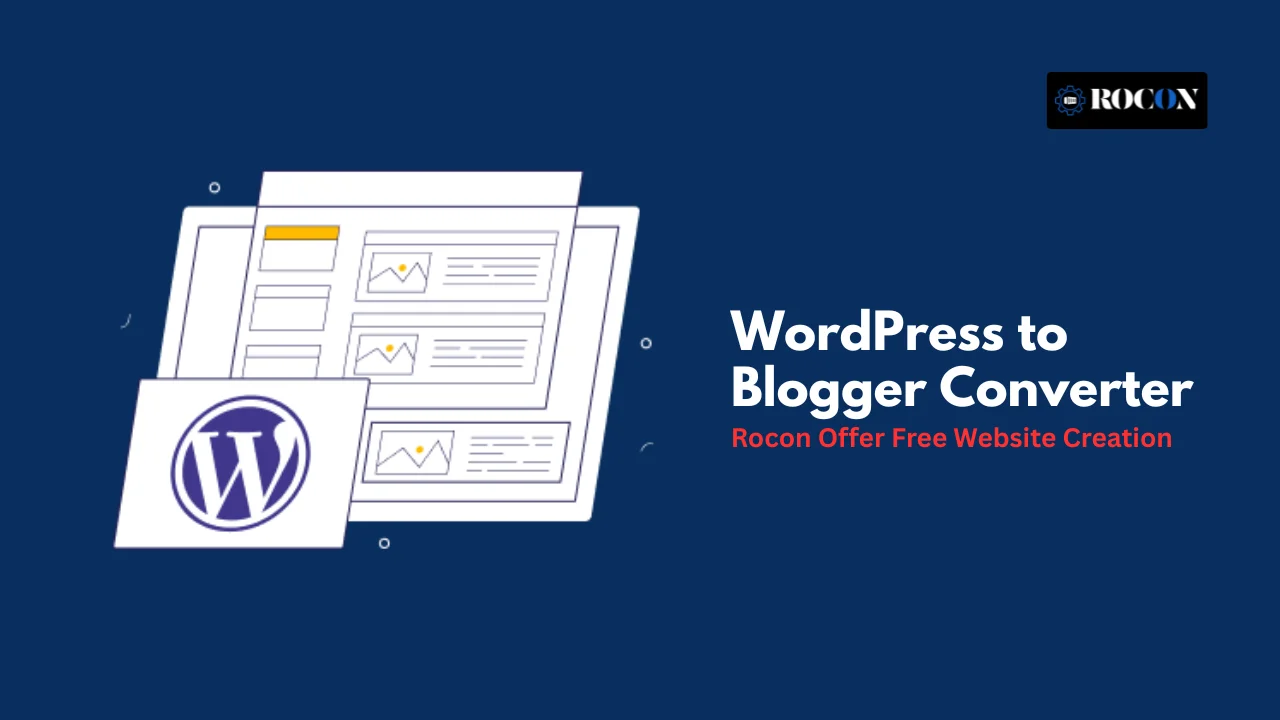


WordPress to Blogger Converter is the easiest way to move your content from WordPress to Blogger without manually copying every post and page. Whether you’re switching platforms to reduce maintenance, cut hosting costs, or simply prefer Blogger’s lightweight publishing experience, using the right conversion method can save hours of work.
Many website owners start with WordPress because of its powerful features, themes, and plugins. Over time, however, managing updates, backups, security, and plugin compatibility can become overwhelming, especially if your primary goal is simply publishing content. Blogger offers a simpler alternative that’s free, easy to maintain, and fully managed by Google.
The challenge is that WordPress and Blogger use different file formats for exporting and importing content. A standard WordPress export file cannot be uploaded directly into Blogger. That’s why you need a WordPress to Blogger converter to transform your WordPress XML file into a Blogger-compatible format while preserving your posts, pages, categories, and publishing dates whenever possible.
In this guide, you’ll learn how to convert WordPress to Blogger, the best conversion tools available, common migration mistakes to avoid, and the steps to move your content safely without losing valuable posts or disrupting your readers.
While WordPress is a powerful and feature packed content management system used by millions worldwide, it’s not for everyone—especially if you’re just starting out or want a hassle free blogging experience.
For many of us managing a WordPress site means dealing with plugin updates, choosing the right themes, site security and sometimes even troubleshooting server or database errors. If you’re not a developer or just don’t want the technical overhead it can get overwhelming.
That’s where Blogger comes in:
If you just want to run a personal blog, hobby site or lightweight content platform, Blogger has got you covered without the complexity of a full blown CMS like WordPress. It’s for writers, hobbyists, students and anyone who just wants to blog—without the backend hassle.
Moving sounds easy but moving from WordPress to Blogger has its gotchas. Make sure you know what won’t transfer so you’re not surprised.
Here’s what to keep in mind:
These aren’t reasons not to migrate—but being prepared makes it much easier.
Still with me? Good—let’s get started.
Moving from WordPress to Blogger may sound technical but don’t worry — we’ll walk you through every step. Here’s how to do it the right way without losing your content or your mind.
First you need to grab all your existing content from WordPress:
This file is important — it has everything you’ve created on WordPress so far.
Here’s where the magic happens. WordPress exports your content in a format called WXR (WordPress eXtended RSS) but Blogger can’t read it as is. You need to convert it into a format that Blogger understands.
To do this:
This new file is ready to be imported into Blogger.
Once you have the converted file:
After import, things won’t be perfect. Expect to spend a bit of time cleaning up:
This will take some time, but it’ll make your blog look good and work smoothly.
If you had a custom domain on WordPress like www.myblog.com, you can use it on Blogger. Doing so:
Just update your domain’s DNS and link it in Blogger settings.
When moving your website from WordPress to Blogger, your media files — including images, documents, and other uploads — won’t transfer automatically. Blogger hosts images on the blogspot.com subdomain, which is completely different from WordPress’s media storage structure.
While WordPress organizes files neatly within your site’s directory, Blogger assigns random URLs to uploaded images, making them harder to map during migration.
If you delete your WordPress hosting account or switch domains while converting your site, the image links in your posts will no longer work. To prevent broken visuals, it’s best to manually download your WordPress media folder before migration.
You can then upload those files to a platform like Dropbox or Google Drive and use a bulk URL replacement tool to update image paths before importing to Blogger.
At Rocon WordPress Hosting, we always recommend keeping a secure backup of your entire media library before making platform changes — ensuring your visuals stay intact and your content looks perfect wherever it’s published.
| Feature | WordPress | Blogger |
| Cost | Requires paid hosting and domain (more flexibility, but higher costs) | Completely free (you can connect a custom domain if needed) |
| Ease of Use | Requires setup, themes, plugins, and sometimes coding knowledge | Extremely beginner-friendly and simple to get started |
| Flexibility | Highly customizable with themes, plugins, and developer tools | Limited customization options and fewer integrations |
| SEO Control | Full SEO control with advanced plugins like Yoast and Rank Math | Basic SEO options (meta tags, titles, descriptions) |
| Maintenance | You’re responsible for backups, updates, and security | Google handles all maintenance and security behind the scenes |
| Ideal For | Businesses, professional blogs, eCommerce, custom projects | Beginners, personal bloggers, hobby writers, and casual users |
If you’re tired of WordPress updates, plugins and the technical side of things and all you want to do is write then switching to Blogger could be a breath of fresh air.
It’s good if:
But if your site relies on advanced SEO tools, heavy customization or WordPress only features then sticking with WordPress might still be the way to go.
The good news? You don’t have to decide blindly. With a WordPress to Blogger converter you can migrate your content and try Blogger out – no strings attached.
Explore, test and choose what works for you.
Yes! It’s all free. Blogger is a free platform hosted by Google and you can use free tools to move your WordPress content.
Yes. If you have a custom domain (like www.myblog.com) you can point it to your new Blogger blog by updating your domain’s DNS settings.
You might see a temporary dip especially if your URLs or meta tags change.
Plugins and widgets don’t transfer to Blogger. Since Blogger doesn’t support plugins you’ll need to find alternative solutions or simplify your site layout.
No, WordPress themes aren’t compatible with Blogger. You’ll need to choose a new theme from Blogger’s library and customize it to match your branding.
To convert a WordPress theme to a Blogger template, manually recreate the design in Blogger’s XML format. We recommend keeping a full WordPress backup before migration to preserve your site’s layout and media.
To migrate from Blogger to WordPress, export your Blogger content as an XML file, import it into WordPress using the built-in Blogger Importer, update your permalink structure, and configure redirects from Blogger to WordPress. This process preserves your blog posts, improves SEO, and gives you access to WordPress themes, plugins, and advanced customization options.
To transfer a Blogger domain to WordPress, point your custom domain’s DNS records to your WordPress hosting provider, install WordPress, import your Blogger content, and set up proper redirects. This allows you to keep the same domain while moving your website to WordPress without losing search rankings or existing visitors.

Elevate your WordPress hosting with 30-day money-back guarantee, free migration, and 24/7 support.
Sign Up Today
November 6, 2026
Sreekar
Before You Go… Get 1 Month FREE on Rocon Hosting!

Experience lightning-fast speeds

No downtime or hidden fees

Dedicated 24/7 expert support

Leave a Reply