How to Fix the DNS Zone Is Not Hosted With Us Error
June 4, 2026 Written by Maria


June 4, 2026 Written by Maria


Seeing the message The DNS zone of your domain is not hosted with us can be confusing, especially if your website was working normally before. This notification simply means that your current hosting provider is not managing the DNS records for your domain, and those records are being controlled elsewhere.
DNS acts as the system that directs visitors to the correct server when they enter your domain name. When the DNS zone is hosted by a different provider, any changes to records such as A, MX, CNAME, or TXT entries must be made through that external DNS service rather than your web hosting account.
This situation commonly occurs when using third-party DNS providers, content delivery networks, cloud platforms, or after a website migration. In some cases, outdated nameserver settings or incomplete domain transfers can also trigger the message.
While the warning may seem concerning, it is usually not a serious problem. In this guide, you’ll learn why this message appears, how to identify where your DNS records are hosted, and the steps needed to ensure your website, email services, and domain configuration continue working correctly.
The DNS zone is not hosted with us indicates that your website’s Domain Name System (DNS) records are being managed by a service other than your current hosting provider. In layman’s terms, DNS records function as a map, directing users to the correct server when they attempt to access your website. Without effective DNS management, your hosting provider loses control over critical operations such as traffic routing.
When this error message appears, it typically means the DNS zone is configured elsewhere, possibly with a third-party DNS provider like Cloudflare or still managed by your domain registrar. This creates a disconnect, as your hosting provider won’t be able to update or manage your DNS records. This can cause a variety of technical issues, including website outages, misconfigured email services, and even challenges with SSL certificate validation.
Having your DNS records hosted externally without proper synchronization can disrupt critical website operations. Issues like delayed updates, incorrect routing, or communication failures between servers are common consequences. It’s important to address the problem swiftly to avoid disruptions and ensure your website is accessible and fully functional for both visitors and search engines
Several reasons can lead to this issue:
You may have chosen to use a third-party DNS service like Cloudflare or Google DNS. These services are popular because of the extra features they provide, such as enhanced speed or security. However, if your hosting provider doesn’t control the DNS zone, this message will appear.
If you recently moved your website to a new hosting provider but forgot to update the name servers, your DNS records will still point to your previous host.
During website migration, if the DNS settings aren’t correctly transferred to the new hosting provider, this issue will occur.
Some users prefer to leave their DNS management with the domain registrar (such as GoDaddy or Namecheap) rather than transferring it to the hosting provider. This can lead to confusion about who controls your DNS records.
Let’s walk through how to fix this issue with a detailed step-by-step guide. Whether you’re a beginner or experienced in DNS management, these steps will guide you in solving the problem and restoring full functionality to your website.
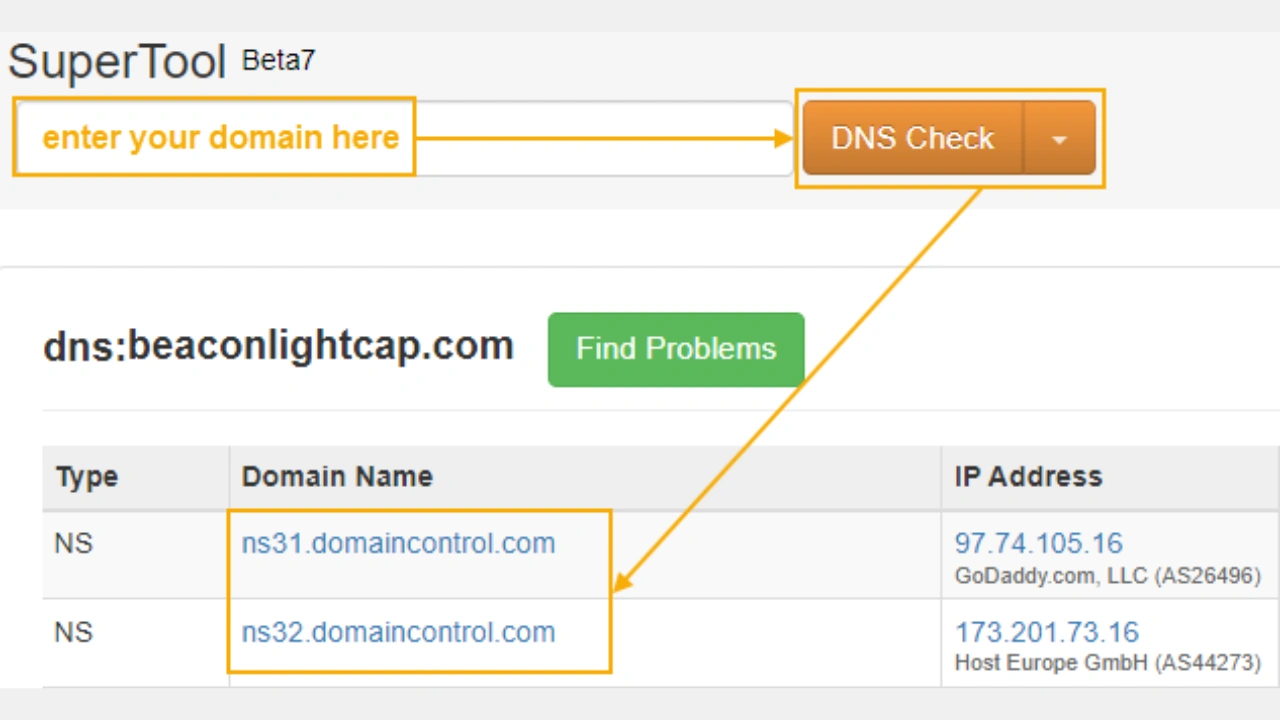
The first step is to determine which service is currently managing your DNS records. Knowing who’s in charge will help you decide the next steps. Here’s how to identify your DNS host:
Once you know where your DNS is hosted, you’ll be better positioned to decide whether to update the DNS settings or transfer them to your hosting provider.
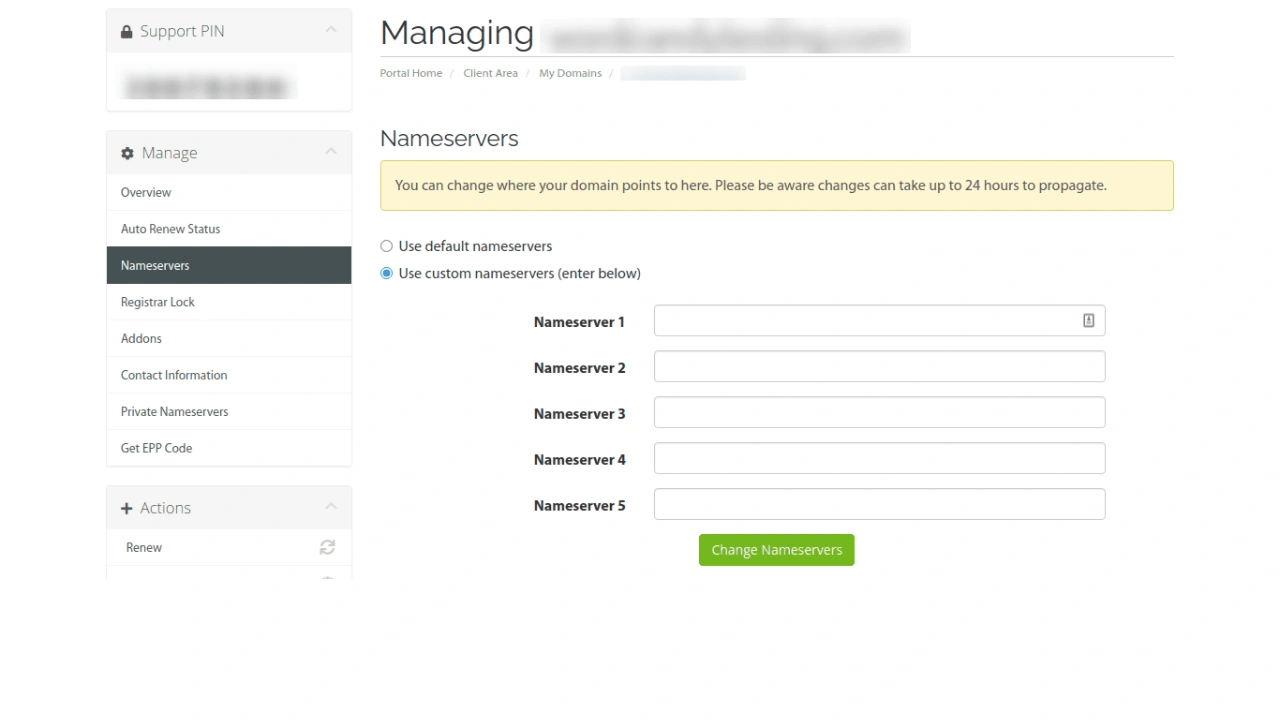
If your DNS is hosted elsewhere and you want to transfer it to your current hosting provider, you’ll need to update your domain’s name servers. Here’s how to do it:
Note: DNS changes can take some time to propagate across the internet. While this typically happens within a few hours, it can take up to 48 hours for the changes to fully propagate worldwide.
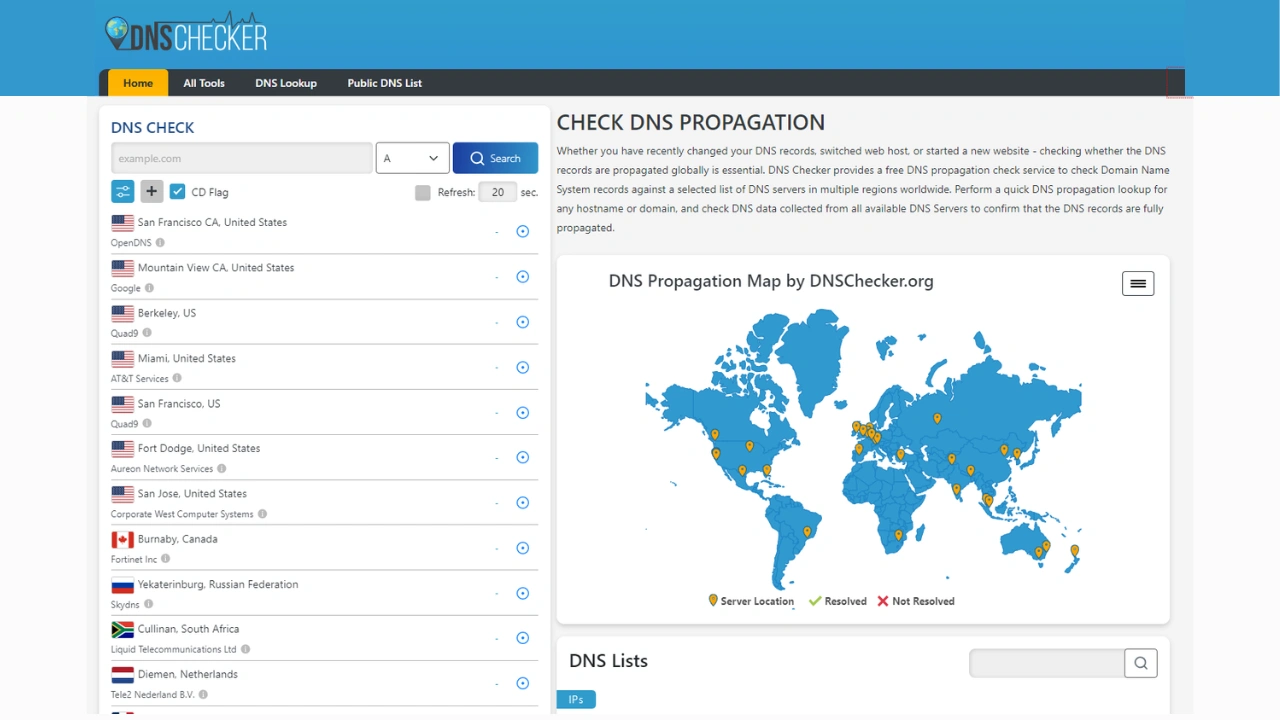
After you’ve updated your name servers, it’s crucial to ensure that the DNS settings have propagated correctly. You can do this by:
If the name servers haven’t propagated after 48 hours, double-check your settings and ensure they were entered correctly.
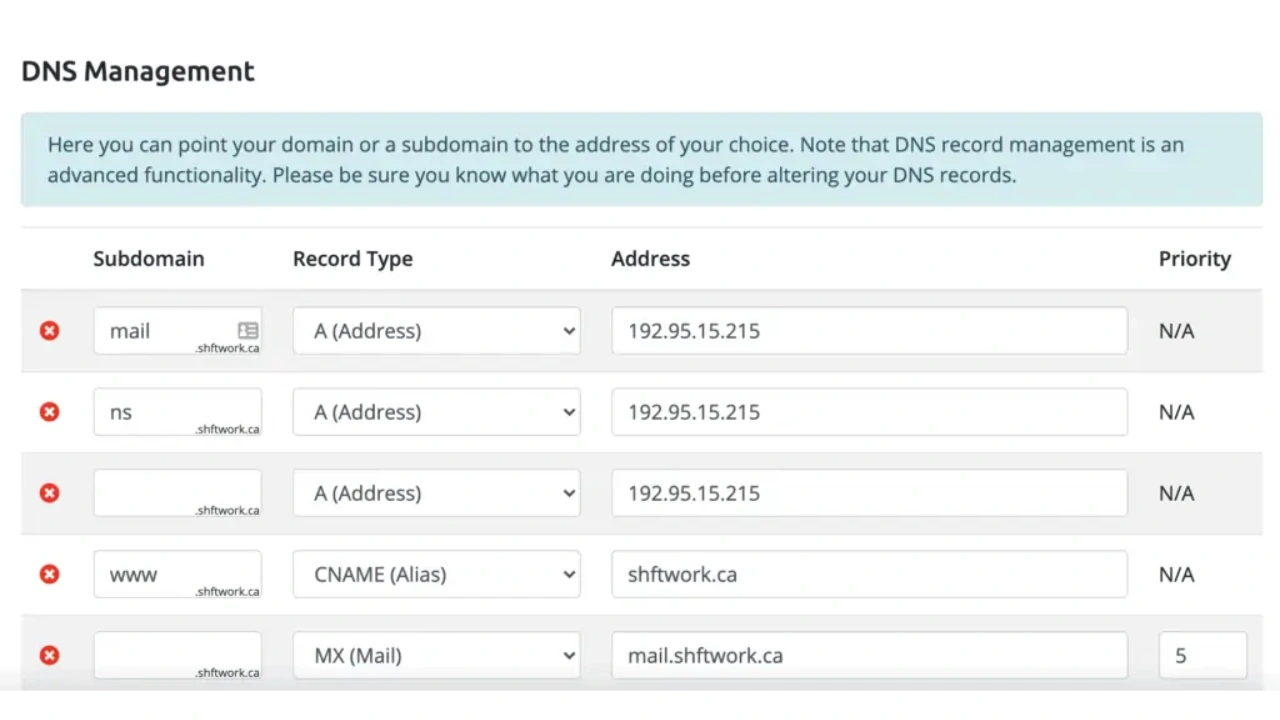
If you prefer not to transfer DNS management to your hosting provider, you can keep your DNS records with a third-party provider. However, you’ll need to manually configure the DNS records to point to your hosting provider. Here’s how:
By ensuring that all necessary DNS records are present, you’ll resolve the The DNS zone is not hosted with us issue.
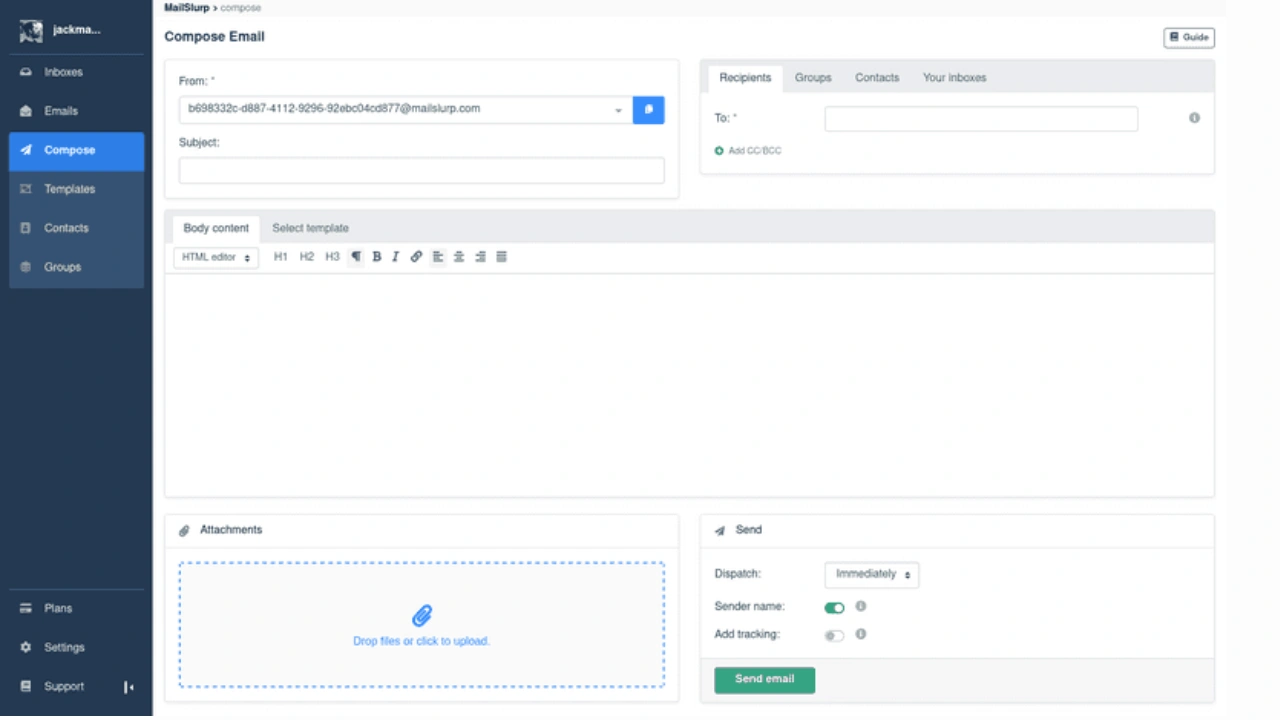
Once you’ve updated the DNS records or name servers, it’s time to test your website and email services:
If everything works, congratulations—you’ve successfully resolved the DNS issue!
The DNS system is critical to your website’s general functionality. Without properly configured DNS settings, your website may encounter downtime, email may not function properly, and SSL certificates may fail to validate. These errors can seriously interrupt the user experience and jeopardize your site’s reputation and functionality.
Understanding and addressing the “DNS zone is not hosted with us” issue ensures that your website is available to visitors and search engines alike. Proper DNS maintenance is critical for avoiding technical difficulties that could harm user experience, website speed, and SEO performance. If your DNS records are erroneous or obsolete, search engines may have difficulty crawling your website, resulting in lower rankings.
In addition, a well-managed DNS infrastructure contributes to your website’s security and resilience. When DNS difficulties are not handled, your website may become subject to cybersecurity threats such as DNS hijacking or phishing attempts. Ensuring your DNS records are under the control of a trusted hosting provider can safeguard your site’s infrastructure and data.
To avoid this issue in the future, follow these best practices:
Whenever you migrate your website to a new hosting provider, always update the DNS settings accordingly.
If you’re managing your domain, DNS, and hosting across different providers, it can create more points of failure. Consider consolidating services to one provider to streamline management.
After making DNS changes, always monitor propagation with online tools to ensure your records are updated correctly.
Many hosting providers offer DNS management tools that make it easier to configure and monitor your DNS settings.
It goes beyond simply resolving a technical issue to address the DNS zone of is not hosted with us issue and guarantee the smooth operation of your online presence. By taking the effort to fix DNS hosting issues, you may improve user experience overall as well as the dependability and speed of your website. A website that works well builds visitors’ trust and motivates them to come back.
Moreover, keeping your DNS settings aligned with your hosting provider can prevent potential complications in the future. In order to keep ahead of problems and maintain the security and accessibility of your website, you should regularly audit and monitor your DNS records.It’s always better to proactively manage your DNS settings than to react to problems as they arise, which can be disruptive and costly.
Maintaining the reputation and visibility of your brand in a highly competitive digital market requires keeping your website functioning properly. Your entire digital marketing approach can benefit greatly from a strong DNS management plan, which can also improve your site’s performance and search engine ranking.
A DNS hosted zone is a container that stores DNS records for a domain, such as A, CNAME, MX, and TXT records. It tells the internet where your website, email, and subdomains are located. Hosted zones are usually managed through your DNS provider or hosting service like Cloudflare, AWS Route 53, or cPanel.
This error usually means your domain does not have a DNS zone created or it’s hosted with another provider. Check your domain’s nameserver settings to ensure they point to the correct DNS provider. If you recently changed nameservers, allow up to 24–48 hours for DNS propagation to complete.
A locked DNS zone means the DNS records cannot be edited temporarily, usually due to ongoing updates, propagation, or provider restrictions. Some providers lock zones during DNS transfers or automated system tasks. Wait a few minutes and try again. If the lock persists, contact your hosting or DNS provider’s support team.
This error appears when your SSL provider can’t verify domain ownership because DNS records are not being served by the correct nameserver. Ensure your domain’s nameservers point to the correct DNS host and the required TXT or CNAME validation record is added. Give time for propagation and then retry certificate issuance.
A DNS Zone ID is a unique identifier assigned by DNS providers like Cloudflare, Route 53, or DigitalOcean to manage and reference your DNS zone programmatically. It’s used for API updates, automated record changes, or external integrations. You can usually find it inside your DNS dashboard under zone settings or details.
You can check whether DNS propagation is complete by using online DNS lookup tools or by querying DNS records from multiple global locations. Propagation is generally complete when the same IP address or DNS record is returned consistently across different regions and DNS servers.
This message means the DNS server you queried is not the official source for that domain’s DNS records. Instead, it is providing information from a cached copy or forwarding service. To get authoritative results, query the domain’s designated authoritative nameservers directly.
You can find a domain’s DNS server by checking its nameserver (NS) records. Use tools such as nslookup, dig, or an online DNS checker to view the authoritative nameservers responsible for managing the domain’s DNS settings.
The No valid nameservers responded error indicates that the domain’s configured nameservers are unreachable, misconfigured, or not responding to DNS queries. This can prevent the domain from resolving properly until the nameserver records are corrected and the DNS service becomes available again.

Elevate your WordPress hosting with 30-day money-back guarantee, free migration, and 24/7 support.
Sign Up Today


Before You Go… Get 1 Month FREE on Rocon Hosting!

Experience lightning-fast speeds

No downtime or hidden fees

Dedicated 24/7 expert support

Leave a Reply