How to Fix WordPress Image Import Connection Timed Out Error
June 3, 2026 Written by Nitish Kumar


June 3, 2026 Written by Nitish Kumar


Importing images from another WordPress website is usually a straightforward process, but sometimes it can fail with a Connection Timed Out error. When this happens, WordPress is unable to complete the image transfer within the allowed time, causing the import process to stop before all files are downloaded.
This issue is commonly caused by server resource limitations, network interruptions, large image files, restrictive firewall settings, or low PHP execution time limits. In some cases, the source website may respond slowly, making it difficult for WordPress to retrieve media files successfully.
A timeout error can be particularly frustrating when migrating content, importing blog posts, or moving a website to a new hosting environment. Incomplete image imports can leave broken media links and require additional manual work to restore missing files.
The good news is that most timeout issues can be resolved by adjusting server settings, increasing resource limits, optimizing image imports, or using alternative migration methods. In this guide, you’ll learn the most common causes of image import failures and the practical steps to complete the process successfully without interruptions.
A Importing Images From Another WordPress Blog Connection Timed Out error occurs when your server takes too long to respond to a request during the image import process. This timeout can be triggered by various factors:
Knowing these reasons is the first step to fixing the problem successfully.
With Roconpaas, our scalable resources and pro-active monitoring takes care of common causes of timeouts such as server overload and php limits so your site never stops.
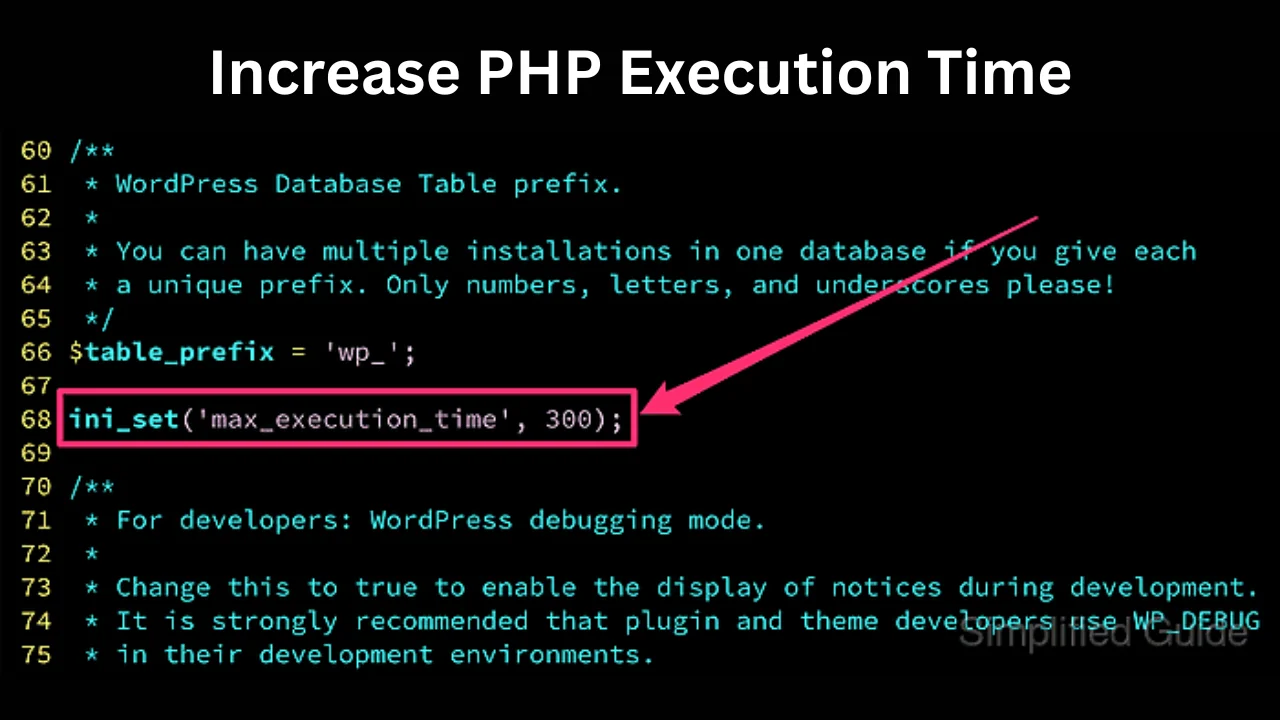
Increasing PHP execution time allows scripts more time to complete, reducing the likelihood of timeouts.
max_execution_time = 300
max_input_time = 300
php_value max_execution_time 300
Ensuring your server has adequate resources is crucial for handling large import tasks.
define(‘WP_MEMORY_LIMIT’, ‘256M’);
Reducing the size of your images can significantly decrease the load on your server during imports.
A stable internet connection is essential for successful image imports.
Importing a large number of images at once can overwhelm your server. Dividing the procedure into smaller parts can be helpful.
Server logs will tell you the root cause of the timeout error.
Regularly update WordPress, themes, and plugins to ensure optimal performance and compatibility.
CDNs can offload bandwidth usage from your server, speeding up file transfers and reducing the chances of timeouts.
Plugins for caching such as W3 Total Cache, have an impact on server load reduction. Static files are provided by these providers, which makes the website load faster..
Experiencing a Connection Timed Out error while importing images from another WordPress blog can be frustrating, but with the right strategies, it’s a manageable issue.
By increasing PHP execution time, optimizing server resources, reducing image sizes and having a stable internet connection you can troubleshoot and fix timeout errors. Also implementing best practices like using a CDN, keeping WordPress updated and using caching plugins will prevent future occurrences and image import will be smooth.
Image imports and performance without timeouts with Rocon Hosting. Sign up today and eliminate timeouts from your WordPress site.

Elevate your WordPress hosting with 30-day money-back guarantee, free migration, and 24/7 support.
Sign Up Today
September 28, 2026
Nitish

Before You Go… Get 1 Month FREE on Rocon Hosting!

Experience lightning-fast speeds

No downtime or hidden fees

Dedicated 24/7 expert support

Leave a Reply