How to Increase PHP Max Input Vars in WordPress
June 2, 2026 Written by Saurabh Rai


June 2, 2026 Written by Saurabh Rai


If you’ve ever made changes in WordPress only to find that some settings weren’t saved, the PHP Max Input Vars limit may be the reason. This server setting controls how many input variables PHP can process in a single request, making it especially important for large forms, page builders, WooCommerce stores, and feature-rich themes.
When the limit is set too low, WordPress may silently ignore part of the submitted data. This can result in missing menu items, unsaved theme options, incomplete form submissions, or configuration changes that fail to apply correctly.
The issue is more common on websites that rely on complex plugins, custom fields, or extensive admin settings. As your site grows, the default PHP limit may no longer be sufficient to handle the amount of data being submitted.
In this guide, you’ll learn what PHP Max Input Vars is, why it matters for WordPress performance and functionality, and how to safely increase the limit to prevent data loss and configuration issues.
Before diving into how to fix this issue, it’s essential to understand what PHP max input vars is. The Max Input Vars setting controls the maximum number of input variables that can be accepted by your server in a single request.
Input variables include form fields, user inputs, and data transferred through GET, POST, or COOKIE requests.
Think of it as the maximum amount of information your server can handle at once. If the form or data being submitted exceeds this limit, the server will stop processing the remaining data, which is why some form fields might not save or settings don’t apply correctly.
By default, many servers set this limit at 1000 input variables, which may be sufficient for small, simple websites but quickly becomes an issue for larger, more complex sites.
The PHP max input vars issue arises when your WordPress site attempts to handle more input variables than your server is configured to process. In simpler terms, it’s like trying to pour a gallon of water into a pint-sized cup—the system simply can’t handle the volume of data being submitted all at once.
When this happens, your server either truncates the data or fails to process it entirely, leading to incomplete form submissions, unsaved settings, or other disruptions in site functionality.
But what specifically causes this issue to crop up? There are several scenarios in WordPress where hitting the PHP Max Input Vars limit is particularly common:
As mentioned earlier, large WordPress themes and plugins like Elementor, Divi, or WPBakery often include dozens or even hundreds of customizable options. From typography settings to layout configurations, each setting adds another input variable to the mix.
When you hit the Save button to store these settings, WordPress sends all of them as a single request to your server. If the number of variables in this request exceeds the Max Input Vars limit, some options might not save correctly, leaving you wondering why your changes didn’t take effect.
Contact forms, registration forms, and even WooCommerce checkout pages are another culprit. Take, for example, a simple contact form where users are required to provide their name, email, subject, and message.
Now, imagine a registration form for a membership site that requires dozens of fields such as user roles, custom fields, and payment information.
Each of these fields is counted as an input variable, and when the total number exceeds the limit, the form submission can fail, leading to missing data or failed registrations.
For websites that offer content in multiple languages using plugins like WPML or Polylang, the number of input variables increases exponentially.
Each language version of a post, page, or taxonomy requires its own set of input fields. When you edit or save a page with multiple languages, the total number of variables can easily exceed the server limit.
For eCommerce websites, particularly those using WooCommerce, product variations (such as size, color, or material) add a significant number of input variables.
Each product variant requires its own data to be submitted when saving or editing a product. If you run a store with products that have multiple attributes and variations, you can quickly run into this issue.
Custom post types, taxonomies, and meta fields extend WordPress’s functionality, but they also increase the number of input variables. For instance, if you’re managing a portfolio, real estate site, or an event listing platform with custom fields for each post type, this can easily exceed the limit when you try to save or update your content.
Now that we understand what causes the PHP Max Input Vars issue, let’s walk through the steps to fix it. Thankfully, the solution involves increasing the Max Input Vars limit on your server, and this can be done in several ways.

The php.ini file is the main configuration file for PHP on your server. Here’s how to modify it:
max_input_vars = 3000
This increases the limit to 3000 input variables. You can adjust the number based on your website’s needs.
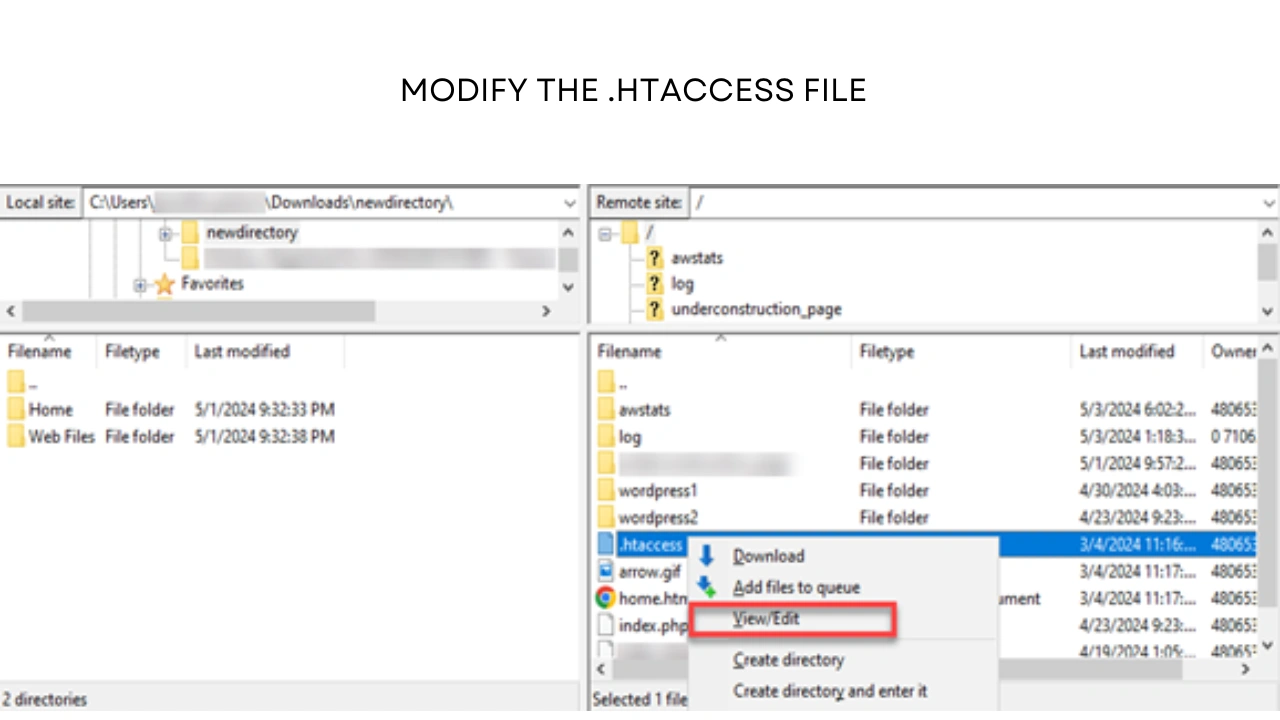
If you don’t have access to the php.ini file or you’re using a shared hosting environment, you can make changes via your .htaccess file:
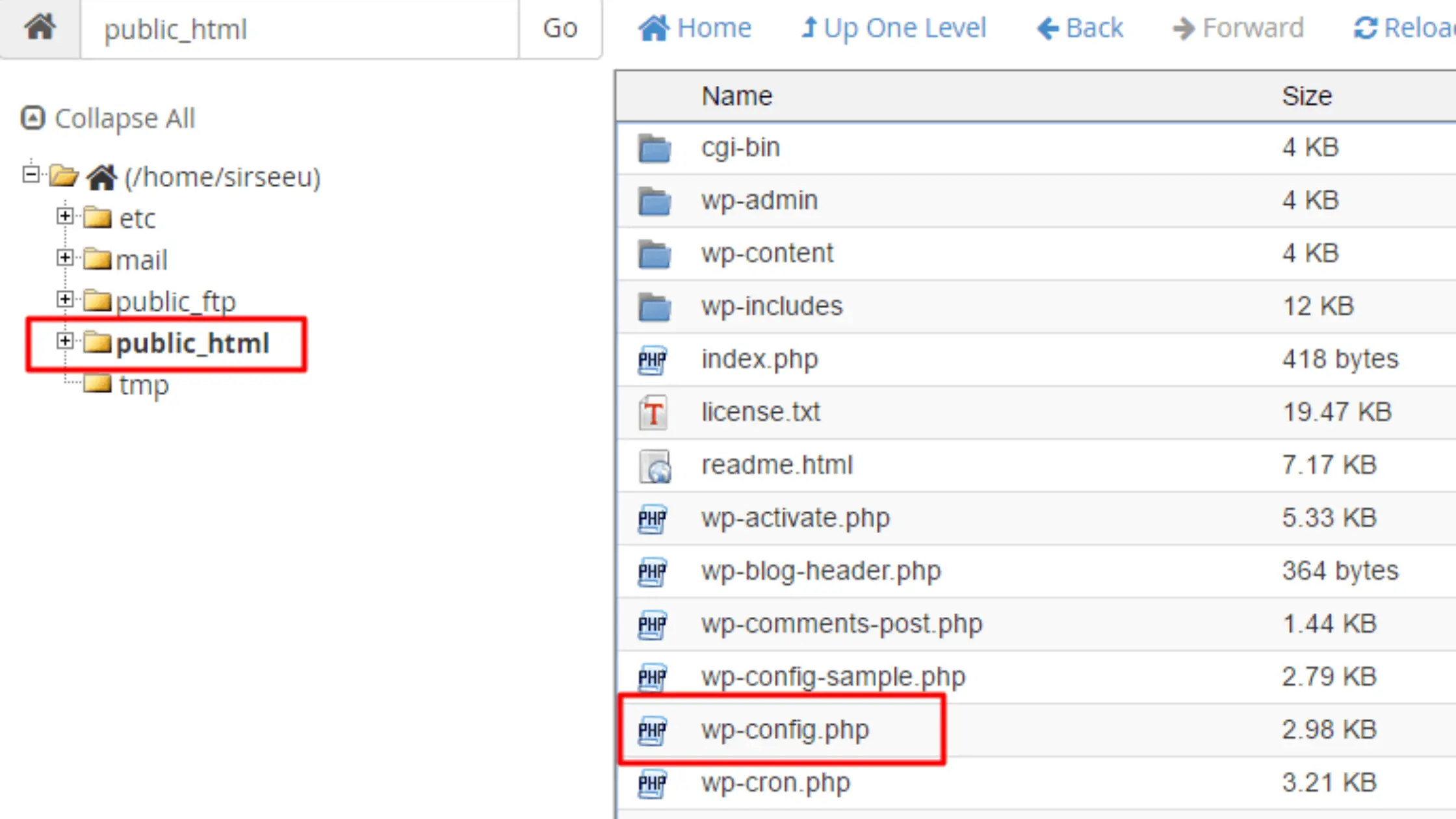
Another option is to adjust the settings directly in your WordPress configuration file:
If you’re on a managed WordPress hosting platform or don’t feel comfortable editing server files, you can always reach out to your hosting provider. Most hosting companies will adjust this setting for you if you explain the issue.
After making these changes, you’ll want to verify that the issue has been fixed.
While the PHP Max Input Vars limit is one important setting, you may also want to keep an eye on other PHP configurations that could impact your site’s performance:
To summarize, the key takeaways from this discussion are that addressing the PHP Max Input Vars issue is an essential step for ensuring your WordPress site runs smoothly, especially as it becomes more complex.
By increasing the limit, you can prevent frustrating issues like incomplete form submissions or unsaved theme and plugin settings, allowing your website to handle larger amounts of data without disruption.
As your site evolves—whether you’re managing intricate eCommerce setups, multilingual content, or custom fields—understanding this server setting will prove invaluable. Regularly reviewing and adjusting it ensures that your site continues to perform at its best as your needs grow.
Ultimately, resolving the Max Input Vars issue empowers you to maintain a functional and user-friendly website, no matter how many variables you’re working with. Implement the steps outlined in this guide, and you’ll have peace of mind knowing your site can manage its data efficiently.
The default PHP Max Input Vars value is usually 1000, although some hosting providers may use a higher or lower limit. This setting determines how many input variables PHP can process in a single request.
Common signs include WordPress settings not saving, missing menu items, incomplete form submissions, or theme options disappearing after you click Save. You can also check your server logs or use WordPress diagnostic tools to confirm whether the limit has been exceeded.
Increasing the limit slightly is generally safe for most websites. However, setting it excessively high may increase server memory usage. Most WordPress sites work well with values between 3000 and 5000 without experiencing performance issues.
Yes. Many hosting providers allow you to modify PHP settings through cPanel, Plesk, or a custom hosting dashboard. If the option isn’t available, you can contact your hosting provider and request that they increase the limit for you.
In most cases, increasing the PHP Max Input Vars limit has little to no impact on website performance. It simply allows PHP to process more form fields and settings in a single request, which is beneficial for larger WordPress websites and complex configurations.

Elevate your WordPress hosting with 30-day money-back guarantee, free migration, and 24/7 support.
Sign Up Today


Before You Go… Get 1 Month FREE on Rocon Hosting!

Experience lightning-fast speeds

No downtime or hidden fees

Dedicated 24/7 expert support

Leave a Reply