How to Resolve a 504 Gateway Timeout Error Quickly
June 3, 2026 Written by Saurabh Rai


June 3, 2026 Written by Saurabh Rai


A 504 gateway timeout error is an HTTP status code that occurs when one server does not receive a timely response from another server it depends on to complete a request. In simple terms, the connection between servers takes too long, causing the request to fail before a response can be delivered to the visitor.
You may encounter this error in several forms, including “504 Gateway Timeout,” “HTTP Error 504,” “Gateway Timeout Error,” or messages stating that a gateway or proxy server failed to receive a response from the upstream server. Regardless of the wording, they all indicate the same underlying communication issue.
Unlike browser-related errors, a 504 timeout is usually caused by server-side problems such as overloaded servers, network connectivity issues, DNS failures, firewall restrictions, or slow backend applications. Because the problem occurs between servers, visitors often have limited control over resolving it.
This error can appear on any website, browser, device, or platform. Understanding what causes a 504 timeout error is the first step toward diagnosing the issue, restoring normal functionality, and preventing future interruptions.
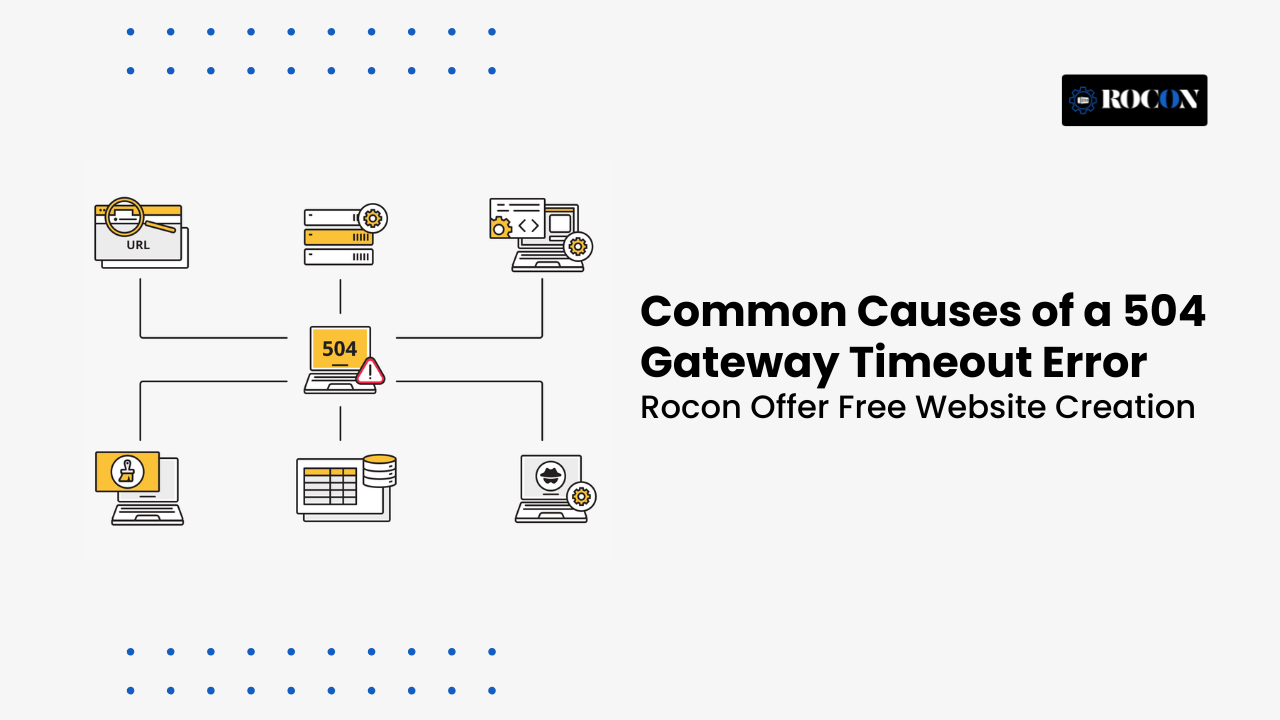
There are several potential reasons why a 504 Gateway Timeout error might occur. Understanding these causes is essential to diagnosing and resolving the issue. Here are some of the most common causes:
The most frequent cause of a 504 error is server overload. If the upstream server is handling more traffic than it can manage, it may fail to respond in time to the proxy server, resulting in a timeout. High traffic volumes, especially during peak periods, can cause server overload.
Problems with network connectivity between the proxy server and the upstream server can result in delays that trigger the 504 error. This could be due to network outages, faulty hardware, or poor routing between servers. Any disruption along the communication chain can lead to a timeout.
A Domain Name System (DNS) error can prevent the proxy server from reaching the upstream server. Incorrect DNS settings, unresolved DNS records, or DNS server downtime are common reasons for communication failures.
The upstream server may be down for maintenance, updates, or unexpected crashes. If the server is unavailable for any reason, the gateway server will not be able to connect, leading to a timeout.
Strict firewall or security configurations can block necessary connections between servers. Overly restrictive firewalls, misconfigured security protocols, or DDoS protection mechanisms can prevent the upstream server from responding to the proxy server, triggering the 504 error.
Some servers have short default timeout settings. If the timeout value is too low, even a slightly delayed response from the upstream server can lead to the 504 gateway timeout error. Adjusting timeout settings may prevent the error from occurring.
The 504 Gateway Timeout error can have several consequences, particularly when it comes to user experience, search engine rankings, and website performance. Let’s look at how this error impacts each aspect:
When users encounter a 504 error, they may become frustrated, especially if they are trying to complete a task like making a purchase or accessing important information. A website that regularly displays a 504 error may lose user trust, resulting in decreased traffic and engagement.
For e-commerce websites, the 504 Gateway Timeout error can lead to loss of sales. Users who encounter a timeout error during the checkout process may abandon their cart and move to a competitor’s website, leading to missed revenue opportunities.
Frequent 504 errors can negatively impact SEO performance. Search engines like Google prioritize websites that are fast, reliable, and responsive. When a search engine crawler encounters a 504 error while indexing a site, it may flag the website as unreliable. If the error persists, search engines may reduce the website’s rankings, resulting in decreased visibility in search results.
When users encounter a 504 Gateway Timeout error, they are likely to leave the website and go elsewhere, leading to an increase in the bounce rate. A high bounce rate is a negative signal for search engines and can affect a website’s overall ranking in search engine results.
Troubleshooting a 504 Gateway Timeout error involves a systematic approach to diagnose the root cause and implement the right solution. Here are several steps that you can take to troubleshoot the error:
The simplest solution is to refresh the page. Sometimes, the error is temporary, and reloading the page may allow the server to respond correctly. Users can press F5 or click the refresh button in their browser to try again.
If you are the website administrator, the next step is to check the server status. Verify whether the upstream server is online and responsive. If the server is down for maintenance or experiencing issues, you may need to wait until the server is back online or resolve any server-side issues.
Ensure that your DNS settings are configured correctly. Incorrect DNS records or misconfigured DNS settings can cause the proxy server to be unable to communicate with the upstream server. Verify that the DNS records are up to date and that DNS resolution is working properly.
Server logs can provide valuable information about what caused the 504 error. Reviewing the logs can help identify whether the server was overloaded, if there was a network connectivity issue, or if there was a security configuration problem.
Use tools like ping and traceroute to test the network connectivity between the proxy server and the upstream server. These tools can help identify if there are any network issues that might be causing the timeout error.
If the server is responding but not quickly enough, you may need to increase the timeout values on the proxy server or upstream server. Increasing the timeout setting allows more time for the server to respond and can help prevent timeouts caused by slow server performance.
Firewalls or security software may be preventing the necessary communication between the proxy and upstream servers. Review the firewall rules and security configurations to ensure that legitimate traffic is not being blocked.
If none of the above solutions resolves the issue, it may be necessary to contact your hosting provider for assistance. Hosting providers can help identify whether the issue is related to server performance, network connectivity, or DNS configuration.
While it’s impossible to completely eliminate the possibility of encountering a 504 error, there are several best practices that can help prevent the error from occurring frequently. Here’s what you can do:
Ensure that your servers are optimized to handle high traffic loads, especially during peak times. Implement caching mechanisms to reduce server load and improve response times. Upgrading server resources (CPU, RAM, storage) may also help prevent server overload.
Load balancers help distribute traffic across multiple servers, preventing any single server from becoming overloaded. By balancing the load, you can improve the overall performance of your website and reduce the likelihood of a 504 error occurring.
Use server monitoring tools to track server performance, resource usage, and network connectivity. Monitoring your server in real-time allows you to proactively address any issues before they result in a 504 error.
Ensure that your DNS records are kept up to date and that DNS servers are functioning correctly. Regularly check DNS settings to prevent any potential communication issues between the proxy and upstream servers.
A CDN helps distribute content across multiple servers globally, reducing the load on the origin server and improving website speed. CDNs can also improve server response times, which helps reduce the risk of timeout errors.
Redundancy is key to preventing downtime. Implement redundant servers or failover systems so that if one server fails, another can take over without disrupting service. This ensures that users won’t experience timeouts even if one server is down.
A 504 gateway timeout error can disrupt website performance, frustrate visitors, and negatively impact search engine rankings if it occurs frequently. Since the error indicates a communication failure between servers, identifying the root cause quickly is essential to minimize downtime and maintain a smooth user experience.
The most effective way to resolve 504 errors is to systematically check server resources, network connectivity, DNS settings, firewall rules, and application performance. Monitoring server logs and optimizing slow processes can help prevent timeout issues from recurring in the future.
Regular maintenance, proper server configuration, and proactive performance monitoring are key to keeping your website stable and responsive. By addressing potential bottlenecks before they become critical, you can reduce the likelihood of 504 Gateway Timeout errors and ensure a reliable experience for your visitors.
A 504 Gateway Timeout error occurs when a server takes too long to respond to another server’s request. It’s usually caused by server overload, misconfigured proxy settings, DNS issues, or slow scripts that prevent a timely response between the origin and gateway servers.
Not necessarily. A 504 error often happens due to server or hosting issues, not something you did wrong. However, heavy plugins, large database queries, or misconfigured caching on your website can contribute to delays that trigger this timeout error.
You can’t “turn off” a gateway timeout directly, but you can fix it by increasing server timeout limits, optimizing website performance, checking DNS settings, and ensuring your hosting server isn’t overloaded or blocking requests from the gateway.
To prevent 504 errors, use a reliable hosting provider, optimize your website for speed, enable caching, and monitor server performance. Also, configure your DNS properly and ensure your server timeout settings are sufficient for heavy traffic or resource-intensive operations.

Elevate your WordPress hosting with 30-day money-back guarantee, free migration, and 24/7 support.
Sign Up Today
September 28, 2026
Nitish

Before You Go… Get 1 Month FREE on Rocon Hosting!

Experience lightning-fast speeds

No downtime or hidden fees

Dedicated 24/7 expert support

Leave a Reply