How to Change the Product Page Tabs Titles in WordPress
June 22, 2026 Written by Nitish Kumar


June 22, 2026 Written by Nitish Kumar
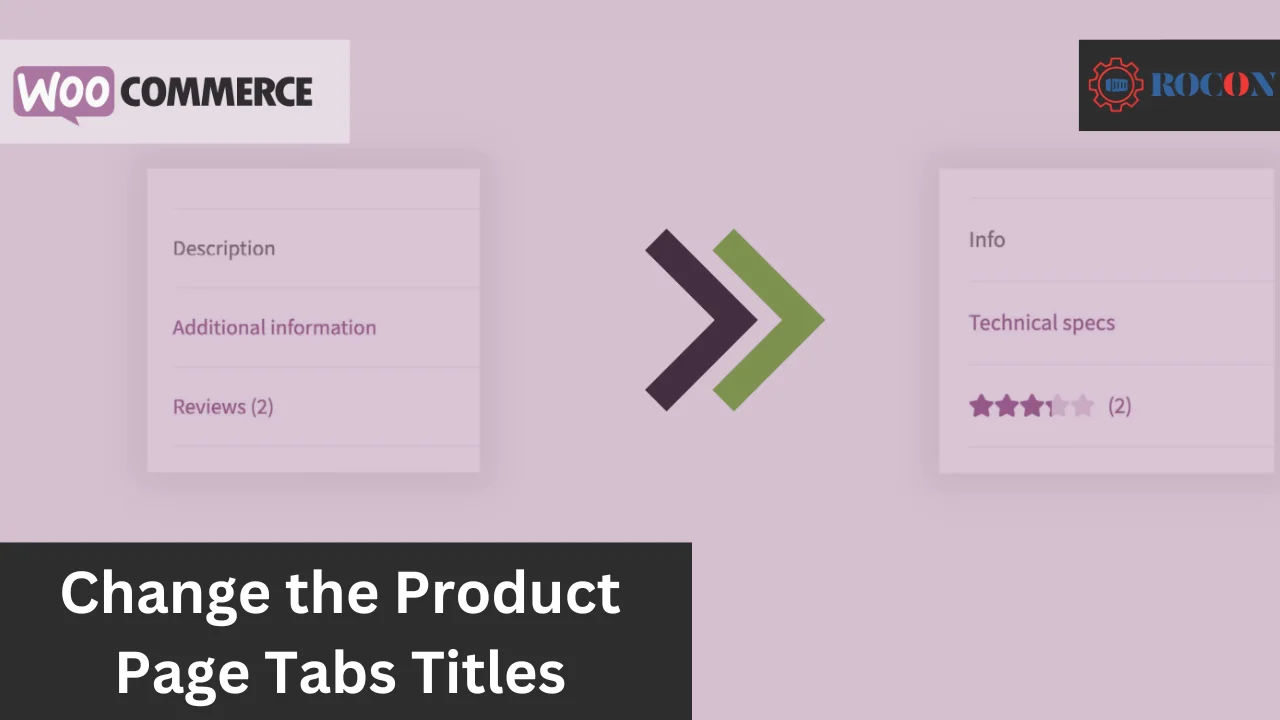


How to change the product page tabs titles in WordPress is a common WooCommerce customization task, especially when the default tab names—like Description, Additional Information, and Reviews—don’t match the tone of your store or the way you want to present product details. Renaming these tabs can make your product pages feel more polished, easier to understand, and better aligned with your brand voice.
The good news is that WooCommerce makes this fairly flexible. You can change product tab titles with a small code snippet, or use a plugin if you’d rather avoid editing theme files. In this guide, we’ll walk through both approaches so you can choose the one that fits your workflow and customize your WooCommerce product tabs with confidence.
WooCommerce’s default tab titles like Description, Additional Information,n, and Reviews are functional but may not fit your brand’s voice or goals. Here’s a deeper look into why you might want to change them:
Your product pages are part of your business. Generic titles like Description work but why not give them a personal touch? Changing Description to Product Story or Details You’ll Love can reflect your brand and make pages more interesting. This little tweak helps to reinforce your brand and makes your site unique.
Default titles are too vague sometimes. For example, Additional Information might confuse customers. Rename it to Specifications or Product Details so users can find what they need quickly. Clear titles help navigation so customers stay focused on what matters most—your products.
Using keyword-rich titles in product tabs can boost your site’s search engine optimization (SEO). For example, change the Description to Organic Cotton Shirt Overview and target specific terms users are searching for and drive more traffic to your site.
Cool or intuitive tab titles make for a smoother shopping experience. A well-thought-out tab structure makes browsing your site more enjoyable and reduces friction which can lead to higher conversion rates. For example, rename Reviews to Customer Feedback and users will engage more.
Customizing tab titles is a small but nice way to upgrade your WooCommerce product pages, functional and with a bit of flair.
To keep your WooCommerce tabs up to date and in line with your business:
Testing and maintenance will keep your product pages user-friendly, visually appealing, and SEO-optimized.
Before you rename your WooCommerce product tabs, preparation is everything. Let’s get started:
Making changes, especially to code, can go wrong. A backup means you can revert to the previous state if something goes wrong. Use UpdraftPlus or BackupBuddy to back up your whole site and database. Store the backup off-site in a secure location like Google Drive or Dropbox.
For what reason are you renaming the tabs? To give your store a unique voice and be consistent with your brand? to include keywords for SEO? make it user-friendly and easy to navigate? It’s easier to make changes your audience will care about when you have a purpose.
Before you change your live site. Most hosting companies like Rocon and WP Engine have staging options. This way you can test and improve while keeping your live store safe.
By following these steps you’ll have a smooth transition and protect your site and user experience.
If you know PHP, this method allows you to control the tab titles exactly how you want.
Launch functions.php.
Open the WordPress dashboard and log in. In Appearance > Theme Editor, select functions.php first. Here, you can customize your theme.
To rename the Description tab, use the following:
Copy code
The method rename_description_tab ($tabs) Add_filter('rename_description_tab','woocommerce_product_tabs'); ['description'] $tabs;'Overview' = ['title']; // Return $tabs; Here, adjust the title.
To go to a different tab, replace ‘description’ with ‘ reviews’ or ‘additional_information’.
Click the Update File button when done.
Pro Tip: If you want to deal with custom templates or need to manage multiple tab changes use this. It’s plugin-free and lightweight.
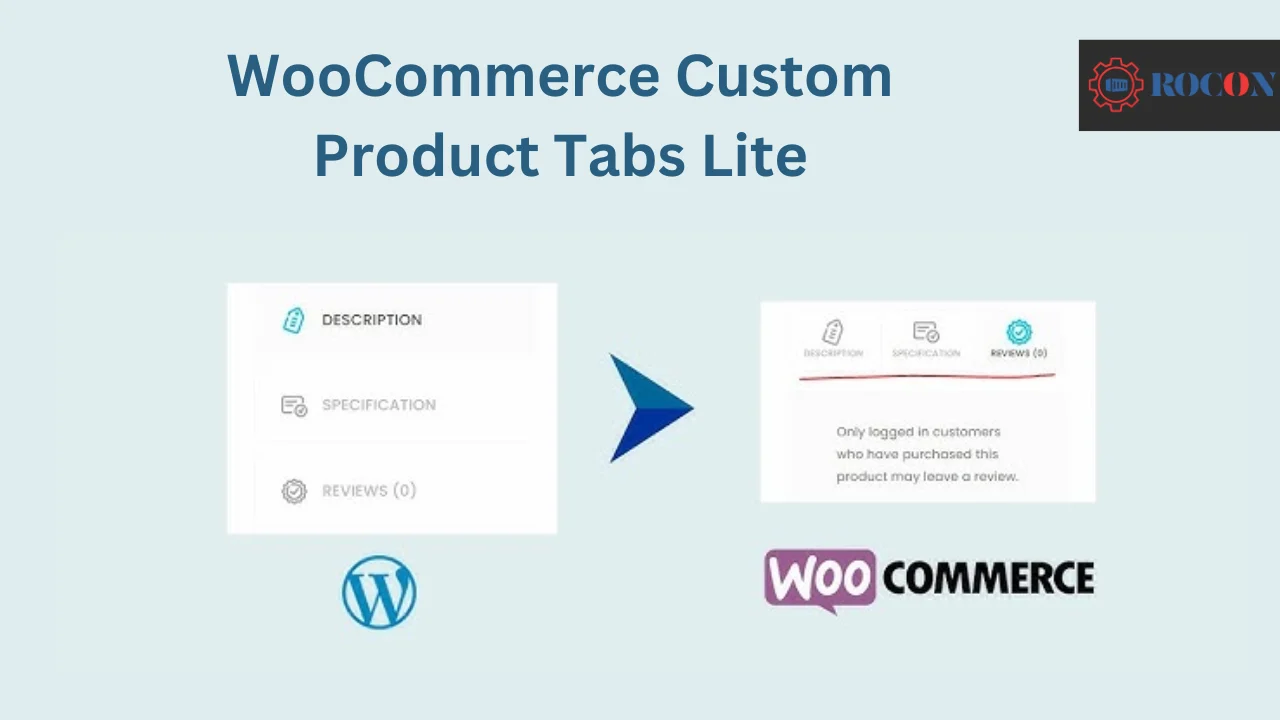
If you do not know how to code, plugins such as WooCommerce Custom Product Tabs Lite can assist you manage tabs.
Install the plugin.
To install “WooCommerce Custom Product Tabs Lite”, navigate to Plugins → Add New in your dashboard and click Install Now. After installation, activate the plugin.
Navigate to WooCommerce → Settings → Products → Custom tabs. Here, you can quickly manage current tabs and create new ones.
Locate the tab you wish to rename inside the plugin settings. Update the title directly in the editor.
Click Save and your changes will be live on your product pages.
Plugins provide a simple interface for managing tabs without coding. Beyond renaming, plugins like this allow you to reorder tabs and add custom tabs with rich information, so they’re quite versatile for user experience.
In any case, your WooCommerce product tabs may now be customized to match your brand and assist consumers with navigation.
Now that you’ve renamed your WooCommerce product page tabs you need to confirm everything functions as planned. Here’s how:
To keep your WooCommerce tabs focused and connected to your business goals:
Testing and maintenance will keep your product pages user-friendly, looking good and SEO.
Changing WooCommerce product tab titles is a small customization, but it can make your product pages clearer, more on-brand, and easier for shoppers to navigate. Well-written tab labels help customers find the information they need faster, whether that’s product details, sizing guidance, FAQs, or shipping information.
Whether you choose a code-based method or a plugin, the goal is the same: make your product page tabs work better for your store and your customers. Just be sure to test the changes after updating the titles, especially if you’re using a custom theme or multiple WooCommerce extensions. With the right tab names in place, your product pages can feel more polished and more useful without requiring a full redesign.
Yes, you can change WooCommerce product tab titles without coding by using a plugin such as WooCommerce Custom Product Tabs Lite or a similar tab manager plugin. This is the easiest option for store owners who don’t want to edit theme files, and it lets you rename default tabs or add custom ones directly from the WordPress dashboard.
The best way to change WooCommerce product tab titles depends on how comfortable you are with customization. If you want a lightweight, flexible solution and don’t mind editing code, using a functions.php snippet is a solid approach. If you prefer a beginner-friendly method with less risk, a WooCommerce tab plugin is the easier and safer choice.
Yes, you can use both custom code and WooCommerce tab plugins to create custom product tabs, not just rename the default ones. This is useful if you want to add tabs for sizing charts, shipping details, ingredients, FAQs, warranty information, or any other product-specific content that helps shoppers make a buying decision.
Renaming WooCommerce product tabs can help SEO indirectly if the new titles make the content clearer and more relevant to what customers are searching for. Descriptive tab names like Shipping Information, Size Guide, or Product Details can improve usability and help organize on-page content better, but the main SEO value still comes from the quality of the content inside the tabs rather than the tab title alone.
Yes, you can change WooCommerce product tab titles for specific products, but this usually requires either custom PHP code or a plugin that supports per-product tab customization. This is useful when different product categories need different tab labels, such as using Ingredients for food products and Specifications for electronics or hardware items.
Yes, you should always test WooCommerce tab title changes before applying them to your live store, especially if you’re editing code or using multiple plugins that affect product pages. Testing on a staging site helps you catch theme conflicts, layout issues, or broken tabs early so you can make changes safely without affecting the shopping experience for real customers.

Elevate your WordPress hosting with 30-day money-back guarantee, free migration, and 24/7 support.
Sign Up Today
November 6, 2026
Sreekar
Before You Go… Get 1 Month FREE on Rocon Hosting!

Experience lightning-fast speeds

No downtime or hidden fees

Dedicated 24/7 expert support

Leave a Reply