How to Access an FTP Website in Minutes: Complete Guide
June 12, 2026 Written by Ankit Kumar


June 12, 2026 Written by Ankit Kumar
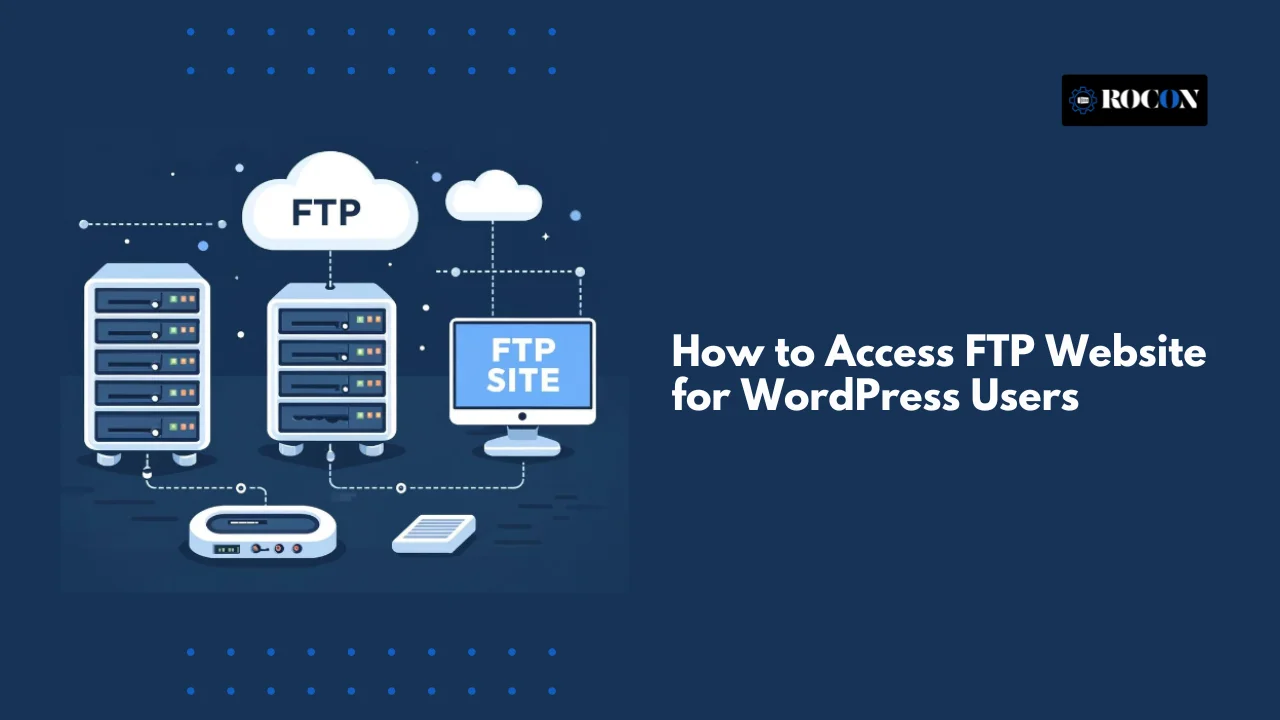


Knowing how to access an FTP website is an essential skill for website owners, developers, and administrators who need direct access to their website files. FTP, or File Transfer Protocol, allows you to connect to your web server, upload and download files, edit website content, manage backups, and troubleshoot issues that may not be accessible through a hosting control panel.
Unlike browser-based file managers, FTP provides a more efficient way to work with website files, especially when handling large uploads, theme modifications, plugin installations, or website migrations. Whether you’re maintaining a personal blog, business website, or multiple client projects, FTP gives you greater control over your hosting environment.
To access an FTP website, you’ll need an FTP client, such as FileZilla, Cyberduck, or WinSCP, along with the connection credentials provided by your hosting provider. These typically include the server hostname, username, password, and port number. Once connected, you can securely manage files and directories directly on the server.
In this guide, you’ll learn how to connect to an FTP website step by step, where to find your FTP credentials, how to use popular FTP clients, important security recommendations, and common troubleshooting tips to help ensure a smooth and reliable connection experience.
FTP, or File Transfer Protocol, is a standard network protocol that allows you to transfer files between your local computer and your web server. In simpler terms, it’s like a bridge that gives you direct access to your website’s files, folders, and directories. For WordPress users, understanding how to access FTP website is essential for managing content, troubleshooting errors, and performing advanced customizations.
FTP gives you access to all WordPress files, including core files, themes, plugins, and media uploads. Unlike the WordPress dashboard, which restricts certain actions, FTP allows you to manipulate files directly, giving you greater control over your site.
If your WordPress site encounters critical errors—like the white screen of death, plugin conflicts, or PHP errors—FTP enables you to access and modify files even when the admin dashboard is inaccessible. You can deactivate plugins, replace corrupted files, or restore backups with ease.
With FTP, you can download full copies of your WordPress files and save them locally. This ensures you always have a backup, which is crucial before making major updates, customizing themes, or installing new plugins.
Developers often use FTP to upload custom themes, tweak CSS/JS files, and implement advanced site modifications. While the WordPress editor is limited, FTP provides a flexible environment for deeper customization.
Secure FTP connections (SFTP/FTPS) encrypt your data transfer, protecting sensitive website information like login credentials and configuration files from unauthorized access.
While traditional FTP is widely used, it does not encrypt the data transmitted between your computer and the server. This means sensitive information, like usernames and passwords, could potentially be intercepted.
SFTP (Secure File Transfer Protocol) addresses this issue by encrypting the connection, making it the recommended choice for WordPress users who prioritize security. Most modern hosting providers, including Rocon, default to SFTP for secure file transfers, giving you peace of mind while managing your website.
Understanding FTP is the first step in efficiently managing your WordPress site. It empowers you to handle issues quickly, implement changes safely, and maintain complete control over your website’s files.
Accessing your website via FTP requires an FTP client—a software application that acts as the bridge between your local computer and your web server. Choosing the right FTP client is essential to ensure secure, reliable, and efficient file transfers.
Always opt for an FTP client that supports SFTP or FTPS. These protocols encrypt your connection, safeguarding your sensitive data, such as login credentials and website files, from potential hackers. Security should never be compromised, especially when handling WordPress core files or configuration files.
A clear and intuitive interface can save time and prevent mistakes. Look for FTP clients with drag-and-drop functionality, easy navigation, and clear file/folder displays. This is particularly helpful for beginners or non-technical users.
Ensure the client is compatible with your operating system—Windows, macOS, or Linux—and can integrate with your workflow. Some clients also support multiple simultaneous connections, which speeds up large file transfers.
Features like directory synchronization, bookmarking, file editing, and transfer resume capabilities enhance efficiency and make management smoother. For WordPress sites, features like automatic file permissions detection can prevent permission-related errors.
Selecting the right FTP client reduces the risk of file corruption, accidental deletion, and slow transfers.
It also ensures that your workflow is streamlined, saving time when performing backups, updates, or troubleshooting errors. A secure and reliable FTP client lays the foundation for efficient website management.
Before diving into FTP access, it’s essential to ensure you have the right tools, credentials, and permissions. Preparing in advance will make the process seamless and secure.
To access your website via FTP, you need a dedicated client—software that connects your local computer to your server. Popular FTP clients include:
Each of these clients supports SFTP, ensuring your data transfers remain encrypted. Download these tools only from their official websites to avoid security risks.
To connect via FTP, you’ll need credentials from your hosting provider. These typically include:
Rocon users, for example, can find these details in the Sites → Domains Hosted section of the dashboard. If you’re unsure, contact your hosting support for assistance.
Having the correct file permissions is critical for effective FTP management. Without them, you may face errors such as Permission Denied when uploading, editing, or deleting files. Key considerations include:
Correct permissions not only allow smooth file management but also help maintain website security, reducing the risk of unauthorized access.
Pro Tip: Always keep your FTP credentials secure. Never share your username or password, and consider using strong, unique passwords to protect your WordPress site from potential threats.
Accessing your website using FTP is a straightforward process once you have the right credentials and an FTP client installed. This section will guide you step-by-step, ensuring secure and smooth connectivity.
Before connecting, you need specific information from your hosting provider:
Tip: For WordPress sites, always prefer SFTP for secure, encrypted connections.
In your FTP client:
Once entered, click Connect or Quickconnect.
Pro Tip: Avoid modifying core files unless necessary. Focus on wp-content for themes, plugins, and media.
Always disconnect after completing your work. Leaving an FTP session open can be a security risk.
Using FTP is usually straightforward, but beginners and even experienced users can encounter issues. Understanding common errors and their solutions ensures uninterrupted access to your website files.
Problem: Your FTP client cannot connect, and the session times out.
Problem: “530 Login authentication failed” or similar messages.
Problem: Unable to upload or modify files; “550 Permission Denied” error.
Problem: Connection fails due to SSL certificate issues; common with SFTP over FTPS.
Problem: “Could not connect to server” error.
Problem: Upload or download freezes mid-transfer.
Pro Tip: Always keep a backup before attempting file modifications via FTP. Many errors are reversible, but a backup ensures you won’t lose data during troubleshooting.
FTP is a powerful tool, but it can expose your website to security risks if not managed properly. Following best practices ensures your website files remain safe while using FTP.
Why: Traditional FTP transfers data in plain text, including your username and password. This makes it vulnerable to interception.
Solution: Use SFTP (Secure File Transfer Protocol) or FTPS (FTP over TLS/SSL), which encrypts your data during transmission, keeping your credentials and files secure.
Why: Weak passwords are the easiest way for attackers to gain access.
Why: Unrestricted FTP accounts increase the risk of unauthorized access.
Why: Even strong passwords can be compromised.
Solution: Enable 2FA for your hosting account and FTP client if supported. This adds an extra layer of security, requiring both a password and a verification code to log in.
Why: Detecting suspicious activity early can prevent breaches.
Why: Outdated FTP clients or server software can have security vulnerabilities.
Why: Restricting access by IP reduces the attack surface.
Why: Even with the best security, mistakes or breaches can occur.
Pro Tip: Using managed WordPress hosting like Rocon provides built-in security measures, automated backups, and alerts, reducing the complexity of securing FTP access.
While FTP is a powerful and reliable method for managing WordPress files, it’s not the only option available. Depending on your comfort level, security preferences, or hosting setup, you may find these alternatives more convenient or better suited for your workflow.
Most hosting providers, including shared and managed WordPress hosts, offer cPanel or a similar control panel that includes a File Manager. This web-based tool allows you to manage all your website files directly from your browser.
If you prefer staying within the WordPress dashboard, there are plugins designed for file management. WP File Manager is one of the most popular, allowing you to view, upload, download, and edit files without leaving your WordPress admin panel.
| Method | Security | Ease of Use | Best Use Case |
| FTP/SFTP | High (SFTP recommended) | Moderate | Full control, advanced file management |
| cPanel File Manager | Moderate | High | Quick edits, small uploads/downloads |
| WordPress File Manager Plugin | Moderate to Low | High | Beginners, small file changes from dashboard |
FTP remains the most versatile method for file management, especially for advanced users. However, cPanel File Manager or trusted WordPress plugins provide accessible alternatives that can simplify routine tasks without requiring FTP clients. Choosing the right method depends on your skill level, security priorities, and the type of changes you need to make.
FTP provides a reliable way to access and manage your WordPress website files, especially when you need to troubleshoot issues, update files, or restore backups. It gives you direct control over your site even if the WordPress dashboard is unavailable.
While FTP is a powerful option, alternatives like cPanel File Manager and WordPress file management plugins can be more convenient for users who prefer a browser-based approach. Regardless of the method you choose, always create backups before making changes and use secure connections such as SFTP whenever possible.
By learning how to use FTP safely, you can manage your WordPress site more efficiently, resolve problems faster, and maintain better control over your website.
The easiest way to access an FTP website is by using a user-friendly FTP client such as FileZilla. You simply enter the FTP host, username, password, and port provided by your hosting provider to connect and manage website files directly.
You can find your FTP details inside your hosting control panel, usually under FTP Accounts or File Manager. These details are also commonly included in the welcome email sent by your hosting provider after account setup.
If you don’t want to use FileZilla, you can access your FTP website using alternatives like Cyberduck or WinSCP. Many hosting providers also offer a browser-based File Manager, allowing you to manage files without installing any software.
FTP access is safe only when using SFTP, which encrypts data during transfer. For better security, always use strong passwords, limit FTP user permissions, and remove unused FTP accounts to prevent unauthorized access.
To access a WordPress site via FTP, use your hosting FTP credentials and connect through an FTP client. Once connected, navigate to the /wp-content/ directory to manage themes, plugins, and uploads.
Standard FTP connections use port 21, while secure FTP connections using SFTP use port 22. Most modern hosting providers recommend SFTP for improved security.
FTP access may fail due to incorrect login credentials, firewall or antivirus restrictions, wrong port settings, or temporary server downtime. Double-check your credentials and try switching to SFTP if issues persist.
Beginners don’t need FTP access for daily website tasks, but it becomes essential during troubleshooting, plugin conflicts, or when the website dashboard is inaccessible. Knowing basic FTP usage helps handle emergencies confidently.

Elevate your WordPress hosting with 30-day money-back guarantee, free migration, and 24/7 support.
Sign Up Today
September 28, 2026
Nitish

Before You Go… Get 1 Month FREE on Rocon Hosting!

Experience lightning-fast speeds

No downtime or hidden fees

Dedicated 24/7 expert support

Leave a Reply