Can Users Install Applications on WordPress? Here’s How
August 10, 2026 Written by Maria


August 10, 2026 Written by Maria
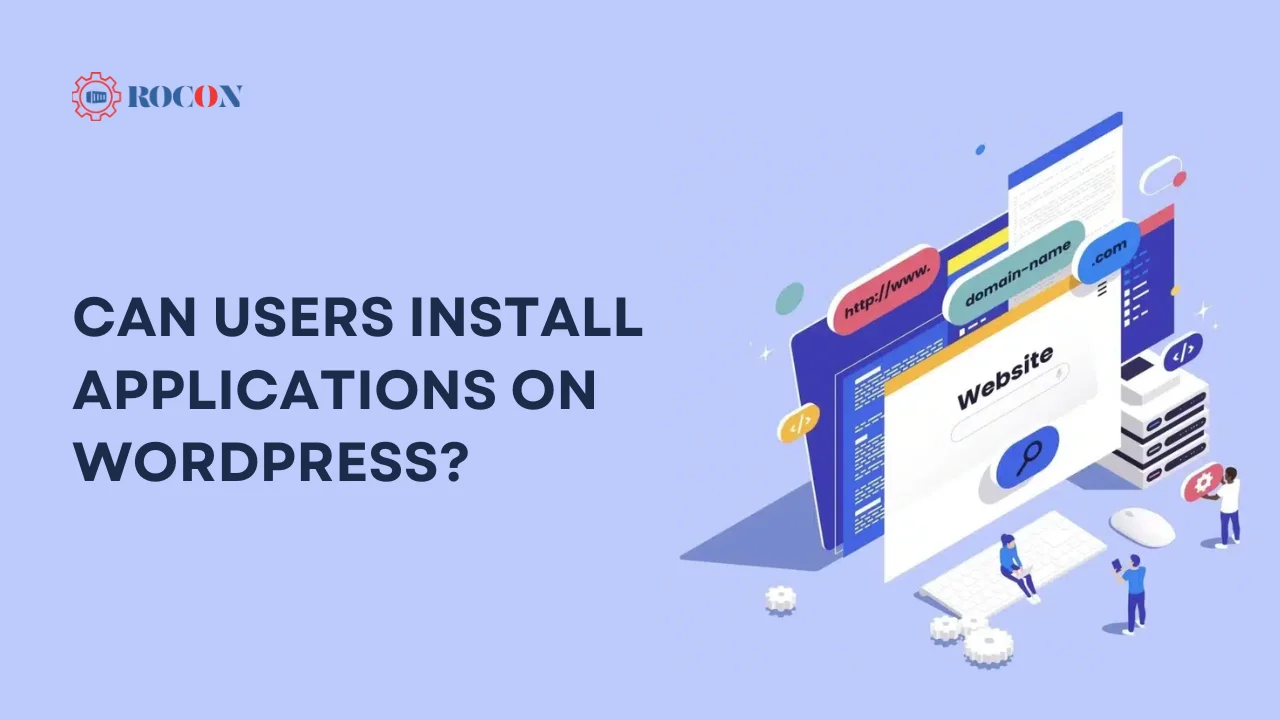


Can users install applications on WordPress? Yes, but WordPress works a little differently from a traditional operating system. Instead of installing desktop-style applications, you can add new features through plugins, themes, and integrations. These can help you add contact forms, SEO tools, security features, online stores, analytics, bookings, and much more.
For example, a business website might use a form plugin to collect enquiries, while an online store can use WooCommerce to sell products. This flexibility is one of the main reasons WordPress is used for so many different types of websites.
However, not every plugin or integration is worth installing. Poorly maintained plugins can create security risks, compatibility problems, or unnecessary website bloat. It’s important to check when a plugin was last updated, whether it supports your WordPress version, and whether it comes from a trusted source.
In this guide, we’ll explain what users can install on WordPress, how plugins and themes work, the differences between WordPress.org and WordPress.com, and how to add new features without putting your site’s security or performance at risk.
Before we get too far, let’s clear up one of the most important questions: Are you on WordPress.com or WordPress.org? Because that will majorly impact your ability to install applications.
If you’re on WordPress.com, your site is fully hosted. So you don’t have to worry about servers, backups or updates – sounds good right? But here’s the catch: you have limited control over what you can add to your site.
In short, if your site needs more complex applications, WordPress.com might not be the best choice.
Now, WordPress.org is where things get fun! Here you can install pretty much anything you want—custom themes, plugins, or even code modifications. You’re in the driver’s seat, but with great power comes great responsibility.
But you’ll have to manage things like updates, security and performance. So if you like the idea of full control and have the know-how (or are willing to learn), WordPress.org is your playground.
When we talk about installing apps on WordPress we’re talking about plugins and themes, which are the tools to supercharge your site.
Plugins: These are mini apps that add new functionality to your site. Need to optimise your SEO, add social sharing buttons or a contact form? There’s a plugin for almost everything!
Themes: These control the design and layout of your site. Looking to change your site’s appearance? Choose a theme, customize it, and make it align with your brand’s style.
Both plugins and themes can be installed directly from your WordPress dashboard, making the process simple and user-friendly. This lets you customize your website without knowing how to code.
Plugins are fantastic for adding new features and functionality to your site. Here’s a step-by-step guide to get you started:
Themes allow you to change the design and layout of your website with just a few clicks. Here’s how to do it:
Even with the flexibility and power WordPress offers, some common missteps can impact site performance, security, and usability. You may save time and maintain the functionality of your website by avoiding these errors.
Here, we’ll discuss several common mistakes that people miss, such as using too many plugins, failing to perform compatibility checks, and not updating your site, and the potential consequences.
Too many plugins can slow down your WordPress site and increase security vulnerabilities. Each plugin uses resources and too many plugins can cause performance issues. Focus on essentials and avoid duplication, keep it lean so visitors have a faster, smoother experience and the site is more reliable.
Installing incompatible plugins or themes can cause errors, broken features and even crashes. Since WordPress updates frequently, always check if a new plugin or theme supports the current WordPress version. Compatibility checks prevent functionality conflicts and keep your site stable, so you don’t have disruptions and your site is reliable.
Updates bring security, performance and new features improvements. Ignoring updates for WordPress, plugins or themes exposes your site to vulnerabilities. Regular updates keeps you protected from known threats, your site is secure and running smooth. Automating updates helps you stay up to date and reduce maintenance hassles.
To keep your WordPress site running smoothly you need to follow a few application management best practices. Let’s get into the key steps to keep your site secure, fast and user friendly.
Backups are essential to your site data. Using plugins like UpdraftPlus or BackupBuddy makes the process easy and automated. Backups allow you to recover your site quickly if something goes wrong – whether it’s an update, a new plugin or a security issue. Back up your site before any major changes, including updates or new installations and store copies in secure off site locations like cloud storage.
Adding new plugins, themes or custom code can sometimes conflict with your existing setup and cause problems. Testing new additions on a staging site first can save you from these surprises. Staging sites are a copy of your live site where you can safely try out changes before applying them to your main site. Many hosting providers offer staging environments or you can use plugins like WP Staging to create one yourself.
Monitoring performance metrics is key since site speed affects both SEO and user experience. You can find parts of your website that’s slowing you down with tools like Google PageSpeed Insights, GTmetrix and Pingdom. Regularly checking and improving plugin load times, caching and image sizes will go a long way in keeping your website fast.
These recommended practices are essential for keeping a WordPress website secure, optimized, and prepared to manage expansion.
Yes, you can add apps and extra features to a WordPress website, but the process depends on which WordPress platform you use.
WordPress.com offers a simpler, managed experience, while WordPress.org gives you more control over plugins, themes, hosting, and customization. If you want greater flexibility and don’t mind handling more of the technical side, WordPress.org is usually the better option.
Before installing any plugin or third-party tool, check its reviews, update history, compatibility, and security. A few well-chosen plugins can add useful features without slowing down or putting your website at risk.
Plugins add specific features to your WordPress site, such as SEO optimization or contact forms, whereas themes control the design and layout of your site. Plugins and themes work together to customize both functionality and appearance.
It depends on your plan. The Free and Personal plans on WordPress.com don’t allow custom plugins. To access a larger selection of plugins, you’ll need the Business or eCommerce plan. For full plugin control, consider WordPress.org.
Check the plugin or theme’s description on the WordPress plugin repository, which usually lists compatible WordPress versions. You can also view compatibility information in the WordPress dashboard when searching for or installing plugins.
Skipping updates can lead to security vulnerabilities, performance issues, and outdated features. Updates often include critical patches and improvements, so it’s essential to keep WordPress, plugins, and themes up to date.
Yes, you can migrate your site from WordPress.com to WordPress.org to gain more control over your plugins, themes, and site customization. It requires a hosting provider and may involve a learning curve, but it offers greater flexibility.
It’s recommended to back up your site at least weekly or before any major changes, such as installing new plugins or updates. Using a plugin like UpdraftPlus can help automate and schedule regular backups.
Ankit is a technical content writer at Rocon, a container-based managed WordPress hosting platform built for performance, scalability, and security. He specialises in breaking down complex WordPress topics — from plugin management to architecture — helping users of all levels make informed decisions.

Elevate your WordPress hosting with 30-day money-back guarantee, free migration, and 24/7 support.
Sign Up Today
November 6, 2026
Sreekar
Before You Go… Get 1 Month FREE on Rocon Hosting!

Experience lightning-fast speeds

No downtime or hidden fees

Dedicated 24/7 expert support

Leave a Reply