Can I Separate a Website from a WordPress Multisite?
July 7, 2026 Written by Nitish Kumar


July 7, 2026 Written by Nitish Kumar


Can I separate a website from a Multisite site? Yes, you can. WordPress allows you to move an individual website out of a Multisite network and convert it into a standalone installation. Whether you’re handing the site over to a client, upgrading to dedicated hosting, or simply want more control, the migration is possible with the right approach.
A WordPress Multisite network is designed to manage multiple websites from a single dashboard, making it easier to control users, plugins, themes, and updates. While this setup works well for many organizations, there are situations where an individual website outgrows the network and needs to operate independently.
Separating a site from a Multisite network requires more than copying files. You’ll need to migrate the database, media library, themes, plugins, and settings while ensuring everything continues to work correctly. Proper planning helps prevent common issues such as broken links, missing images, or SEO disruptions after the move.
In this guide, you’ll learn how to separate a website from a WordPress Multisite network step by step. We’ll cover the preparation process, migration methods, common challenges, and best practices to help you move your website safely with minimal downtime.
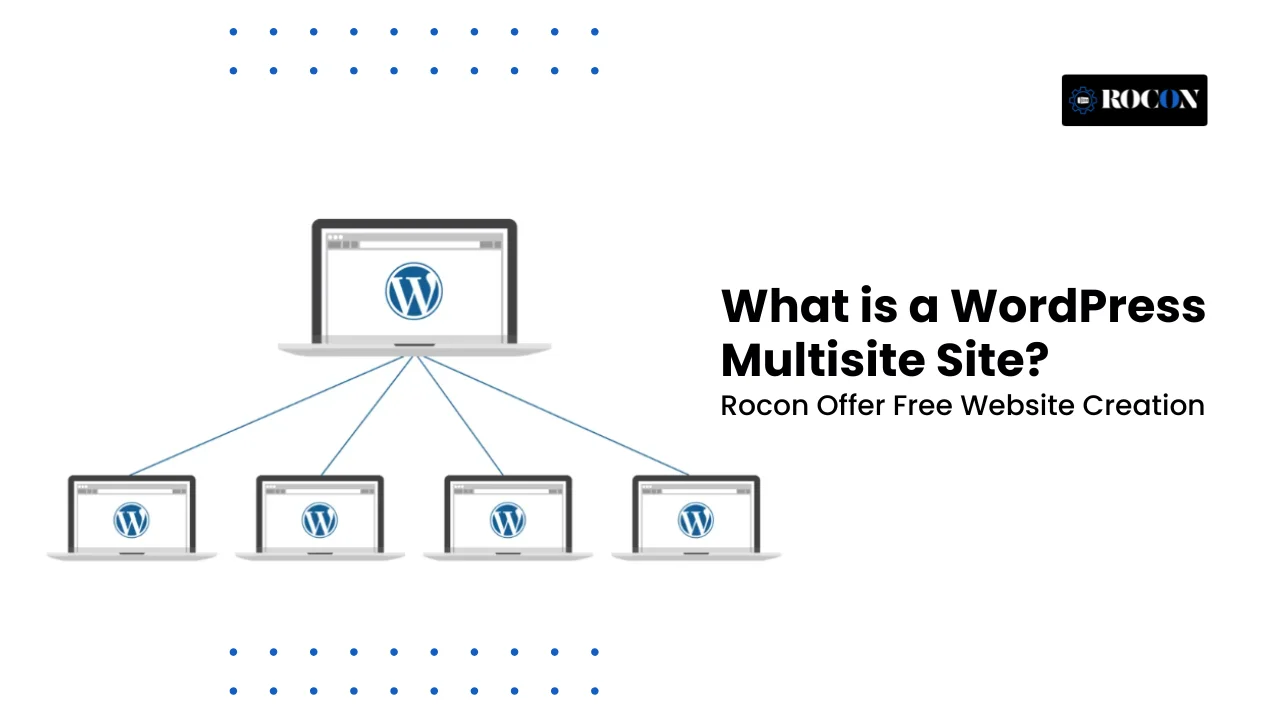
Before diving into the separation process, it’s essential to understand what a WordPress Multisite network is. WordPress Multisite allows you to run multiple websites from a single WordPress installation. This functionality is extremely valuable for organizations, enterprises, or people who administer many websites and want to improve their workflow.
In a multisite network, all sites use the same core WordPress files, plugins, and themes. Nonetheless, it is a flexible and well-coordinated option for administering several sites because the content, settings, and user accounts are controlled independently.
While a Multisite network offers convenience and centralized management, there are scenarios where separating a website becomes necessary:
Before proceeding with the separation, consider the following:
The first step is to export the content from the site you want to separate. This can be done using the built-in WordPress Export tool.
Next, you’ll need to set up a new WordPress installation where the separated site will be hosted.
Now that you have a new WordPress installation, it’s time to import the content.
The next step is to set up the same themes and plugins used on the original site.
Once the site is fully set up on its new server, you must update any internal links to point to the correct URLs.
Testing is crucial to ensure that the site functions as expected after the separation.
After successfully migrating and testing the site, you can deactivate and remove it from the Multisite network.
Separating a website from a WordPress Multisite network can be the right choice if you need greater control, independent management, or a dedicated hosting environment. While the process involves exporting data, migrating files, and reconfiguring your new installation, careful planning makes the transition much smoother.
Before you begin, create a complete backup, prepare your new hosting account, and test every part of the migrated website after the move. Don’t forget to update internal links, configure redirects, and verify your SEO settings to protect your search rankings and provide a seamless experience for visitors.
Once the migration is complete, you’ll have the freedom to manage your website independently, install any themes or plugins you need, and optimize the site without affecting other websites in the multisite network. This flexibility makes future maintenance, scaling, and customization much easier.
Whether you’re separating a client website, launching an independent business site, or simplifying website management, following the right migration process will help you move with confidence and keep your website performing at its best.
Yes, you can separate a website from a WordPress Multisite network without losing data if you create a complete backup and follow the migration process carefully. Testing the new website before making it live helps ensure your posts, media files, users, and settings transfer correctly without unexpected issues.
Yes. A website using a custom domain can be separated from a WordPress Multisite network. After migrating the site, you’ll need to update the domain’s DNS settings so it points to the new hosting server and verify that SSL, redirects, and permalinks are working properly.
Users are not always transferred automatically during a Multisite migration. Depending on the migration method you use, you may need to export user accounts, recreate them manually, or use a migration plugin that supports user data to preserve access permissions.
Yes, but the process is more complex than separating a website. Reintegrating a standalone site usually requires importing its database, copying media files, updating URLs, and carefully mapping users and site settings to avoid conflicts within the Multisite network.
It can, but the impact is usually minimal if the migration is handled correctly. Setting up 301 redirects, updating internal links, submitting a new XML sitemap, and verifying the website in Google Search Console will help preserve your rankings and maintain organic traffic after the move.

Elevate your WordPress hosting with 30-day money-back guarantee, free migration, and 24/7 support.
Sign Up Today
November 6, 2026
Sreekar
Before You Go… Get 1 Month FREE on Rocon Hosting!

Experience lightning-fast speeds

No downtime or hidden fees

Dedicated 24/7 expert support

Leave a Reply