Roconpaas

Blog

How to Fix WordPress Image Import Connection Timed Out Error

June 3, 2026 Written by Nitish Kumar

WordPress Keeps Logging Me Out

Importing images from another WordPress website is usually a straightforward process, but sometimes it can fail with a Connection Timed Out error. When this happens, WordPress is unable to complete the image transfer within the allowed time, causing the import process to stop before all files are downloaded.

This issue is commonly caused by server resource limitations, network interruptions, large image files, restrictive firewall settings, or low PHP execution time limits. In some cases, the source website may respond slowly, making it difficult for WordPress to retrieve media files successfully.

A timeout error can be particularly frustrating when migrating content, importing blog posts, or moving a website to a new hosting environment. Incomplete image imports can leave broken media links and require additional manual work to restore missing files.

The good news is that most timeout issues can be resolved by adjusting server settings, increasing resource limits, optimizing image imports, or using alternative migration methods. In this guide, you’ll learn the most common causes of image import failures and the practical steps to complete the process successfully without interruptions.


Understanding the Connection Timed Out Error

A Importing Images From Another WordPress Blog Connection Timed Out error occurs when your server takes too long to respond to a request during the image import process. This timeout can be triggered by various factors:

  1. Server Overload: High traffic or too many concurrent requests can overwhelm your server, causing delays.
  2. Network Instability: An unstable internet connection can disrupt the communication between servers.
  3. PHP Timeout Settings: Insufficient PHP execution time settings can prevent scripts from completing their tasks.
  4. Large Image Files: Importing high-resolution images or numerous files simultaneously can exceed server limits.

Knowing these reasons is the first step to fixing the problem successfully.

With Roconpaas, our scalable resources and pro-active monitoring takes care of common causes of timeouts such as server overload and php limits so your site never stops.
Step-by-Step Guide to Resolving Importing Images From Another WordPress Blog Connection Timed Out

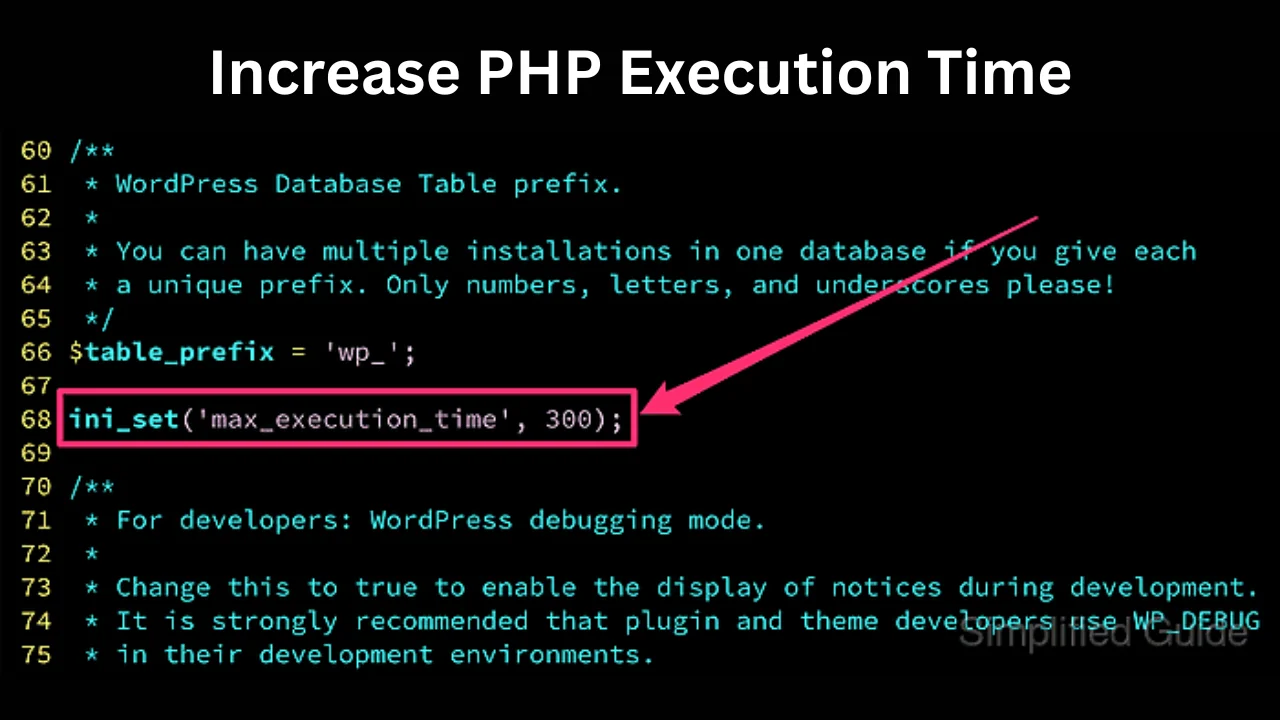
1. Increase PHP Execution Time

Increase PHP Execution Time

Increasing PHP execution time allows scripts more time to complete, reducing the likelihood of timeouts.

  • Modify php.ini File:
    • Access your server via FTP or a file manager.
    • Locate and open the php.ini file.
    • Add or update the following lines:

max_execution_time = 300

max_input_time = 300

  • Save the changes and restart your server if necessary.
  • Edit .htaccess File:
    • If you don’t have access to php.ini, add the following code to your .htaccess file:

php_value max_execution_time 300

  • Save the file and upload it to your server.
  • Use a Plugin:
    • Install a plugin like WP Maximum Execution Time Exceeded.
    • Configure the plugin to set the execution time to a higher value, such as 300 seconds.

2. Optimize Server Resources

Ensuring your server has adequate resources is crucial for handling large import tasks.

  • Upgrade Hosting Plan:
    • If you’re on a shared hosting plan, consider upgrading to a VPS or dedicated server for better performance and more control over server resources.
  • Increase Memory Limit:
    • Add the following line to your wp-config.php file:

define(‘WP_MEMORY_LIMIT’, ‘256M’);

  • This increases the PHP memory limit to 256MB, which can help handle larger import processes.

3. Optimize Image Size

Reducing the size of your images can significantly decrease the load on your server during imports.

  • Use Image Optimization Plugins: Plugins like Smush or EWWW Image Optimizer can automatically compress images without compromising quality.
  • Resize Images: Ensure your images are appropriately sized for web use. A maximum width of 1920 pixels is usually sufficient for most websites.

4. Ensure a Reliable Internet Connection

A stable internet connection is essential for successful image imports.

  • Switch to a Wired Connection: Use an Ethernet connection instead of Wi-Fi to minimize the risk of connection drops.
  • Check Network Speed: Use tools like Speedtest to verify that your internet speed is adequate for large file transfers.

5. Break Down the Import Process

Importing a large number of images at once can overwhelm your server. Dividing the procedure into smaller parts can be helpful.

  • Import in Phases: Instead of importing all images simultaneously, import them in smaller groups to reduce server load.
  • Use Command Line Tools: For advanced users, WP-CLI (WordPress Command Line Interface) can automate and expedite the import process, making it more efficient.

6. Monitor and Troubleshoot Server Logs

Server logs will tell you the root cause of the timeout error.

  • Access Error Logs: Check the error logs in your hosting control panel or via FTP. Look for PHP, timeout or resource errors.
  • Contact Hosting Support: If you’re unable to identify the issue, reach out to your hosting provider’s support team. They can help you debug server settings and adjust accordingly.

Additional Tips for Preventing Future Timeouts

Keep WordPress Updated

Regularly update WordPress, themes, and plugins to ensure optimal performance and compatibility.

Use a Content Delivery Network (CDN)

CDNs can offload bandwidth usage from your server, speeding up file transfers and reducing the chances of timeouts.

Implement Caching

Plugins for caching such as W3 Total Cache, have an impact on server load reduction. Static files are provided by these providers, which makes the website load faster..

What We Have Learned

Experiencing a Connection Timed Out error while importing images from another WordPress blog can be frustrating, but with the right strategies, it’s a manageable issue. 

By increasing PHP execution time, optimizing server resources, reducing image sizes and having a stable internet connection you can troubleshoot and fix timeout errors. Also implementing best practices like using a CDN, keeping WordPress updated and using caching plugins will prevent future occurrences and image import will be smooth.

Image imports and performance without timeouts with Rocon Hosting. Sign up today and eliminate timeouts from your WordPress site.

Frequently Asked Questions (FAQs)

1. What should I do if I keep getting the “Connection Timed Out” error?

If you repeatedly see a Connection Timed Out error during image imports, check your server resource limits, increase PHP execution time, and verify that the source website is accessible. If the problem continues, contact your hosting provider to investigate server-side restrictions or network issues.

2. Is there a way to import images without facing timeouts?

Yes. Using a dedicated migration or import plugin can make the process more reliable. Reducing image file sizes before importing and importing content in smaller batches can also help prevent timeout errors.

3. How do I know if my hosting plan is causing the issue?

Your hosting plan may be the cause if you frequently experience timeouts, slow imports, failed uploads, or resource limit warnings. Reviewing server resource usage or consulting your hosting provider can help determine whether an upgrade is necessary.

4. Can caching plugins affect the image import process?

Yes. Some caching plugins can interfere with imports by serving outdated content or blocking background requests. Temporarily disabling caching during the import process can help eliminate potential conflicts.

5. Are there alternative methods to import images from another WordPress blog?

Yes. You can manually transfer images using FTP, use migration plugins, or import media through WP-CLI. These methods often provide more control and can be useful when standard import tools encounter errors.

6. Does the size of individual images affect timeout errors?

Yes. Larger image files require more processing time and server resources, increasing the likelihood of a timeout. Compressing and optimizing images before importing can improve performance and reduce the chance of failed transfers.

Avatar photo

Nitish Kumar

Nitish is a Content Strategist and SEO Writer with 6+ years of experience. He specializes in keyword research, on-page SEO, and long-form content that ranks and gets read. He's written across hosting, SaaS, and tech niches, and knows how to take a dense technical topic and turn it into something people actually want to read.

Start the conversation.

    Leave a Reply

    Your email address will not be published. Required fields are marked *

    Recommended articles

    WordPress

    Why Managed Kubernetes is Future of WordPress Hosting

    Ankit