Where is the Publish in the New WordPress?
August 13, 2026 Written by Saurabh Rai


August 13, 2026 Written by Saurabh Rai


If the WordPress Publish button is missing, it can be confusing, especially if you’re used to an older version of the editor. WordPress has changed the editing interface over time, and the Publish option may look different or appear in a different place depending on the editor and screen size you’re using.
In the Block Editor, publishing a post or page is still straightforward. The editor also gives you options to save a draft, schedule a post, change its visibility, or publish it immediately. The problem is usually finding the right control when the editor doesn’t look the way you expect.
The Publish button can also seem to disappear because of the browser window size, editor settings, user permissions, plugin conflicts, or other changes in the WordPress admin area.
In this guide, we’ll show you where to find the Publish button in WordPress and what to check when it isn’t visible. We’ll also cover a few simple fixes so you can get back to publishing your content.
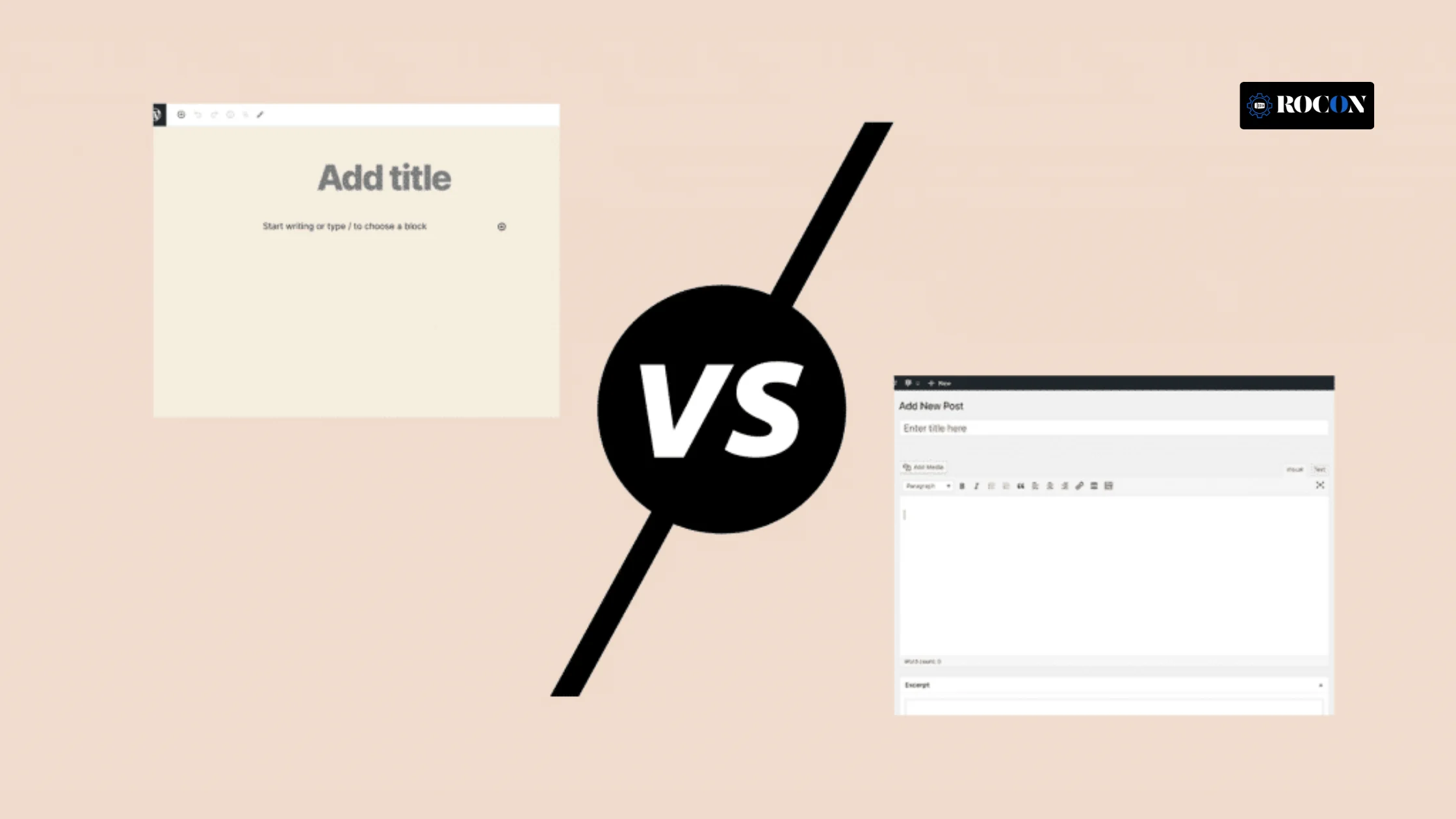
Before looking for the missing Publish button, it helps to know which WordPress editor you’re using. The location and layout are different in the Classic Editor and the Gutenberg Block Editor.
If you’re used to the Classic Editor, the Gutenberg layout can take a little time to get used to. Once you know which editor you’re working with, finding the Publish button is much easier.
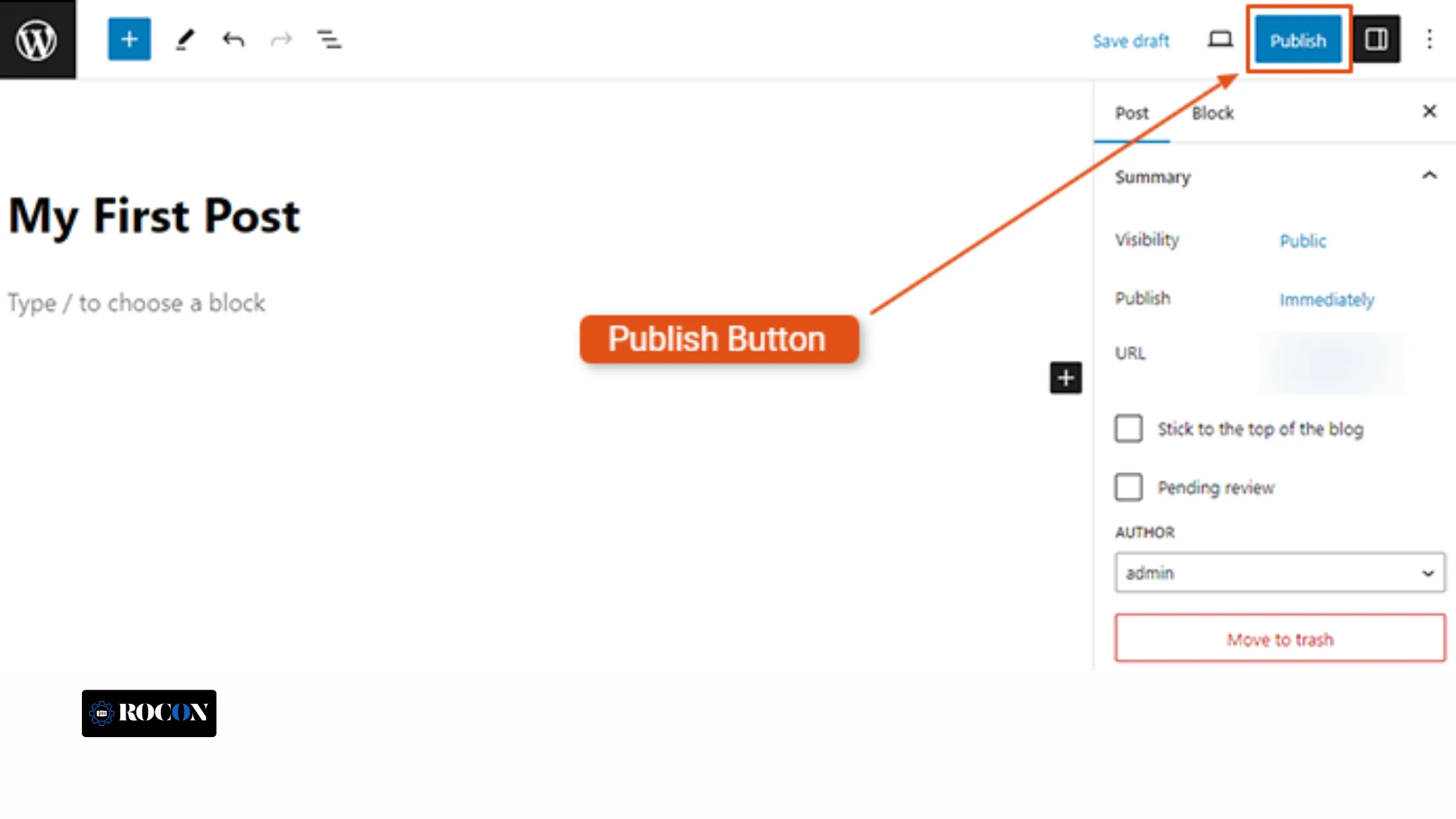
The Gutenberg Block Editor changes how users interact with WordPress posts and pages. Here’s how to locate and use the publish button in the new interface:
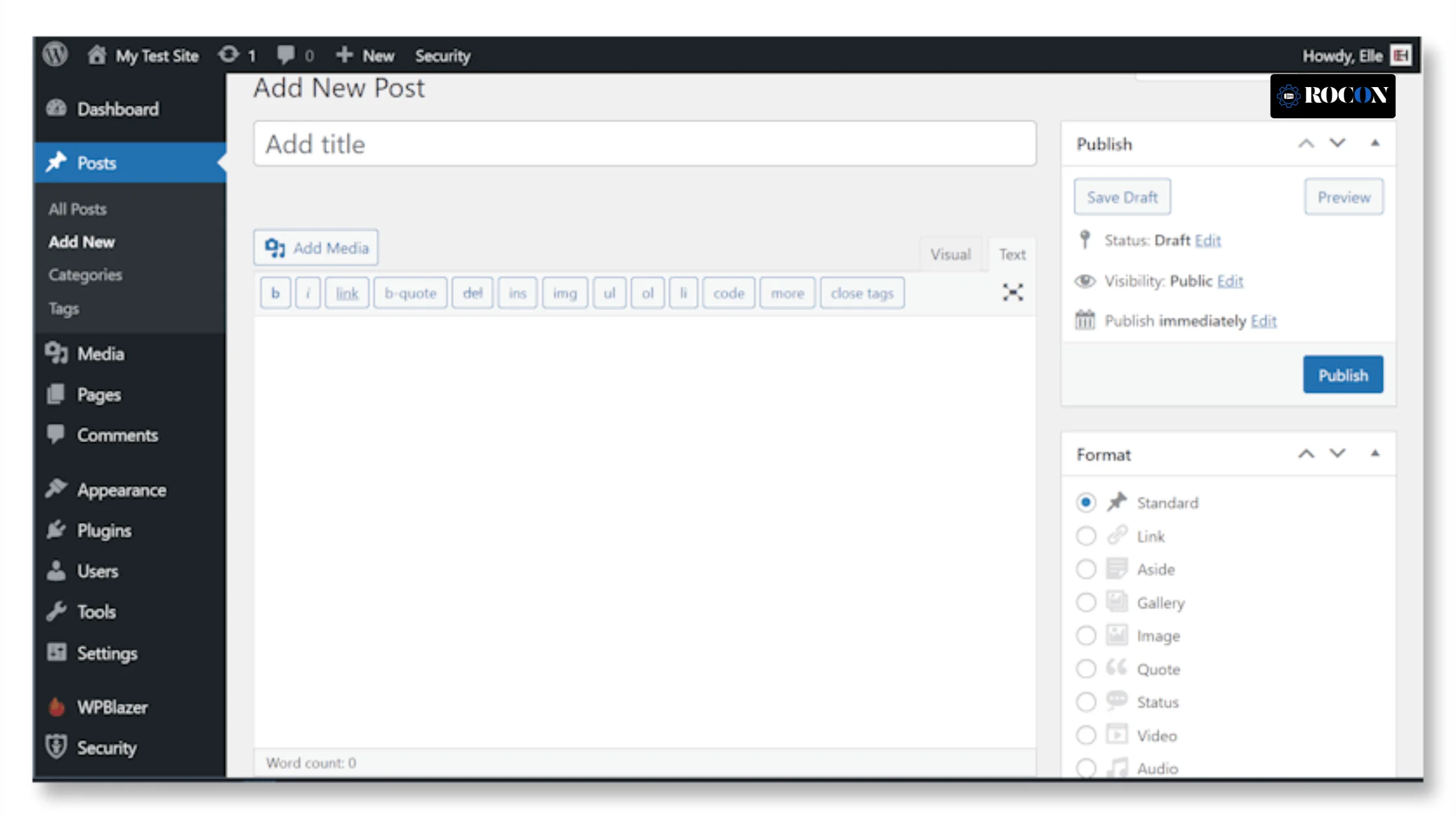
For users who prefer the Classic Editor, publishing is straightforward:
If you’re missing the Publish box in the Classic Editor, ensure that it is enabled under Screen Options at the top of the page.
WordPress provides flexible publishing settings that allow you to schedule posts or make them private. Here’s how:
Instead of publishing immediately, you can schedule a post for a future date:
If you can’t find the Publish button, consider the following:
WordPress also offers other ways to publish content besides clicking the Publish button:
If you’re on the go, the WordPress mobile app allows you to draft, edit, and publish posts directly from your phone.
For advanced users and developers, you can use the WordPress REST API or WP-CLI (WordPress Command Line Interface) to publish posts programmatically.
WordPress automatically saves your content periodically to prevent data loss. You can find the revisions option under Document Settings in the Gutenberg editor or within the Classic Editor’s post settings.
Before publishing, you may want to edit your permalink (URL). WordPress allows you to customize your post URL under Settings → Permalinks for better SEO and readability.
You can configure WordPress to share your newly published posts automatically on social media. Jetpack and other plugins provide automated sharing features that push your content to Twitter, Facebook, LinkedIn, and more.
Always preview your post before publishing by clicking the Preview button in the top-right corner. This allows you to see how your content will appear to visitors.
If you make a mistake or need to update a post, WordPress allows you to edit published posts. Simply navigate to Posts→ All Posts, find the published post, and click Edit. Once changes are made, click Update to save the revisions.
Although the position of it is slightly changed, the Publish button found in most recent versions of Linux, particularly in the Gutenberg Block Editor, is still absolutely essential. It is really vital to make sure your material reaches your readers with efficiency. Whether you are running the Classic Editor or Gutenberg, content producers and website owners depend on knowing how quickly to publish posts.
Furthermore developed by PHP are sophisticated publishing tools including content scheduling, automatic social media sharing, and integration with outside plugins able to improve article visibility. This implies that users may maximize their workflow by using tools that improve audience involvement and content delivery, therefore transcending simple publishing button performance.
Learning the PowerShell publishing system helps companies and bloggers both to have a more ordered content strategy, thereby managing their publication schedules and guaranteeing timely and effective distribution of their materials.
Knowing visibility settings, scheduling choices, and troubleshooting techniques will help you make sure your material runs exactly as you want. Examining user roles, plugin conflicts, or interface settings will help you identify the Publish button if you still have trouble.
Make sure you’ve chosen a good hosting provider and pointed your domain to it. If you’re using WordPress.com go to Settings → General and change the site from “Private” to “Public”. On self hosted WordPress once your theme, pages and plugins are set up click Publish on your pages or posts to make them live. Then check your site URL to make sure everything is visible to visitors.
If a published WordPress page isn’t showing, first make sure its status is Published and its visibility is set to Public. You can also open the page using the View Page option to check the live version. If the page is still not displaying correctly, clear your WordPress, browser, or CDN cache and check the page template.
The Publish button can appear missing because of editor settings, distraction-free mode, browser issues, plugin conflicts, or user permissions. Try refreshing the editor, clearing your browser cache, disabling plugins one at a time, and checking that your user account has permission to publish content.
Go to Pages → All Pages and check the page status. A published page should show a Published status. You can also open the page from the editor using View Page to check how it appears on your website.

Elevate your WordPress hosting with 30-day money-back guarantee, free migration, and 24/7 support.
Sign Up Today

Before You Go… Get 1 Month FREE on Rocon Hosting!

Experience lightning-fast speeds

No downtime or hidden fees

Dedicated 24/7 expert support

Leave a Reply