How to Fix HTTP Error 407 Proxy Authentication Required
September 16, 2026 Written by Maria


September 16, 2026 Written by Maria
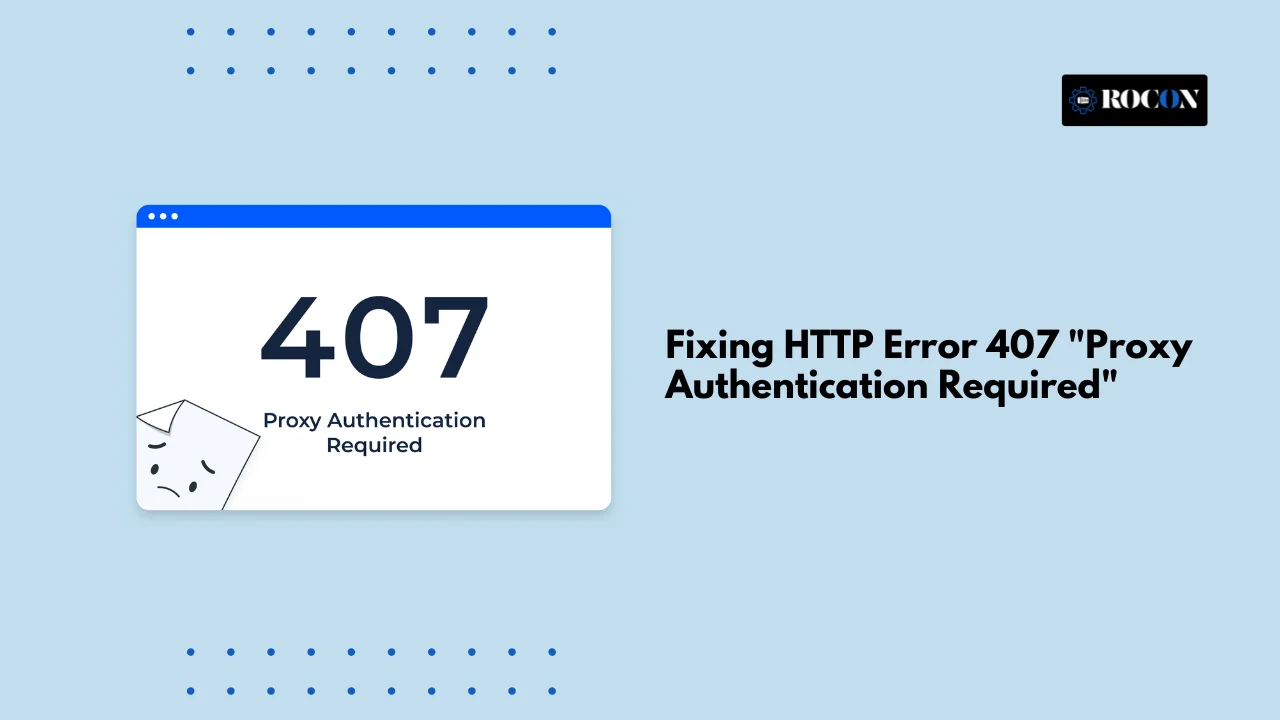


An HTTP 407 error occurs when a proxy server requires authentication before allowing a request to pass through. If the browser, application, or website cannot provide valid credentials, the server blocks the request and returns a “407 Proxy Authentication Required” response.
For WordPress users, this issue can interfere with plugin and theme updates, API integrations, media uploads, and connections to external services. It often appears in environments that use corporate proxies, security gateways, firewalls, or custom network configurations.
The error is usually caused by incorrect proxy settings, missing authentication details, expired credentials, or restrictions imposed by network security tools. While it may seem like a server problem, the root cause is often related to how the request is being routed through the proxy.
In this guide, you’ll learn what triggers a 407 error, how to diagnose the underlying issue, and the most effective ways to restore normal communication between WordPress and external services. We’ll also cover best practices to help prevent authentication-related problems in the future.
HTTP Error 407 is part of the HTTP 4xx status codes, which indicate a client-side error. Specifically, a 407 error occurs when a proxy server requires authentication before it can process your request. In simpler terms, your computer or WordPress site tried to reach a server via a proxy, but the proxy refused the request because it didn’t receive proper credentials.
It’s important to note that this differs from other similar errors:
For WordPress users, a 407 error can stop critical operations like plugin updates, theme installations, or external API calls. Without resolving it, your website’s functionality may be limited or disrupted.
The error 407 proxy authentication required message means the request successfully reached a proxy server, but authentication was rejected. Unlike DNS or timeout errors, an HTTP 407 error confirms that the proxy is actively denying access until valid credentials are provided.
HTTP errors occur when a client, such as your browser or WordPress site, tries to connect to a server and the request fails. Every time a web browser or application communicates with a server via the HTTP protocol, there’s an exchange of messages—successes, failures, and status codes—to manage that conversation.
HTTP Error 407 is closely related to HTTP Error 401, which happens due to unauthorized access. The key difference is that while 401 occurs when a server denies direct access, 407 indicates that the proxy server is refusing authentication. In other words, your request is blocked by the intermediary proxy rather than the web server itself.
At the core of this process is client authentication, which helps establish a secure connection. Part of this authentication involves exchanging a digital certificate, which may represent an individual, a company, a program, or even a specific machine. The proxy server reviews this certificate and determines whether the client is allowed to proceed.
Sometimes, the rejection is simple—a connection delay, a typo in credentials, or conflicting code can cause the proxy to misread the digital ID. In other cases, the user or WordPress site may not have permission to access the proxy or server, resulting in the 407 error.
For WordPress users, this often manifests when updating plugins, connecting to external APIs, or attempting other outgoing requests through a proxy. Understanding this process is key to effectively diagnosing and fixing the issue.
Before attempting any fixes, it’s essential to determine exactly where the HTTP Error 407 originates. Pinpointing the source saves time and ensures you apply the correct solution the first time. Here’s how experts approach it:
By systematically following these steps, you can accurately identify the source of the problem. This prevents unnecessary troubleshooting and ensures that any subsequent fixes are effective and precise.
Fixing an HTTP 407 error in WordPress involves verifying proxy credentials, reviewing server-side cURL configurations, and ensuring requests are not blocked by unauthorized proxy layers.
Ensure that your WordPress installation is configured with the correct proxy settings. This includes the proxy server’s IP address, port number, and any required authentication credentials.
define(‘WP_PROXY_PORT’, ‘8080’);
define(‘WP_PROXY_USERNAME’, ‘your_username’);
define(‘WP_PROXY_PASSWORD’, ‘your_password’);
Replace ‘proxy.example.com‘, ‘8080‘, ‘your_username‘, and ‘your_password‘ with your actual proxy server details.
Sometimes, the issue might be related to your browser’s proxy settings, especially if you’re accessing the WordPress admin panel through a browser that requires proxy authentication.
Cached data can sometimes cause issues with authentication. Clearing your browser’s cache and cookies can resolve such problems.
Certain browser extensions, especially those related to security or privacy, can interfere with proxy authentication.
Testing with a different browser or in incognito/private mode can help determine if the issue is browser-specific.
Ensure that your server’s proxy settings are correctly configured. This includes verifying the proxy server’s IP address, port number, and authentication credentials.
Firewalls or security plugins on your server might block outgoing connections, leading to a 407 error.
WordPress uses cURL for making HTTP requests. Testing cURL can help identify issues with outgoing connections.
Replace http://example.com with the URL you’re trying to access. If you receive a 407 error, it indicates an issue with proxy authentication.
Server logs can provide insights into the cause of the 407 error.
If you’re unable to resolve the issue, contact your hosting provider. They can provide information about server-side configurations and any restrictions that might be causing the 407 error.
Outdated versions of WordPress or plugins can cause compatibility issues.
If possible, temporarily disable the proxy to determine if it’s the source of the issue.
DNS issues can prevent your server from resolving the proxy server’s address.
Ensure that the proxy server supports the authentication method you’re using.
If you’re developing an application, ensure that proxy authentication is implemented correctly.
curl_setopt($ch, CURLOPT_URL, “http://example.com”);
curl_setopt($ch, CURLOPT_PROXY, “proxy.example.com”);
curl_setopt($ch, CURLOPT_PROXYPORT, 8080);
curl_setopt($ch, CURLOPT_PROXYUSERPWD, “username:password”);
curl_exec($ch);
curl_close($ch);
Even after verifying credentials and configuring proxy settings, some WordPress users may still encounter HTTP Error 407. These advanced troubleshooting steps target less obvious causes and help ensure long-term resolution.
Sometimes, security measures may block outgoing connections to proxy servers:
The issue may originate from the proxy server itself:
Certain plugins may conflict with proxy authentication:
For persistent issues, analyzing network traffic can reveal hidden problems:
The message “authentication required: the proxy moz-proxy” typically appears in Firefox-based environments when browser-level proxy settings override system or server configurations. This is common in corporate networks, VPN setups, or custom browser proxy rules.
These advanced troubleshooting techniques provide WordPress users with the tools to resolve HTTP error 407, even in complex setups where standard fixes don’t work.
If you keep seeing the error 407 proxy authentication required, it usually indicates that WordPress or the browser is routing requests through a proxy that requires authentication but isn’t receiving valid credentials.
Once you’ve resolved HTTP Error 407, it’s essential to implement strategies that prevent it from occurring again. Preventive measures save time, reduce frustration, and maintain seamless WordPress functionality.
By implementing these preventive measures, WordPress users can minimize the chances of encountering HTTP Error 407 again. Regular maintenance, updated credentials, and monitoring create a smoother, more reliable experience for your website.
HTTP Error 407 – Proxy Authentication Required is not a typical WordPress error; it’s a connectivity failure that occurs at the proxy layer, often outside the visibility of standard WordPress debugging tools. Because the block happens before a request ever reaches the destination server, issues like plugin updates failing, API calls timing out, or cURL errors are common symptoms rather than root causes.
In this guide, we focused on identifying where the authentication chain breaks—whether at the browser, WordPress configuration, server cURL layer, firewall, or the proxy itself. By validating proxy credentials, reviewing server logs, testing outbound requests, and isolating plugin or firewall interference, most HTTP 407 errors can be resolved without trial-and-error troubleshooting.
A structured, log-driven approach is critical. Guessing configurations or repeatedly changing settings often worsens the problem. In complex environments such as corporate networks or authenticated proxies, involving hosting or network specialists early can prevent repeated disruptions.
Handled correctly, HTTP Error 407 is fixable—and once resolved, your WordPress site regains stable external connectivity and predictable performance.
Proxy Authentication Required occurs when a request reaches a proxy server without valid credentials. Fix it by verifying proxy username/password at every layer involved (browser, OS, WordPress, server cURL). If the request is server-side, confirm outbound proxy credentials are correctly defined and not being overridden by firewall rules, security plugins, or environment variables.
In Chrome, HTTP Error 407 is usually caused by incorrect system-level proxy settings. Open your operating system’s proxy configuration (Chrome uses system proxy), verify the proxy IP, port, and authentication details, then clear cached credentials. If the error persists, disable VPNs or security extensions that may inject unauthorized proxy rules.
HTTP Error 403 is returned by the destination server when access is forbidden, even with valid credentials. HTTP Error 407 is returned by an intermediary proxy server and means authentication is required before the request can proceed to the server. In short: 403 = server denial, 407 = proxy denial.
A received status code 407 means the request was intercepted by a proxy server that requires authentication. The destination server was never reached. This commonly occurs during outbound requests such as API calls, plugin updates, or cURL operations when proxy credentials are missing, expired, or rejected.

Elevate your WordPress hosting with 30-day money-back guarantee, free migration, and 24/7 support.
Sign Up Today
Before You Go… Get 1 Month FREE on Rocon Hosting!

Experience lightning-fast speeds

No downtime or hidden fees

Dedicated 24/7 expert support

Leave a Reply