How to Improve TTFB in WordPress: 14 Methods That Work
October 2, 2026 Written by Maria


October 2, 2026 Written by Maria


Anyone who has run a PageSpeed Insights test on a WordPress site has probably seen the same warning: Reduce initial server response time. That message is Google flagging a slow Time to First Byte. Fixing it sounds technical, but most of the work is just deciding what to change first.
This guide on how to improve TTFB in WordPress walks through every fix that actually moves the number, ranked by impact. The advice is grounded in real benchmarks from Cloudflare, Kinsta, and DNSPerf, plus production data from sites the Rocon team has migrated.
Before diving in, one thing is worth saying upfront. Hosting sets the floor. No plugin, caching layer, or CDN trick fully compensates for shared hosting that simply can’t keep up. The order in this guide reflects that, so anyone who only has time for one or two changes still gets the biggest wins.
|
Quick Answer Slow TTFB usually comes from cheap shared hosting. Move to managed WordPress hosting, turn on caching, and add Cloudflare. These three steps fix the problem on most sites and bring TTFB under 200 ms. The other tips in this guide help you go further. |
| Definition
Time to First Byte (TTFB) is the time between a browser sending a request and receiving the first byte of the server’s response. It measures only server-side performance: DNS resolution, TLS handshake, PHP execution, database queries, and HTML generation. It doesn’t include the time required to download images, stylesheets, or the rest of the page. |
Google calls TTFB a foundation metric for page performance. The number directly affects two Core Web Vitals: First Contentful Paint and Largest Contentful Paint. Cloudflare’s published engineering analysis shows TTFB typically accounts for around 40 percent of LCP. So fixing it usually improves two ranking signals at once.
Targets vary by hosting type. The table below shows what’s realistic on each tier, based on independent benchmarks from Cybernews along with Google’s own thresholds.
| Hosting type | Realistic TTFB | Notes |
|---|---|---|
| Cheap shared hosting | 400 to 800 ms | Google flags above 600 ms |
| Quality shared (LiteSpeed) | 300 to 500 ms | SiteGround, NameHero territory |
| Managed WordPress hosting | 200 to 400 ms | Bluehost, Kinsta, WP Engine |
| Container-based hosting | Under 200 ms | Rocon, premium tiers |
| WordPress + Cloudflare APO | Under 100 ms globally | Edge HTML caching active |
Without a baseline number, there’s no way to tell what worked. Five tools cover most testing needs.
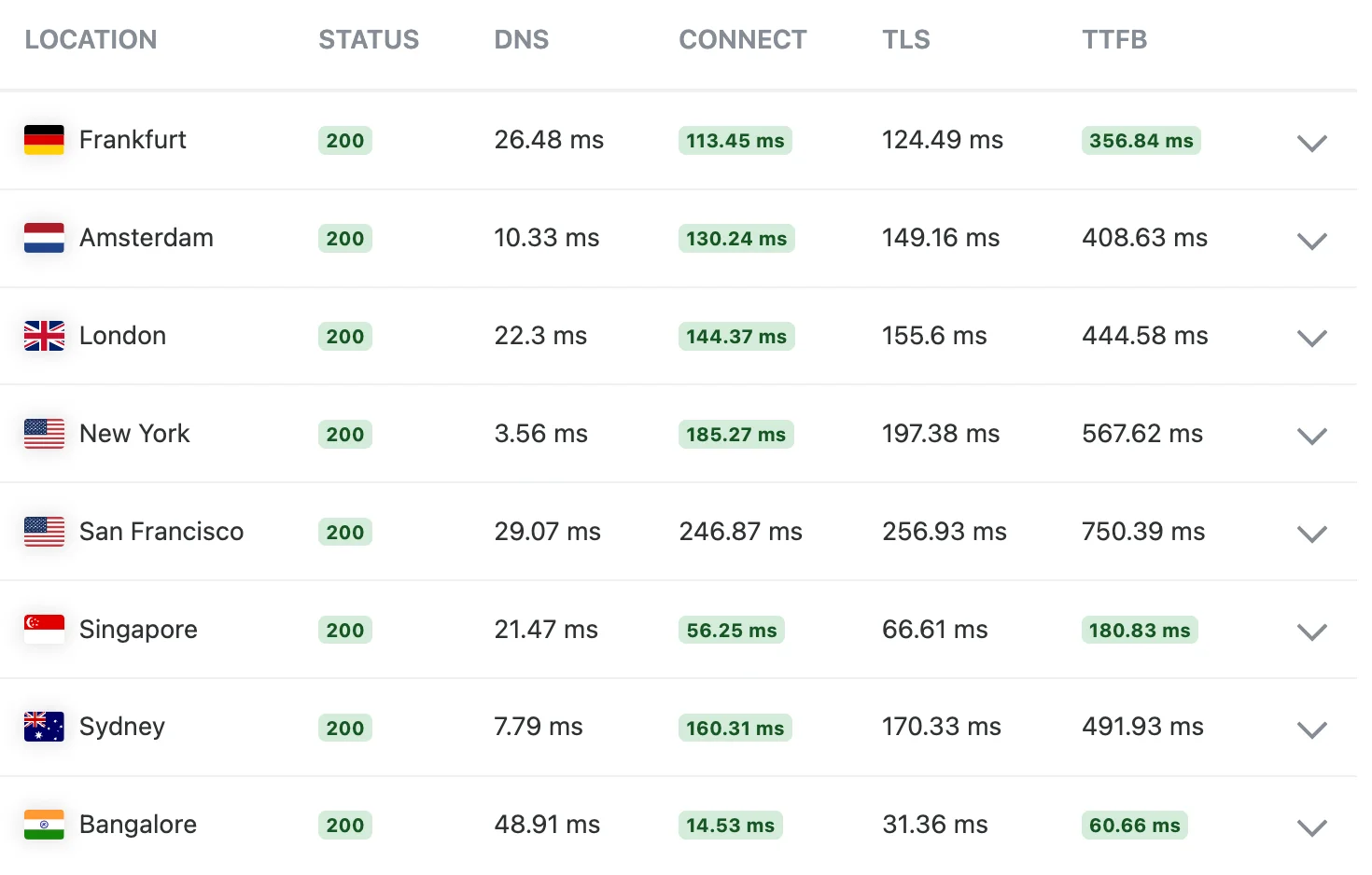
TTFB varies a lot by visitor location, network, and server load. Each test should be run three times, with the median used as the baseline. Sites with global audiences should test from at least three regions.
A slow TTFB always points to a server-side bottleneck. The seven causes below are listed by frequency, based on patterns observed across thousands of WordPress migrations and public analyses.
This is the biggest one and not even close. Shared hosting splits CPU, RAM, and PHP workers across hundreds of accounts on a single server. When a neighbor account spikes, every site on that server feels it. There’s no plugin fix. Migration is the only real solution.
Without page caching, WordPress regenerates each page from scratch on every request. PHP runs, the database is queried, HTML gets built. With caching, pre-built HTML is served directly. WP Rocket’s documentation puts the gain at up to 80 percent reduction in server response time on a typical site.
PHP 7.4 hit end of life in November 2022. PHP 8.0 followed in November 2023. PHP 8.1 reached end of life in December 2025. Sites still running these versions miss security patches and recent performance gains. Kinsta’s December 2025 benchmark showed plain WordPress on PHP 7.4 delivers about 6.6 percent fewer requests per second than PHP 8.5. WooCommerce shows a bigger gap of around 21 to 23 percent.
WordPress databases collect post revisions, expired transients, spam comments, orphaned metadata, and tables left behind by uninstalled plugins. Each item adds tiny amounts to query time. A database that has never been cleaned can run 20 to 30 percent slower than a fresh one.
This one’s easy to miss. Certain database options get loaded on every page request, and that’s called autoloaded data. WP Engine recommends keeping autoload size under 800 KB. Plugins like Yoast SEO, Elementor, and various social plugins regularly load 3 to 5 MB into autoload, which adds processing time to every single request.
Bots typically generate 30 to 50 percent of all server requests on small to medium WordPress sites, according to Cloudflare and Imperva traffic analyses. Useful bots include search engine crawlers. The rest are scrapers, spam bots, and vulnerability scanners eating server resources for no benefit.
Themes that load too many scripts, stylesheets, and database queries increase processing time per request. Plugins firing database queries on every page load have the same effect. Most sites have at least one plugin doing more than it should.
These methods are ordered by impact. The first three deliver the biggest improvements for almost every site. Measure TTFB after each change before moving to the next, so it’s clear which fix actually helped.
Hosting sets the maximum performance ceiling for any WordPress site. Caching, CDNs, and PHP optimization all sit on top of the hosting layer. When the foundation is weak, layered optimizations deliver smaller and smaller returns.
Shared hosting is built around resource sharing by design. Hundreds of accounts on one server compete for CPU and RAM. Managed WordPress hosting solves this by allocating dedicated resources per account. Container-based platforms like Rocon take it further, isolating each site in its own container with dedicated CPU and RAM. That eliminates the noisy neighbor problem entirely.
Migration from shared to managed or container hosting typically reduces TTFB by 50 to 70 percent. Hosts commonly evaluated for serious WordPress workloads:
| Provider | Type | TTFB tier | Pricing |
|---|---|---|---|
| Rocon | Container managed | Under 200 ms | From $1.99/mo, locked at renewal |
| Kinsta | Premium managed | Under 200 ms (premium tier) | From $35/mo |
| WP Engine | Managed | 200 to 300 ms | From $20/mo |
| Cloudways | Managed cloud | 200 to 300 ms | From $11/mo |
| SiteGround | Shared (LiteSpeed) | 220 ms (Cybernews 2026) | From $2.99/mo |
| Rocket.net | Cloudflare Enterprise | Under 200 ms | From $30/mo |
Page caching is the single highest-impact change available without changing hosts. The mechanism is simple. Instead of regenerating a page on every visit, the server stores a pre-built HTML version and serves that directly. PHP doesn’t run. The database isn’t queried.
Most managed WordPress hosts include caching by default. Sites on hosts without built-in caching can use one of these plugins:
| WooCommerce caching warning
WooCommerce sites need careful caching configuration. Cart, checkout, and account pages must be excluded from caching to prevent serving stale or incorrect content. Most caching plugins handle these exclusions automatically, but the configuration should always be verified after activation. Test the cart and checkout flow as a real customer before declaring the cache configured. |
This is where many WordPress optimization guides stop short. A standard CDN configuration only caches static assets like images, CSS, and JavaScript. The HTML page itself still has to travel from the origin server to every visitor, and HTML response time is exactly what TTFB measures.
Edge HTML caching changes that. The full HTML response gets cached at edge locations close to visitors. The origin server doesn’t get hit for cached pages. Two configurations are worth knowing:
Cloudflare’s free plan still helps with DNS speed and basic caching, but the gains are smaller without APO. For sites with global audiences, APO usually pays for itself within the first month through reduced bounce rates.
PHP versions older than 8.2 no longer get active support. PHP 8.3 is the current production-ready release with active support through December 2026. PHP 8.4 hit stable in November 2024 and works for most production WordPress workloads.
Performance gains vary by workload. Kinsta’s December 2025 benchmark on identical WordPress installations measured the following:
PHP version changes are usually one click in the hosting dashboard. Before switching, verify themes and plugins support PHP 8.3, take a backup, and test in staging. About 5 percent of sites encounter PHP 8.3 incompatibilities, almost always in unmaintained plugins that should be replaced anyway.
Page caching helps with cacheable pages. Object caching helps with the parts that aren’t cacheable, like logged-in pages, the WordPress admin, and dynamic content. It stores expensive database query results in memory, so repeated identical queries don’t hit the database again.
WooCommerce sites benefit a lot, since every page load runs queries for product data, pricing, inventory, and tax rules. Redis is the standard. Memcached is a close alternative.
Most managed WordPress hosts enable Redis through a single dashboard setting. On hosts without managed Redis, support can usually enable it on request. Object caching typically reduces database load by 30 to 60 percent on dynamic sites.
Database optimization handles two separate issues. The first is general bloat: post revisions, expired transients, spam comments, orphaned plugin tables. The second is autoloaded data, which loads on every page request whether it’s needed or not.
WP Engine recommends keeping autoload size under 800 KB. Sites running popular plugins like Yoast, Elementor, or social plugins regularly hit 3 to 5 MB of autoload, which slows every page load. Two plugins handle both cleanup jobs reliably:
After the initial cleanup, schedule weekly automated optimization. Performance stays stable without manual intervention.
WordPress uses wp-cron to fire scheduled tasks like publishing posts, sending emails, and running plugin schedulers. The catch is wp-cron only runs when someone visits the site. On busy stores, this triggers extra work on every page load. On quiet sites, scheduled tasks miss their windows.
The fix is to disable wp-cron in wp-config.php and replace it with a server-level cron job that runs every 5 to 15 minutes. Most managed WordPress hosts handle this automatically. Self-managed hosts need a one-line config change plus a cron entry.
The Heartbeat API sends background requests every 15 to 60 seconds for autosave, login expiration checks, and dashboard updates. On busy sites, these requests pile up. Tuning is simple:
Configurable through Perfmatters, WP Rocket, or the free Heartbeat Control plugin.
Cloudflare’s Bot Fight Mode and Super Bot Fight Mode catch known bot patterns automatically. The free plan includes basic protection. Pro and Business plans add enhanced bot management.
Sites without Cloudflare can use Wordfence Premium or Solid Security. Both detect and block common bot signatures at the application layer. Internal Rocon production data shows blocking aggressive bots typically reduces PHP worker usage by 30 to 50 percent during peak hours.
Theme weight directly affects server processing time. Themes loading multiple JavaScript libraries, complex page builder frameworks, and excessive stylesheets increase the work needed to generate each page. Themes commonly recommended for performance-focused sites:
Sites running heavy themes that can’t be replaced should at minimum disable unused features, animations, and bundled plugins to reduce overhead.
Compression reduces the size of HTML, CSS, and JavaScript responses, which lowers transfer time. Gzip has been the standard for years. Brotli is the newer alternative, typically delivering 15 to 25 percent better compression than Gzip on text content.
Most modern hosts support Brotli, but it isn’t always enabled by default. Check the hosting dashboard or ask support. Cloudflare automatically applies Brotli when the visitor’s browser supports it. Note that compression mainly improves overall page download time, not pure TTFB. The gain shows up in Core Web Vitals scores.
TLS 1.3 reduces the round trips needed to establish an HTTPS connection. Compared to TLS 1.2, it typically saves 100 to 250 ms on initial connection setup, depending on geographic distance between client and server.
Most modern hosts and CDNs enable TLS 1.3 by default. Sites still using TLS 1.2 should ask support to enable it. The change is server-side and takes minutes.
DNS resolution is the first step in serving any web request. Slow DNS adds latency before anything else can happen. DNSPerf publishes ongoing benchmarks comparing DNS providers globally. Cloudflare DNS and Google Public DNS consistently lead the rankings.
Registrar-default DNS is often significantly slower than dedicated providers. Migrating DNS to Cloudflare typically saves 20 to 100 ms per visitor on initial page load. The migration is done by changing nameservers at the domain registrar and usually takes 5 to 10 minutes.
Fixed-capacity hosting plans struggle during traffic spikes. When request queue depth exceeds available PHP workers, TTFB rises sharply. Auto-scaling adds capacity automatically during traffic events, keeping response times stable.
Auto-scaling is built into Rocon’s container architecture, Cloudways managed cloud hosting, Kinsta, and major cloud platforms like AWS and Google Cloud. Costs go up during scale-up events but stay proportional to traffic volume. For most sites, the trade-off is worth it during sales events, viral posts, or campaign launches.
Sites that complete the standard optimization steps and still show high TTFB usually have a specific bottleneck that needs diagnostic work. Five steps isolate common root causes.
Upload a basic HTML file to the server via SFTP and measure its TTFB independently. If the static file loads quickly while WordPress pages stay slow, the bottleneck is in the WordPress application layer (theme, plugin, or database). If the static file is also slow, the bottleneck is at the server level and needs hosting-side help or migration.
Activate Twenty Twenty-Four temporarily and measure TTFB. Big improvement means the theme contributes to the issue. Update it, replace it, or audit it.
Deactivate all plugins. Measure TTFB. Reactivate plugins one at a time, measuring after each, to find which plugin is responsible. Update, replace, or audit the offender.
Install Query Monitor. Load a slow page while logged in as an admin. Query Monitor shows every database query the page ran, ranked by execution time. Queries over 100 ms are usually the bottleneck. Often a single bad query from a plugin drags the whole page down.
Hosting dashboards usually include CPU and RAM usage graphs. CPU consistently above 80 percent means the site has outgrown the current plan. Either upgrade the tier or migrate to auto-scaling infrastructure.
Sites that stay fast are sites that get audited regularly. Run through this list every quarter.
The plan for how to improve TTFB in WordPress comes down to layers. Each optimization addresses a specific bottleneck, and the cumulative effect determines the final performance. Following the priority order in this guide allows site owners to apply the highest-impact changes first and measure results before moving on.
For most WordPress sites, hitting the under 200 ms TTFB target needs three layers working together. Quality hosting infrastructure provides the foundation. Server-level page caching reduces processing overhead. Edge HTML caching through Cloudflare APO or equivalent extends fast performance to global visitors. Sites that complete these three layers and then optimize PHP, Redis, database, and supporting elements typically hit TTFB targets that match premium managed WordPress hosting at much lower complexity.
Sites where server response time directly affects business outcomes should treat hosting infrastructure as a strategic decision, not a cost-minimization exercise. The performance difference between shared and managed hosting often pays back the cost differential within weeks through improved conversion rates.
Indirectly, yes. TTFB isn’t a direct ranking factor, but it makes up about 40 percent of your Largest Contentful Paint score, which is. Slow TTFB also drives up bounce rates, and Google notices that.
Only if it caches the full HTML at the edge. A regular CDN that just serves images won’t help much. Cloudflare APO does the right thing for WordPress.
Caching changes show up immediately. Hosting migrations need 24 to 48 hours for DNS to update. Most other fixes take effect right away. So you can usually see real improvement within a day or two.
Probably not, but back up first. Test in staging if you can. About 1 in 20 sites has an old plugin that breaks on PHP 8.3, and finding that early saves a lot of stress.
Mostly, yes. A few shared hosts running LiteSpeed servers do okay. But if speed matters to your business, you’ll outgrow shared hosting eventually. Better to plan for it.

Elevate your WordPress hosting with 30-day money-back guarantee, free migration, and 24/7 support.
Sign Up Today


Before You Go… Get 1 Month FREE on Rocon Hosting!

Experience lightning-fast speeds

No downtime or hidden fees

Dedicated 24/7 expert support

Leave a Reply