How to Disable Google Font on WordPress
August 11, 2026 Written by Saurabh Rai


August 11, 2026 Written by Saurabh Rai


If your WordPress website is loading Google Fonts on every page, you may be adding extra requests that you don’t actually need. That’s why how to disable Google font on WordPress is a common question for site owners working on page speed, privacy, and performance.
Google Fonts can give your website a polished look, but they’re not essential. You can replace them with system fonts or host your preferred fonts locally, reducing third-party requests and keeping your site simpler.
The good news is that you don’t need advanced coding skills to remove Google Fonts. Depending on your theme and setup, you can disable them through theme settings, a plugin, or a small piece of code.
In this guide, we’ll cover the easiest ways to disable Google Fonts in WordPress and help you choose the right approach for your site.
Before we get started, let’s look into why getting rid of Google Fonts on your site matters.
One of the reasons to disable Google Fonts is to speed up your site. Every time someone loads your site, external font requests are made to Google’s servers. These add to the overall load time if the visitor has a slow internet connection. A faster site means happier visitors who will stay and engage more with your content. Plus Google considers page speed a ranking factor so speeding up load times will help your SEO.
Not everyone has high-speed internet. By using system fonts instead of custom Google Fonts you’ll load faster and more efficiently for visitors with slow connections. That means a smoother and more accessible experience. Remember a consistent and fast-loading site keeps users engaged and reduces the chance of them bouncing to a competitor’s page.
Switching to standard system fonts isn’t just about speed; it’s also about simplifying your site’s design. System fonts are already on users’ devices so no need to download extra. This is a minimalist approach that makes your site easier to manage and reduces the risk of font related styling issues. Less dependencies means less that can go wrong.
Before adding a plugin or custom code, check whether your theme already lets you control or disable Google Fonts. Many modern themes include font and typography settings.
Theme options vary, so you may not see a Google Fonts setting. If your theme doesn’t provide one, you can use a plugin or custom code instead.
If your WordPress theme doesn’t give you a setting to disable Google Fonts, you can remove the font stylesheet with a small PHP snippet.
The tricky part is finding the font’s stylesheet handle. The handle is the name WordPress uses when it loads that stylesheet, and it can be different for every theme.
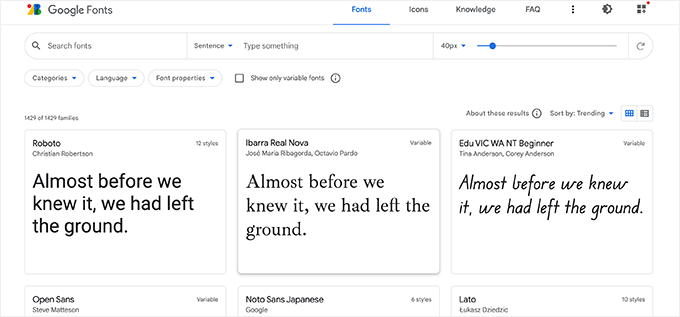
Open your site’s page source and search for fonts.googleapis.com or fonts.gstatic.com.
You might see something like:
<link rel=”stylesheet” id=”theme-google-fonts-css” href=”https://fonts.googleapis.com/css2?family=…” />
In this example, theme-google-fonts is the stylesheet handle.
Your theme will have its own handle, so don’t copy that name unless it matches your site.
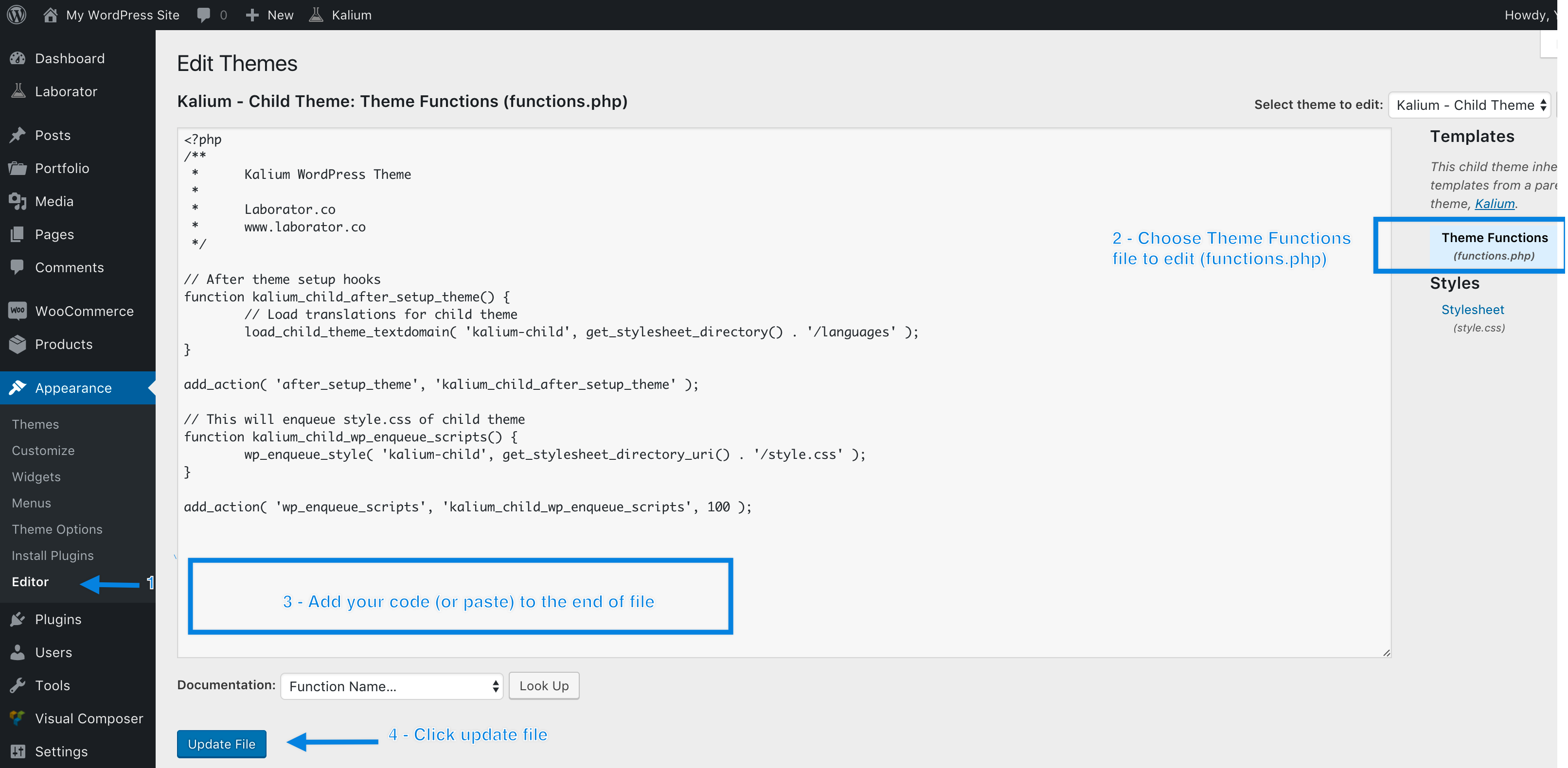
If you’re using a child theme, open its functions.php file and add:
add_action(‘wp_enqueue_scripts’, ‘remove_google_fonts’, 100);
function remove_google_fonts() {
wp_dequeue_style(‘theme-google-fonts’);
wp_deregister_style(‘theme-google-fonts’);
}
Replace theme-google-fonts with the actual handle used by your theme.
wp_dequeue_style() stops the stylesheet from being printed on the page. wp_deregister_style() removes it from WordPress’s registered styles as well.
Clear your WordPress cache and browser cache, then open the site in a private browser window.
Check the page source again. Search for fonts.googleapis.com.
If the Google Fonts request has disappeared and your site still looks correct, the code is working.
If the font request is still there, your theme may be loading the font through another stylesheet, an inline <link> tag, or a page builder. In that case, removing one stylesheet handle won’t be enough.
Don’t edit the parent theme’s functions.php if you can avoid it. A theme update can replace the file and remove your custom code.
A child theme is the better place for this type of change. Keep a backup before editing PHP, too. One missing bracket can cause a PHP error and take the site offline.
Removing Google Fonts can reduce an external browser request, but it won’t automatically make every WordPress site faster. Check the page after making the change and confirm that the theme’s typography, layout, and other styles still work as expected.
Not comfortable with code? No worries! You can use a plugin to do it for you.
This is the easy way, especially for beginners who don’t want to risk breaking their site.
OptinMonster is used to create and manage marketing campaigns on WordPress sites but uses Google Fonts by default. To prevent your site from slowing down or being affected by these external fonts follow these steps to disable them:
Leaving Google Fonts on your WordPress site can slow it down and disrupt the functionality and user experience for visitors who have slower connections. By eliminating it, your pages will load faster since they will not have to download font files from outside sources. Whether you’re a site owner looking to improve page speed or simply want a cleaner setup, reducing external font dependencies is beneficial.
To disable Google Fonts you have several options, from theme settings to plugins to custom code. Start by checking your theme’s built-in customizer settings as some themes make it easy to disable Google Fonts with a toggle. If that doesn’t work, you can add code snippets to your theme files to manually deregister the fonts. Or use a user friendly plugin like “Disable and Remove Google Fonts” to do it without touching code.
Remember to test your site thoroughly after making these changes to ensure everything looks good. Going with web safe or system fonts can be a stylish and efficient option. These optimizations make a big difference to your site’s speed and reliability.
Disabling Google Fonts can reduce external requests made when your WordPress site loads. This can help reduce font-related loading time, especially when the fonts are being requested from Google’s servers. If your site already uses system fonts, removing Google Fonts can also simplify how the browser loads your pages.
Yes, it can change the appearance of your website if your theme relies on Google Fonts for its typography. You can replace them with system fonts such as Arial, Helvetica, or other fonts available on the visitor’s device. Check your headings, buttons, menus, and body text after making the change.
Open your website in a browser, view the page source, and search for fonts.googleapis.com or fonts.gstatic.com. You can also use your browser’s Developer Tools and check the Network tab while the page loads. If you see requests to either domain, your site is loading Google Fonts.
Yes, but you need to be careful when adding custom PHP code. A syntax error in functions.php can cause a PHP error and affect your website. If possible, add the code to a child theme instead of the parent theme. Keep a backup before making changes so you can restore the site if something goes wrong.
Using a plugin is usually the easiest option if you don’t want to edit code. A Google Fonts removal plugin can detect and prevent font requests without requiring changes to your theme files. If you’re comfortable with WordPress code, you can also remove the font stylesheet from your theme or child theme manually.
Yes. You can remove Google Fonts manually with PHP by dequeuing the stylesheet that your theme uses to load the fonts. The exact code depends on how your theme registers the Google Fonts stylesheet. You’ll need to identify its stylesheet handle before adding the code.
Yes. You can re-enable Google Fonts at any time. If you used a plugin, deactivate or remove the font-blocking setting. If you added custom PHP code, remove that code and clear your site’s cache. Check the site afterward to make sure the fonts are loading again.

Elevate your WordPress hosting with 30-day money-back guarantee, free migration, and 24/7 support.
Sign Up Today
September 28, 2026
Nitish


Before You Go… Get 1 Month FREE on Rocon Hosting!

Experience lightning-fast speeds

No downtime or hidden fees

Dedicated 24/7 expert support

Leave a Reply