Roconpaas

Blog

How Many Table in a Default WordPress? Full Breakdown

June 12, 2026 Written by Saurabh Rai

WordPress Keeps Logging Me Out

How many tables in a default WordPress database? This is a common question among website owners, developers, and administrators who want to better understand how WordPress stores and manages data behind the scenes. Although WordPress is known for its user-friendly interface, every post, page, comment, setting, and user account relies on a structured database to function properly.

When you install WordPress on a new website, it automatically creates a set of core database tables that handle the platform’s essential operations. These tables work together to store content, manage user information, save site settings, organize comments, and maintain relationships between different types of data. Understanding their purpose can make troubleshooting, optimization, migration, and database maintenance much easier.

For anyone managing a WordPress website, having a basic understanding of the database structure is valuable. It helps you identify unnecessary data, monitor plugin activity, optimize performance, and maintain a healthier website over time. As plugins and themes are added, additional tables may also be created, making it even more important to understand which tables belong to WordPress core and which are added by third-party tools.

In this guide, we’ll explore the WordPress database structure, explain how many tables are included in a default installation, examine the role of each core table, discuss how plugins and themes extend the database, and share best practices for maintaining an efficient and well-organized WordPress database.


What is WordPress Database?

Your website would not function without the WordPress database, which stores and organizes all the crucial data needed for its operation. WordPress’s database management system is either MariaDB or MySQL. Content, settings, and user data are organized into tables in this database, which functions as a structured repository.

After WordPress is installed, it generates a set of database tables that are specifically engineered to manage different kinds of data, including:

  • Posts (blog posts, pages, and custom post types)
  • Metadata (extra information related to posts, users, or comments)
  • Comments
  • Options and settings
  • Taxonomies (categories and tags)

By default, WordPress uses the wp_ prefix for all its tables, but this can be customized during installation for security reasons.
 

How Many Tables Are Created in a Default WordPress Installation?

How Many Table in a Default WordPress


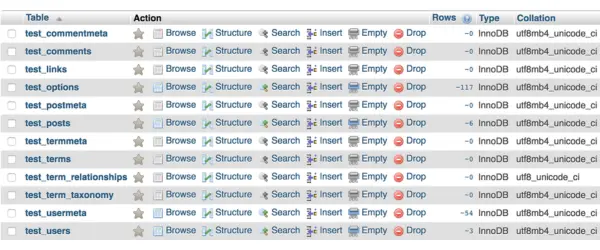
The default configuration for a new WordPress installation is to generate 12 database tables. If you want your WordPress site to perform well, you need these tables. The tables that were created during the installation process are listed below:

  1. wp_commentmeta
  2. wp_comments
  3. wp_links
  4. wp_options
  5. wp_postmeta
  6. wp_posts
  7. wp_terms
  8. wp_termmeta
  9. wp_term_relationships
  10. wp_term_taxonomy
  11. wp_usermeta
  12. wp_users

Each table serves a distinct purpose and collectively ensures the proper functioning of your WordPress site.


Functions of Each Default WordPress Table

1. wp_commentmeta

Metadata on the comments made on your WordPress site is saved in the wp_commentmeta table. If a remark has been flagged as spam or has particular plugin-added flags, for example, such extra information is provided by metadata.

  • Columns:
    • meta_id: A unique ID for each metadata entry.
    • comment_id: Links the metadata to a specific comment.
    • meta_key: The name of the metadata field.
    • meta_value: The value associated with the metadata field.

2. wp_comments

Your WordPress site’s comment history, including approved, pending, and spam comments, is stored in the wp_comments table.

  • Columns:
    • comment_ID: A unique identifier for each comment.
    • comment_post_ID: Links the comment to a specific post.
    • comment_author: The name of the comment author.
    • comment_author_email: The email address of the commenter.
    • comment_content: The text of the comment.
    • comment_approved: Status of the comment (approved, pending, or spam).

3. wp_links

A feature that was more significant in earlier versions of WordPress, the wp_links table is used to maintain blogrolls. The default WordPress installation still includes this table, even though blogrolls are no longer commonly used.

  • Columns:
    • link_id: Unique ID for each link.
    • link_url: The URL of the link.
    • link_name: The name of the link.
    • link_description: A description of the link.

4. wp_options

All of the configuration options and site-wide settings are saved in the wp_options table. Among WordPress’s most important tables.

  • Columns:
    • option_id: A unique ID for each option.
    • option_name: The name of the option (e.g., siteurl or home).
    • option_value: The value of the option.
    • autoload: Whether the option is automatically loaded when WordPress initializes.

5. wp_postmeta

Post, page, and custom post type metadata is stored in the wp_postmeta table. Metadata includes extra details about a post, including user-defined fields.

  • Columns:
    • meta_id: A unique ID for the metadata entry.
    • post_id: Links the metadata to a specific post.
    • meta_key: The name of the metadata field.
    • meta_value: The value of the metadata.

6. wp_posts

The wp_posts table maintains all of your website’s content, including posts, pages, and custom post kinds. It is one of the most significant tables in WordPress.

  • Columns:
    • ID: A unique identifier for each post.
    • post_author: The ID of the user who created the post.
    • post_date: The date and time when the post was published.
    • post_content: The main content of the post.
    • post_title: The title of the post.
    • post_status: The status of the post (e.g., publish, draft, or pending).

7. wp_terms

Words used in taxonomies, like tags and categories, are stored in the wp_terms table.

  • Columns:
    • term_id: A unique ID for each term.
    • name: The name of the term.
    • slug: A URL-friendly version of the term name.

8. wp_termmeta

Metadata pertaining to terms found in the wp_terms table is stored in the wp_termmeta table. Plugins frequently make use of this table to insert their own data into tags and categories.

  • Columns:
    • meta_id: A unique ID for each metadata entry.
    • term_id: Links the metadata to a specific term.
    • meta_key: The name of the metadata field.
    • meta_value: The value of the metadata field.

9. wp_term_relationships

In the wp_term_relationships table, the connections between posts and terms are defined. It can associate a post with particular tags or categories, for instance.

  • Columns:
    • object_id: The ID of the object (e.g., a post).
    • term_taxonomy_id: Links the object to a specific term in the taxonomy.
    • term_order: The order of terms.

10. wp_term_taxonomy

Terms in the wp_termstable can have their taxonomies defined in the wp_term_taxonomy table. These taxonomies can be custom, tags, or categories.

  • Columns:
    • term_taxonomy_id: A unique ID for each taxonomy entry.
    • term_id: Links the taxonomy to a specific term.
    • taxonomy: The name of the taxonomy (e.g., category or post_tag).

11. wp_usermeta

Details about WordPress users are kept in the wp_usermeta table. Users whose profiles have additional fields added by plugins will find this table very helpful.

  • Columns:
    • umeta_id: A unique ID for each metadata entry.
    • user_id: Links the metadata to a specific user.
    • meta_key: The name of the metadata field.
    • meta_value: The value of the metadata field.

12. wp_users

The wp_users table stores information about registered users on your WordPress site.

  • Columns:
    • ID: A unique identifier for each user.
    • user_login: The username of the user.
    • user_pass: The hashed password of the user.
    • user_email: The email address of the user.
    • user_registered: The date and time the user registered.


How Plugins and Themes Add New Tables

While WordPress starts with 12 default tables, plugins and themes can add additional tables to the database as needed. For example:

  • WooCommerce: Adds tables like wp_wc_orders and wp_wc_products to handle eCommerce functionality.
  • Yoast SEO: Adds tables for managing SEO data.
  • Custom Plugins: Developers often create custom tables to store data not suited for default tables.

It’s essential to monitor these additional tables to ensure they don’t bloat your database.


Best Practices for Managing WordPress Database Tables

Adhering to these recommended practices will guarantee that your WordPress site runs smoothly and securely:

  1. Regular Backups:
    • To plan for database backups, install plugins such as UpdraftPlus or Jetpack.
  2. Optimize Database:
    • Remove superfluous data like spam comments and post edits with a tool like WP-Optimize.
  3. Monitor Table Size:
    • Foresee such problems by routinely checking the size of database tables.
  4. Limit Plugin Usage:
    • To avoid creating tables that aren’t necessary, disable and remove plugins that aren’t being used.
  5. Secure Your Database:
    • To make things more secure, use a special table prefix.
    • Secure your database and use strong passwords.


Conclusion

The WordPress database serves as the foundation of your website, and its default tables are responsible for storing and organizing everything from content and user accounts to comments, settings, and taxonomy data. Understanding how these core tables work provides valuable insight into how WordPress manages information behind the scenes.

While a standard WordPress installation creates a predefined set of database tables, additional plugins and themes can introduce their own tables as your website grows. These additions often provide useful functionality, but they can also increase database size and complexity if not managed properly.

Regular database maintenance plays an important role in keeping your website healthy. Tasks such as removing unused data, monitoring database growth, optimizing tables, and maintaining reliable backups can help improve performance and reduce potential issues over time. Security measures, including using a custom table prefix and following database best practices, can further strengthen your site’s protection.

Whether you’re a beginner learning how WordPress works or an experienced developer building custom functionality, understanding the database structure can help you troubleshoot issues more effectively, optimize performance, and make informed decisions about your website’s maintenance.

By keeping your WordPress database organized and following good maintenance practices, you can help ensure your website remains fast, secure, scalable, and easier to manage as it continues to grow.

Frequently Asked Questions

1. What is the default prefix of WordPress tables?

The default prefix of WordPress database tables is wp_. During installation, WordPress automatically creates tables such as wp_posts, wp_users, wp_options, and wp_comments using this prefix. Although wp_ is the standard default, many website owners change it to a custom prefix to improve database security and make automated attacks more difficult.

2. What is the prefix of WordPress tables by default?

By default, WordPress uses the wp_ table prefix for all core database tables. This prefix is defined in the $table_prefix variable inside the wp-config.php file and is applied to every WordPress table created during installation unless a custom value is specified.

3. What are the default database tables in WordPress?

A standard WordPress installation creates 12 core database tables that store website content, user accounts, comments, settings, categories, tags, and metadata. These tables work together to manage all essential WordPress functionality and form the foundation of the website’s database structure.

4. What are the default WordPress tables?

The default WordPress tables include wp_posts, wp_postmeta, wp_users, wp_usermeta, wp_comments, wp_commentmeta, wp_terms, wp_termmeta, wp_term_taxonomy, wp_term_relationships, wp_options, and wp_links. Together, these tables store and organize nearly all website data required for WordPress to operate.

5. What is the default wp_posts table schema?

The wp_posts table is the primary content table in WordPress and stores posts, pages, attachments, revisions, navigation items, and custom post types. It contains important fields such as post ID, title, content, author, publication date, status, and post type, making it one of the most heavily used tables in the WordPress database.

6. What is the structure of the wp_usermeta table?

The wp_usermeta table stores additional information about WordPress users beyond basic account details. It links metadata to user accounts through the user_id field and commonly stores user roles, permissions, profile settings, dashboard preferences, and plugin-specific user information that WordPress uses to personalize user experiences.

7. What is the WooCommerce database schema?

WooCommerce extends the default WordPress database by using core tables such as wp_posts and wp_postmeta for products while adding its own tables to manage orders, customers, analytics, product lookups, and store operations. Modern WooCommerce installations often include dedicated order and customer tables that improve performance and make eCommerce data management more efficient.

8. How can I view WordPress database tables?

You can view WordPress database tables through database management tools such as phpMyAdmin, Adminer, or your hosting control panel. After selecting your WordPress database, you’ll see all core WordPress tables along with any additional tables created by plugins, themes, WooCommerce, SEO tools, membership systems, or other extensions installed on your website.

Avatar photo

Saurabh Rai

Saurabh is a WordPress developer and technical writer with 4+ years of experience delivering solutions for clients across diverse industries. His writing cuts through the noise - no documentation rewrites, no generic tutorials. Just practical, experience-backed insights on the WordPress problems developers and site owners actually face.

Start the conversation.

    Leave a Reply

    Your email address will not be published. Required fields are marked *

    Recommended articles

    WordPress

    Why Managed Kubernetes is Future of WordPress Hosting

    Ankit