How to Hide Admin Bar in WordPress: 7 Easy Ways
August 10, 2026 Written by Nitish Kumar


August 10, 2026 Written by Nitish Kumar
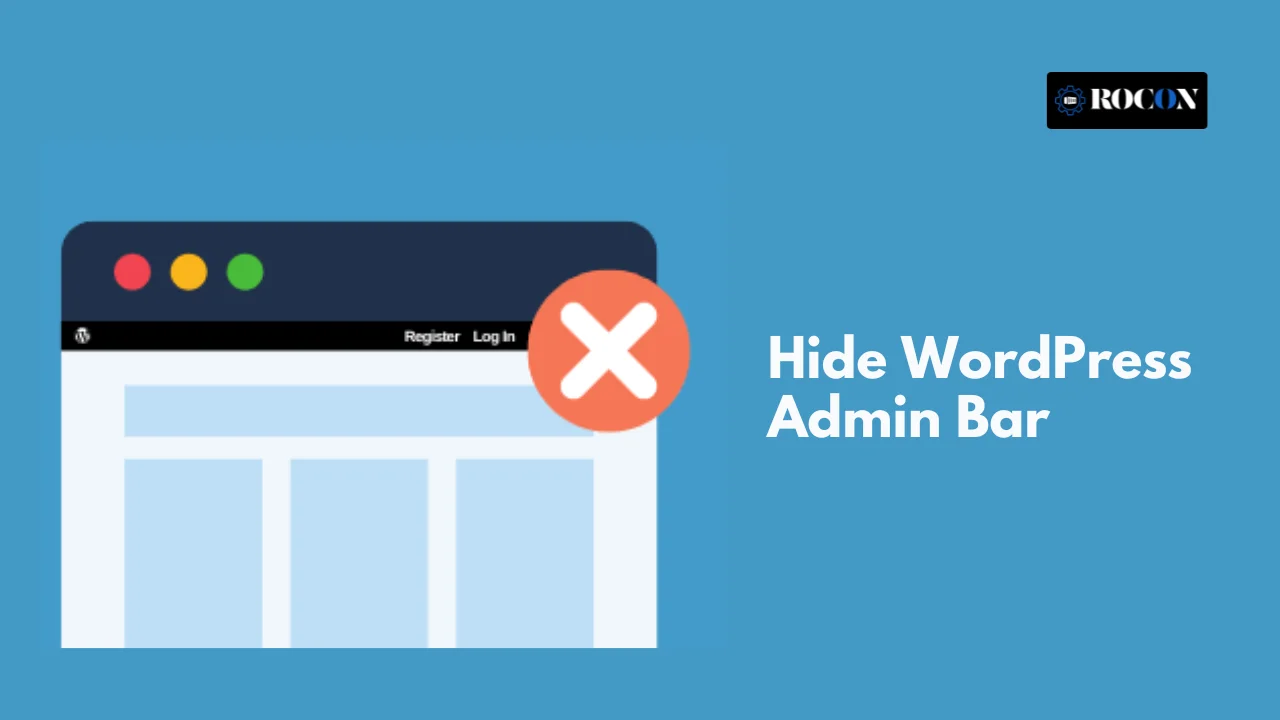


Hide WordPress admin bar when you want a cleaner view of your website after logging in. The admin bar appears at the top of the screen for logged-in users and provides quick links to the WordPress dashboard, posts, pages, themes, plugins, and other tools.
While it’s useful for administrators and site managers, you may not want every logged-in user to see it. For example, removing the admin bar can make sense for membership websites, client portals, custom dashboards, or websites where users should focus on the front end.
In this guide, we’ll cover several ways to hide the WordPress admin bar, including WordPress settings, user roles, plugins, and custom code. We’ll also explain when hiding it makes sense and how to choose the right method for your website.
The WordPress admin bar, also called the toolbar, is the menu that appears at the top of the website when you’re logged in. It gives users quick access to common WordPress tools without having to open the dashboard separately.
Depending on the user’s role and installed plugins, the admin bar may include options such as:
The toolbar is useful for administrators, editors, and site managers who regularly make changes. However, it may be unnecessary for subscribers, customers, members, or other users who only need access to the front end of your website. In those cases, hiding the admin bar can provide a cleaner and less confusing experience.
The WordPress Admin Bar is useful for site managers, but it isn’t necessary for every logged-in user. Removing it can make the front end cleaner and give users access only to the features they actually need.
The admin bar can take up space at the top of your pages and may clash with your site’s header, navigation, or branding. Hiding it can make the front end feel more like a finished website.
If clients only need to review or manage specific content, showing them WordPress shortcuts they don’t use can create confusion. Hiding the toolbar keeps their experience simpler.
Members, customers, and subscribers usually don’t need access to WordPress editing tools. Removing the admin bar can make membership portals, forums, and learning platforms feel more like dedicated applications.
Custom headers, sticky navigation, and full-screen layouts can sometimes overlap with the WordPress toolbar. Hiding the bar can prevent unwanted spacing or positioning issues.
The admin bar itself isn’t a security feature, but removing shortcuts that users don’t need can help keep the interface focused. For stronger security, use proper user roles and permissions to control what each account can actually access.
If you only want to hide the WordPress Admin Bar for your own account, you don’t need a plugin or custom code. WordPress includes a built-in setting for this.
This setting only affects your user account. Other administrators, editors, contributors, or subscribers will still see the Admin Bar based on their own settings and user roles. If you want to hide it for multiple users automatically, you’ll need to use a different method.
If you want administrators to keep the WordPress Admin Bar while hiding it from other logged-in users, you can add a small PHP snippet to your site’s theme.
Add this code to your child theme’s functions.php file:
add_action(‘after_setup_theme’, ‘hide_admin_bar_for_non_admins’);
function hide_admin_bar_for_non_admins() {
if (!current_user_can(‘administrator’)) {
show_admin_bar(false);
}
}
This keeps the Admin Bar available to administrators while hiding it from users without administrator-level capabilities, such as subscribers, customers, and contributors.
Note: Using a capability such as manage_options is generally more reliable than checking the literal administrator role name because WordPress permissions are capability-based.
Want to hide the admin bar for certain roles like subscribers or customers? Extend the logic with conditional checks:
add_action(‘after_setup_theme’, ‘hide_admin_bar_for_specific_roles’);
function hide_admin_bar_for_specific_roles() {
$user = wp_get_current_user();
$roles_to_hide = array(‘subscriber’, ‘customer’, ‘contributor’);
if (array_intersect($roles_to_hide, $user->roles)) {
show_admin_bar(false);
}
}
This code disables the toolbar only for the listed roles while preserving it for others.
You might want to show the toolbar in the dashboard but not on the public-facing site.
if (!is_admin()) {
show_admin_bar(false);
}
Add this to functions.php to disable the admin bar when viewing the front end of your site.
Not comfortable editing code? Plugins can simplify the process.
For designers who prefer a front-end solution, CSS can be used to visually hide the toolbar.
#wpadminbar {
display: none !important;
}
body.admin-bar {
margin-top: 0 !important;
}
Add this to your theme’s stylesheet or through the Customizer > Additional CSS.
Note: This hides the toolbar visually but doesn’t stop it from loading or functioning in the backend.
If you prefer not to modify functions.php, you can create a small custom plugin.
<?php
/*
Plugin Name: Hide Admin Bar
Description: Disables admin bar for all users except admins
Version: 1.0
*/
add_action(‘after_setup_theme’, ‘custom_hide_admin_bar’);
function custom_hide_admin_bar() {
if (!current_user_can(‘administrator’)) {
show_admin_bar(false);
}
}
You can also control admin bar visibility based on custom capabilities, not just roles. This is useful when your site uses advanced membership or permission plugins.
add_action(‘after_setup_theme’, ‘custom_capability_hide_toolbar’);
function custom_capability_hide_toolbar() {
if (!current_user_can(‘edit_posts’)) {
show_admin_bar(false);
}
}
This approach works well when assigning capabilities with plugins like Members or User Role Editor.
After implementing any method:
If using caching plugins, clear your cache after making changes to ensure updates take effect.
Although there are valid reasons to remove the toolbar, consider situations where it might be useful:
In short, avoid disabling it for users who benefit from its functionality.
The WordPress admin bar is useful for administrators and site managers, but not every logged-in user needs to see it. Hiding the toolbar can create a cleaner front-end experience, reduce distractions, and make membership or client-facing websites easier to use.
You can hide the Admin Bar in several ways, including your WordPress profile settings, a small PHP snippet, or a plugin. The best option depends on whether you want to remove it for yourself, specific users, or everyone except administrators.
Before making changes, consider your user roles and how people use your website. With the right setup, you can keep the WordPress dashboard accessible to the people who need it while giving other users a simpler front-end experience.
You can hide the WordPress Admin Bar on the front end by disabling it from your user profile, using a PHP snippet, or installing a plugin. For your own account, go to Users → Profile, uncheck “Show Toolbar when viewing site,” and save the changes. If you want to hide it for other users as well, use a role-based method or plugin.
To disable the Admin Bar, you can use WordPress’s built-in profile setting or add a small PHP function to your site. The profile option only affects your account, while a PHP solution can hide the toolbar for selected user roles or everyone except administrators.
If you only want to turn it off for yourself, go to Users → Profile in your WordPress dashboard and disable “Show Toolbar when viewing site.” For a site-wide change, you can use custom PHP or a plugin to control who can see the Admin Bar.
You can hide the Admin Bar from specific users by using their profile settings or control it by user role with custom code. For example, you can keep the toolbar visible for administrators while hiding it from subscribers, customers, contributors, or members.
The easiest method depends on who you want to hide it from. To hide it for your own account, use the “Show Toolbar when viewing site” option under Users → Profile. If you need to hide it for multiple users, a role-based PHP snippet or plugin gives you more control.

Elevate your WordPress hosting with 30-day money-back guarantee, free migration, and 24/7 support.
Sign Up Today
November 6, 2026
Sreekar
Before You Go… Get 1 Month FREE on Rocon Hosting!

Experience lightning-fast speeds

No downtime or hidden fees

Dedicated 24/7 expert support

Leave a Reply