How to Hide Page Title in WordPress Without a Plugin
August 10, 2026 Written by Saurabh Rai


August 10, 2026 Written by Saurabh Rai
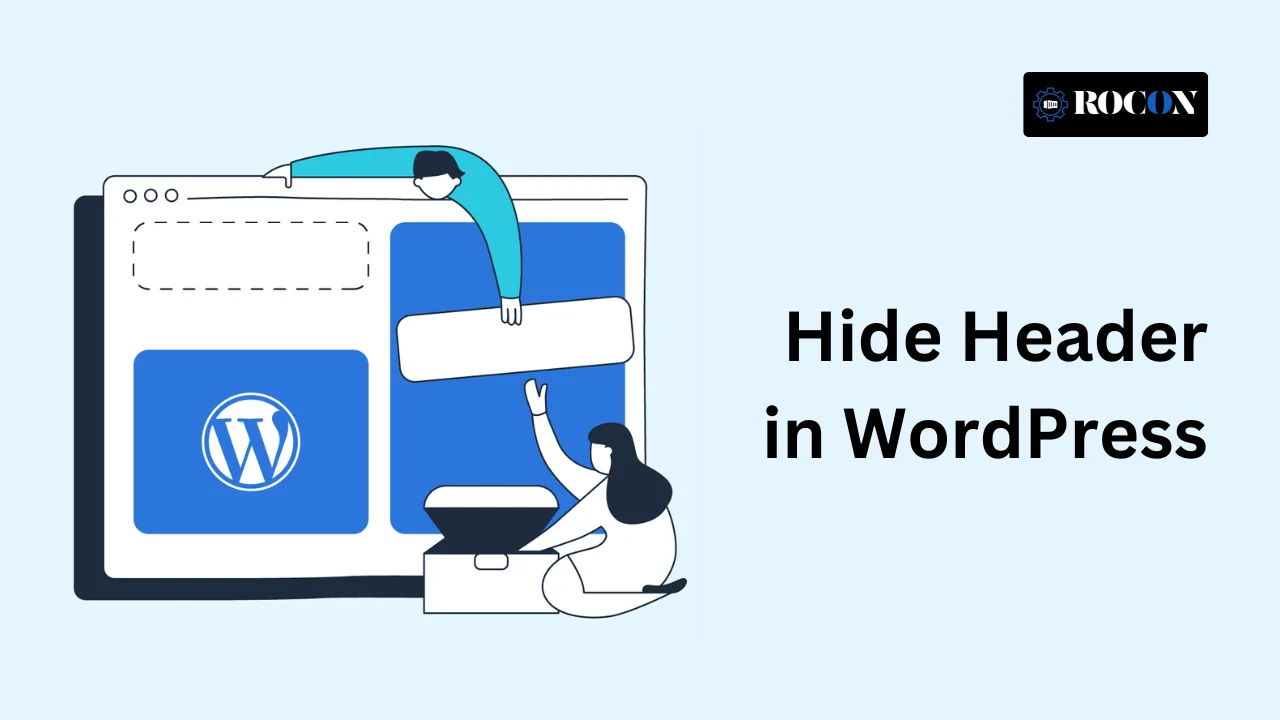


Sometimes a WordPress header can get in the way, especially when you’re creating a landing page, sales page, or minimalist layout. Hiding the header in WordPress can give the page a cleaner appearance and keep visitors focused on the main content.
The good news is that you don’t always need coding skills to do it. Many modern WordPress themes and page builders let you disable the header on individual pages through their settings. If your theme doesn’t offer that option, you can also use a small amount of CSS or a dedicated plugin.
In this guide, we’ll show you several ways to hide a WordPress header, explain when each method makes sense, and help you choose the simplest option for your website.
Your WordPress header usually contains important elements such as your logo, navigation menu, search bar, and contact links. For most pages, keeping it visible makes sense. However, some pages work better without it.
Landing pages, sales pages, and product campaigns often have one clear goal. Removing the header and its navigation links can reduce distractions and keep visitors focused on your headline, offer, form, or call to action.
Some pages simply look better with more space. Portfolio pages, image galleries, event pages, and coming-soon pages can benefit from a simpler layout where the main content gets all the attention.
Headers can take up valuable space, particularly on smaller screens. Hiding the header on specific mobile-focused pages can give visitors more room to view the content and interact with important buttons or forms.
You don’t have to hide the header across your entire website. Keeping it on regular pages while removing it from specific landing or campaign pages gives you more control over the user experience.
Hiding a header in WordPress can be done in multiple ways depending on your comfort level with coding and your site’s tools. Here’s a breakdown of each:
Most modern WordPress themes have built-in options to hide the header on specific pages. This is the easiest method for beginners as it doesn’t require any additional tools or coding. Astra, OceanWP, and GeneratePress are popular themes that have this option in their customizer or page-specific controls.
Step by Step:
Headers can be hidden and completely customized using page builders like Elementor, Divi, and WPBakery. These tools allow you to graphically design certain pages or components rather than writing code. If you’re using a page builder, the layout settings normally include choices for controlling header visibility.
Step by Step:
If you know a bit of code, custom CSS is a great and flexible way to hide headers on specific pages. This works regardless of your theme’s built-in options and doesn’t require any other plugins, so perfect for light customization.
Step by step:
.page-id-45. site-header {
display: none
;}
Plugins provide a no-code option for hiding headers, making them ideal for newcomers or those who manage several sites. Plugins such as Hide Page and Post Header or WP Headers and Footers are specifically created for this purpose. They integrate with WordPress and have choices. Hide headers right in the page editor.
Recommended Plugins:
Hide Page and Post Header
WP Headers and Footers
Step-by-Step:
For skilled users and developers, modifying theme files is the most effective technique to control header appearance.
This is good for complex scenarios like hiding headers based on user roles, page types, or other conditions. But requires a good understanding of PHP and WordPress template hierarchy.
Step by Step:
Before removing a page title, think about how it affects the page’s purpose, navigation, and search visibility. Hiding the title can make a design look cleaner, but it isn’t always the best choice.
For landing pages and custom layouts, hiding the title can work well. For regular blog posts, service pages, and important website sections, keeping a visible title is often the better choice.
If hiding the header doesn’t work as expected, don’t worry. A few common issues can usually be fixed in minutes.
Clear your browser cache and any caching plugin cache after making changes. Your website may still be loading an older version of the page. If you’re using a CDN, clear its cache as well and then check the page again in a private browser window.
Check whether the change was applied to the correct page or template. If you added custom CSS, make sure the selector targets only the header you want to hide. Avoid using a global rule if you only want to remove the header from one page.
Some themes provide very few options for controlling individual page elements. If you regularly need this type of customization, consider a flexible WordPress theme such as Astra or GeneratePress, which offer more control over page layouts and header settings.
If the header disappears but leaves unwanted spacing, check the page template, theme settings, and custom CSS for additional margins or padding. Make changes one at a time so you can quickly identify what caused the issue.
Hiding the header in WordPress is a simple way to create a cleaner layout for pages that need fewer distractions. Depending on your theme and setup, you can disable it through the page settings, use a page builder, add custom CSS, or install a suitable plugin.
Just remember that you don’t need to hide the header across your entire website. For landing pages, sales pages, and other focused layouts, removing it can help visitors concentrate on the main content and call to action.
Before making changes to a live site, test the page on desktop and mobile to make sure the layout still works properly. If you’re using custom CSS or a plugin, keeping a recent backup is also a good idea.
If you’re still having trouble hiding your WordPress header, check your theme’s documentation or test the change on a staging site first.
In Elementor, edit the page you want to change and open Page Settings. Depending on your theme and Elementor setup, you can select a Canvas or Full Width page layout to remove the standard header. Elementor Pro users can also control headers through Theme Builder and set display conditions for specific pages.
Yes. You can hide the header on an individual page using your theme’s page settings, a page builder, custom CSS, or a suitable plugin. This is useful for landing pages, sales pages, and other pages where you want visitors to focus on one action.
Hiding a header by itself does not automatically hurt SEO. However, don’t remove important navigation, internal links, or other useful information without providing another way for visitors to access them. The main goal should be a good user experience, not simply removing site elements.
Many themes and page builders offer options to disable the header without touching code. If your theme doesn’t provide this setting, a plugin can also help. The exact steps depend on the theme and page builder you’re using.
You can use custom CSS, a page builder, or a plugin to hide the header on selected pages. If you frequently need control over individual page elements, consider using a theme with more flexible layout settings, such as Astra or GeneratePress.
Start by clearing your browser and WordPress caching plugin cache. If you’re using a CDN, clear its cache too. Then check your theme, page builder, CSS, or plugin settings to make sure the header rule is targeting the correct page or template.
Yes. Header changes are usually easy to reverse. Simply restore the original theme or page settings, remove the custom CSS, disable the plugin rule, or change the page template back to its previous setting.
Yes, in many cases. Some themes, page builders, and custom CSS solutions allow you to hide the header specifically on mobile devices. Test the page on different screen sizes afterward to make sure navigation and important links remain accessible where needed.

Elevate your WordPress hosting with 30-day money-back guarantee, free migration, and 24/7 support.
Sign Up Today
September 28, 2026
Nitish

Before You Go… Get 1 Month FREE on Rocon Hosting!

Experience lightning-fast speeds

No downtime or hidden fees

Dedicated 24/7 expert support

Leave a Reply