How to Fix Briefly Unavailable for Scheduled Maintenance
June 2, 2026 Written by Saurabh Rai


June 2, 2026 Written by Saurabh Rai
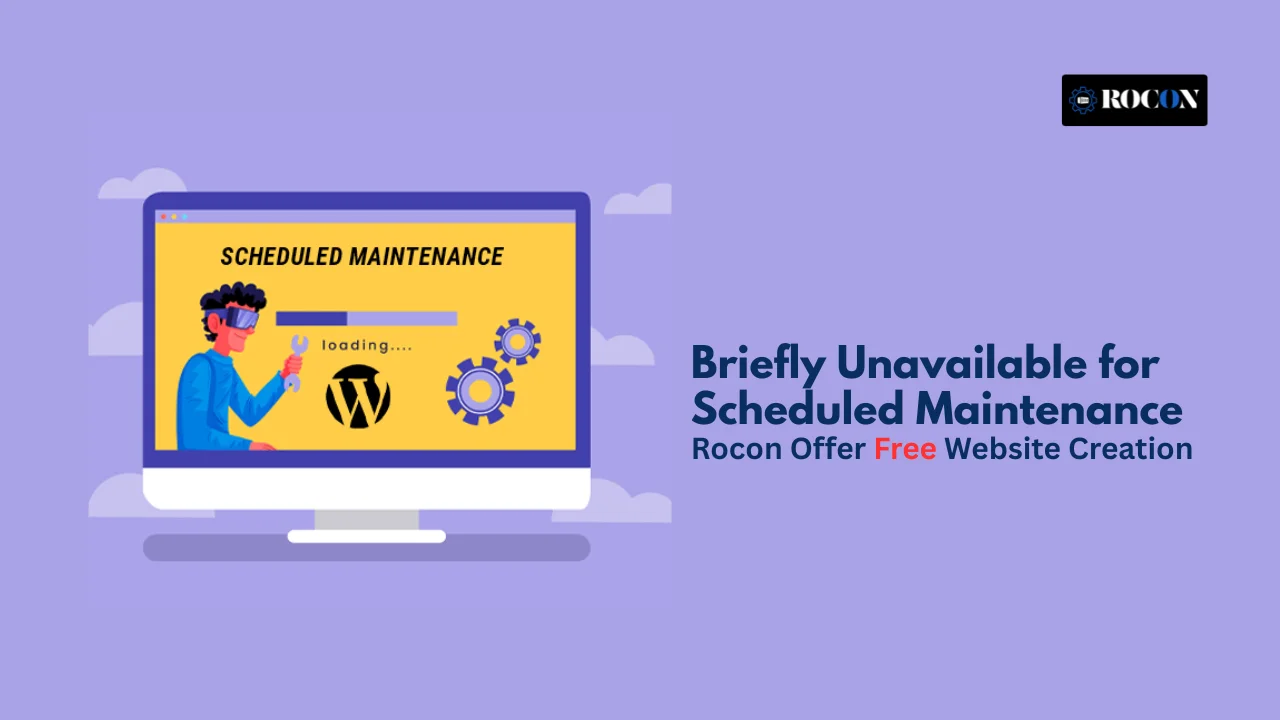


The briefly unavailable for scheduled maintenance message is a common WordPress error that usually appears during updates. WordPress automatically places your site into maintenance mode while updating plugins, themes, or core files to prevent visitors from accessing incomplete or broken content.
In most cases, the message disappears within a few seconds. However, if an update is interrupted due to a server timeout, browser closure, or plugin conflict, your website can become stuck in maintenance mode and continue displaying the error indefinitely.
When this happens, visitors may be unable to access your site, which can impact user experience, traffic, and business operations. The good news is that the issue is typically easy to fix once you understand what caused it.
In this guide, you’ll learn why the briefly unavailable for scheduled maintenance error occurs, how to remove WordPress maintenance mode safely, and the best practices to prevent the problem from happening again.
This message is a normal part of the WordPress update process. When WordPress installs updates, it temporarily places the website into maintenance mode to ensure visitors do not access files that are actively being modified.
During an update, WordPress creates a temporary file called .maintenance in the root directory of your website. This file tells WordPress to display a maintenance notice while updates are being applied in the background.
The process is designed to protect your website from displaying incomplete content, broken functionality, or update-related issues. In most cases, the maintenance notice only appears for a few seconds before the update finishes.
Once everything is completed successfully, WordPress automatically removes the temporary file and restores normal access to your site. If the update is interrupted, however, the maintenance file may remain in place, causing the notice to stay visible longer than intended.
The problem arises when the .maintenance file isn’t deleted after the update. Common causes include:
If your hosting is slow, the update script can time out before cleaning up.
WooCommerce, page builders, or security plugins often have large update packages that take longer than expected.
If your site doesn’t have enough PHP memory, the update can fail midway.
Closing your browser tab or losing internet during the update can interrupt the process.
Poorly coded extensions can interfere with the update completion.
Incorrect file permissions or outdated PHP versions can prevent deletion of the .maintenance file.
Understanding this helps you fix and prevent the issue.
Maintenance Mode Activated
WordPress creates a .maintenance file in the root directory.
This file contains:
php
<?php
$upgrading = time();
?>
If step 4 fails, the .maintenance file stays — keeping your site in maintenance mode.
If your site is stuck, here’s the fastest fix.
You can do this via:
Look in the root directory for .maintenance.
If you can’t see it, enable “Show Hidden Files” in your settings.
Right-click → Delete.
Your site should now work normally.
If you have command-line access:
bash
cd /path/to/wordpress
rm .maintenance
wp cache flush
This method is quick and ideal for developers or on servers where file managers are slow.
Different hosting providers have different interfaces.
Here’s how to stop it before it starts.
Don’t bulk update 20 plugins — update them individually to reduce server load.
Test updates on a staging copy before going live.
In wp-config.php:
php
define(‘WP_MEMORY_LIMIT’, ‘256M’);
A fast, stable server reduces update failures.
Fewer visitors = less strain during updates.
Stay on the update page until it confirms success.
It’s faster, uses fewer resources, and is less likely to time out.
For developers managing multiple sites:
The default message is plain. You can improve it.
Benefits:
The maintenance message is a normal part of the update process and usually disappears automatically once WordPress finishes updating your core files, plugins, or themes. However, if an update is interrupted, your site can remain stuck in maintenance mode longer than expected.
In most cases, the fix is straightforward. Removing the leftover .maintenance file and clearing any website or browser caches will restore access and bring your site back online within minutes.
To avoid similar issues in the future, always create backups before updating, update plugins and themes carefully, and test major changes in a staging environment. These simple precautions can reduce downtime and help keep your website running smoothly during updates.
Yes. Renaming the .maintenance file, such as changing it to .maintenance_backup, will also disable maintenance mode. WordPress only looks for the exact .maintenance filename, so renaming it prevents the maintenance message from appearing.
Yes, deleting the .maintenance file is completely safe. It is a temporary file created during updates and is automatically removed when the update finishes successfully. Removing a stuck maintenance file will not harm your website.
Technically, yes, but it is not recommended. Maintenance mode prevents visitors from seeing incomplete updates, broken layouts, or temporary errors while WordPress updates core files, plugins, or themes.
Under normal circumstances, maintenance mode only lasts a few seconds. Most plugin, theme, and core updates complete within 30 seconds, although larger updates may take slightly longer depending on your hosting environment.
A website usually gets stuck in maintenance mode when an update is interrupted by a server timeout, browser closure, hosting issue, or plugin conflict. This leaves the temporary maintenance file behind and prevents WordPress from exiting maintenance mode automatically.
A short maintenance period generally does not affect SEO. However, if your site remains unavailable for several hours or days, search engines may encounter crawling issues, which could negatively impact rankings and user experience.
Yes. While WordPress uses the .maintenance file to manage updates, other content management systems such as Drupal, Joomla, and Magento also have their own maintenance mode mechanisms to protect websites during updates and maintenance tasks.
To reduce the risk of getting stuck in maintenance mode, always create a backup before updating, update plugins one at a time when possible, use a staging environment for major changes, and choose reliable hosting with sufficient server resources.

Elevate your WordPress hosting with 30-day money-back guarantee, free migration, and 24/7 support.
Sign Up Today


Before You Go… Get 1 Month FREE on Rocon Hosting!

Experience lightning-fast speeds

No downtime or hidden fees

Dedicated 24/7 expert support

Leave a Reply