How to Repair WordPress Database Errors Fast
June 3, 2026 Written by Ankit Kumar


June 3, 2026 Written by Ankit Kumar


Your WordPress database stores everything that makes your website work, including posts, pages, settings, user accounts, comments, and plugin data. When the database becomes corrupted or develops errors, you may notice slow performance, missing content, login issues, or unexpected website errors.
Database problems can occur for many reasons, such as failed updates, plugin conflicts, server interruptions, or corrupted tables. While these issues may seem serious, most can be resolved without rebuilding your website from scratch.
The key is identifying the problem early and using the right repair method. WordPress includes built-in tools that can help restore database integrity, while hosting control panels and database management tools provide additional recovery options.
In this guide, you’ll learn how to repair a WordPress database safely, recognize common signs of corruption, and take preventive steps to keep your website running smoothly and reliably.
Running a WordPress website can sometimes be a challenge, especially when you encounter various errors. Not all of these errors are linked to the database, but some definitely are. A prime example is the dreaded “error establishing a database connection” message, which directly points to a database issue.
Another database-specific error is the “database is already up-to-date” message. While it might not sound like a problem, it often prevents you from accessing the WordPress admin dashboard.
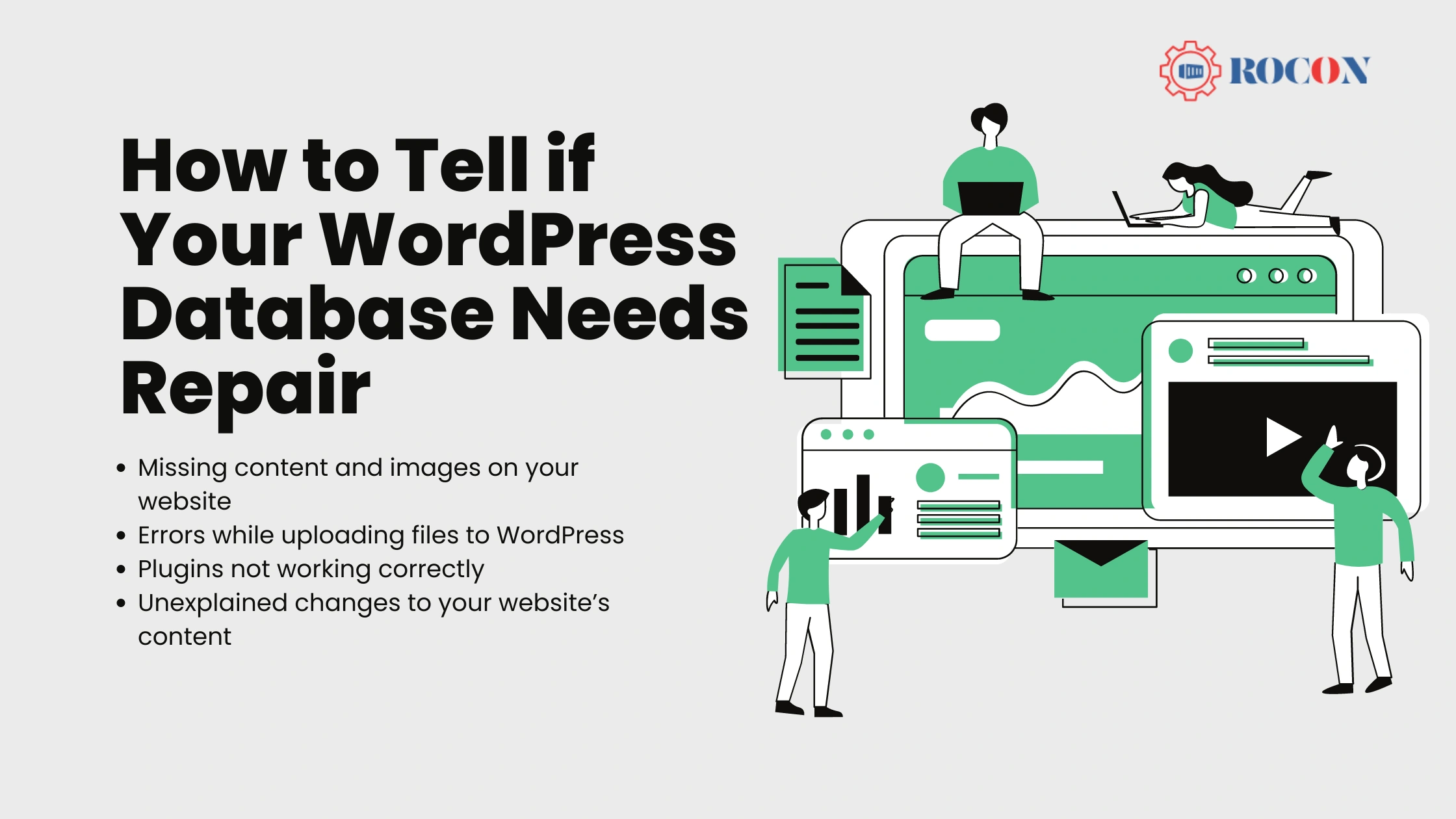
Other database-related issues can be more subtle, such as:
Every WordPress site is made up of two major components: the core files and the database. The database stores all of your website’s content. If WordPress can’t connect to it, your site might stop working altogether. Unfortunately, diagnosing database errors can be tricky because they can stem from various causes. Generally, we suggest trying more common troubleshooting methods before jumping to database repairs.
WordPress database errors often stem from credential issues. When you set up WordPress, you’re asked to either create a new database or connect to an existing one. This process requires entering credentials that WordPress uses to connect to the database.
These credentials are stored in the wp-config.php file. If you encounter an error when connecting to the database, it’s usually because someone has altered this file. Another common issue is database corruption, which can happen due to server-side errors during updates to the database, plugins, or themes. Using an outdated version of PHP or having misconfigured file or directory permissions can also lead to connection problems.
If you’re experiencing issues connecting to your WordPress database and your wp-config.php file is intact, you’re likely dealing with file corruption. In that case, repairing the WordPress database is your best solution.
As said earlier, your WordPress database is the heart of your website which stores all your content, settings, and configurations. When it becomes corrupted, you might experience issues like:
Repairing your database can resolve these issues and restore your site to optimal performance.
Most database software comes with a built-in “repair” function that identifies corrupt tables or entries, ensuring you can access your data without any issues. Fixing the WordPress database doesn’t mean you have to manually access and modify entries. Instead, you can use built-in functions and specialized repair plugins. But before we dive into the four repair methods, let’s discuss the importance of database backups!
Before making any changes to your WordPress database, it’s crucial to back up your entire site. This ensures that you can revert to a working state if anything goes wrong during the repair process.
Check your database log files for any error messages that might indicate what’s causing issues. These logs can provide valuable insights into the nature of database errors.

Ensure your database credentials in the wp-config.php file are correct and haven’t been altered. Incorrect credentials can prevent WordPress from connecting to your database properly.
WordPress has a built-in feature called WP_ALLOW_REPAIR that allows you to repair your database without logging into phpMyAdmin. Simply add the following line to your wp-config.php file:
define(‘WP_ALLOW_REPAIR’, true);
Then, navigate to http://yoursite.com/wp-admin/maint/repair.php in your browser to access the repair tools.
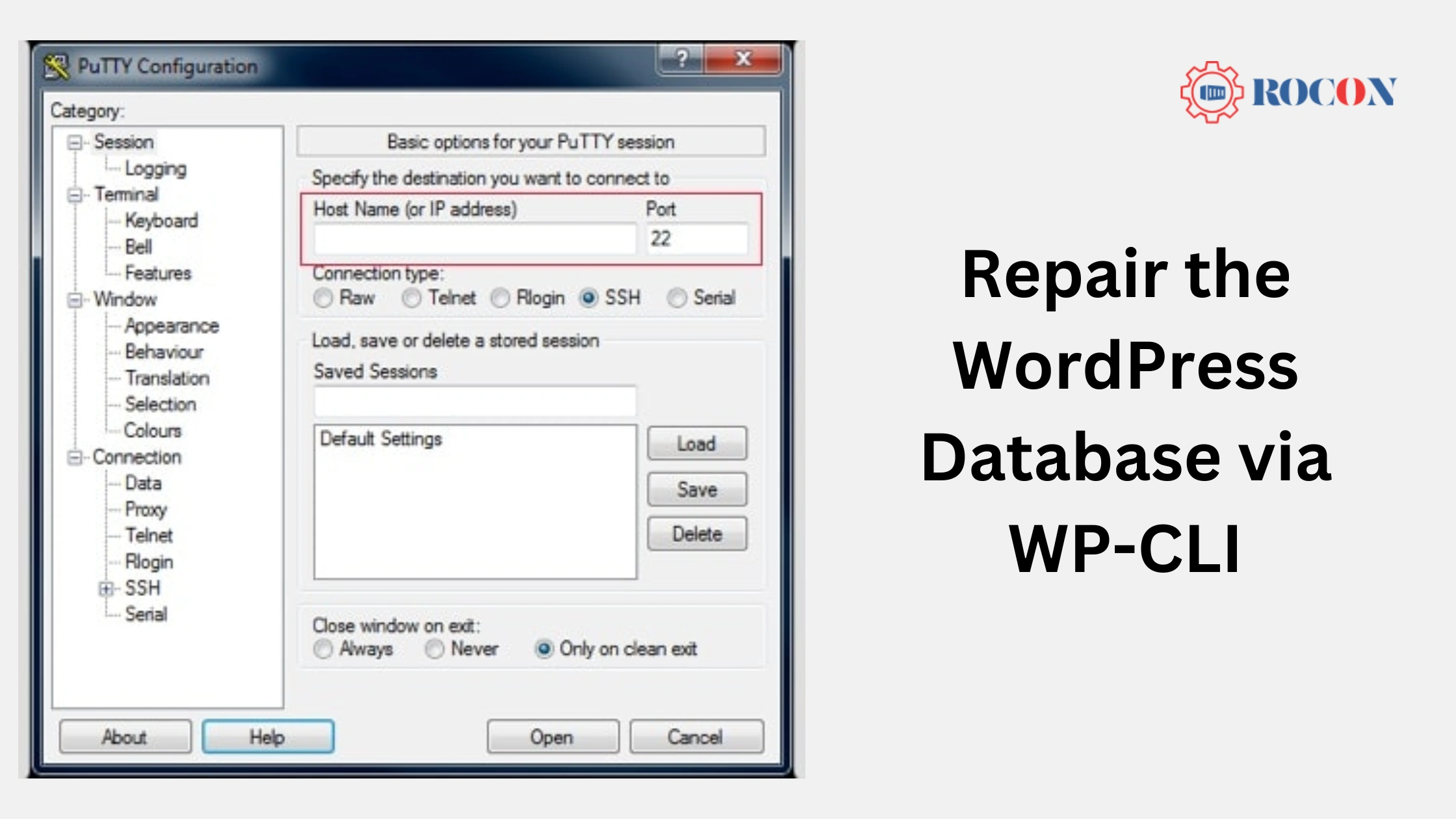
If you have command-line access to your server, you can use WP-CLI to repair your WordPress database:
wp db repair
This command checks and repairs all tables in the WordPress database.
Sometimes database repair tasks require more memory than allocated by default. Increase PHP memory limit by adding the following line to your wp-config.php file:
define(‘WP_MEMORY_LIMIT’, ‘256M’);
Adjust the memory limit value as needed.
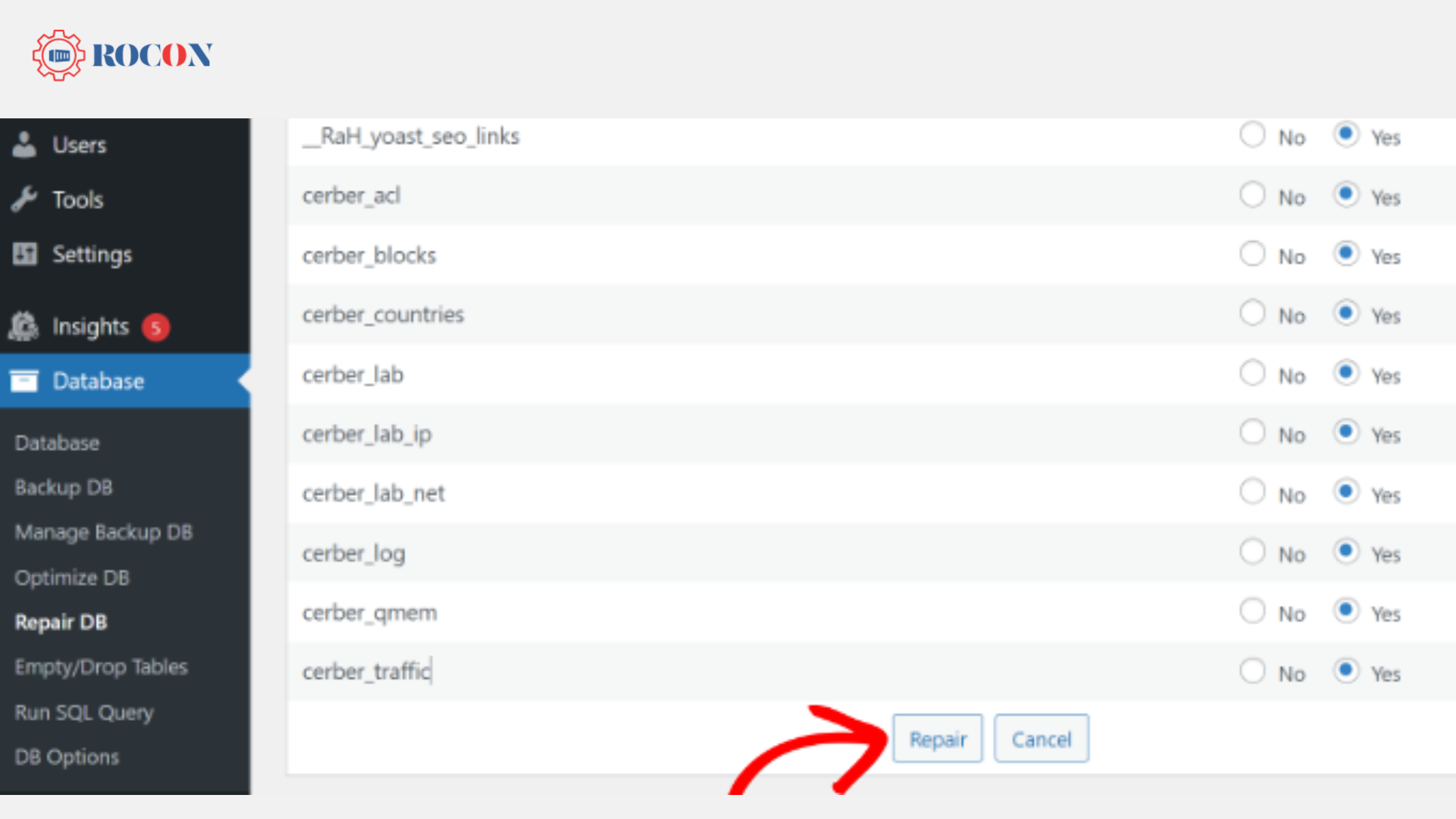
There are several plugins available that can simplify the database repair process. Install and activate a reputable database repair plugin from the WordPress repository. Follow the plugin’s instructions to initiate and complete the repair process.
By following these steps, you can effectively diagnose and repair WordPress database errors, ensuring your site runs smoothly and securely.

Save time and money while boosting your site’s performance with over $300 worth of enterprise-level integrations included in every Managed WordPress plan. Benefit from a high-performance CDN, DDoS protection, malware and hack prevention, WAF, and Container based solutions. Start hassle-free and assisted migrations.
And get 24/7 support and uptime monitoring. We offer premium managed WordPress hosting and speed up your site so you have an amazing user experience and can focus on your content creation for your business to grow.
To minimize the risk of future database issues, consider the following preventive measures:
Repairing a WordPress database through the wp-config.php file involves enabling the built-in repair feature of WordPress. This is particularly useful if your WordPress site is experiencing database connection issues, slow performance, or corrupted data.
php
define(‘WP_ALLOW_REPAIR’, true);
This will fix database issues and speed up your WordPress site. Always remember to backup your database before performing any repairs.
Repairing a WordPress database might seem daunting, but with the right steps and preventive measures, you can maintain a healthy and efficient website. Regular maintenance, backups, and using trusted plugins and themes will go a long way in preventing database issues. By following this guide, you’ll be well-equipped to handle any database-related challenges and keep your WordPress site running smoothly.
By following these steps, you’ll ensure your WordPress database remains in top condition, providing a stable foundation for your website.
We hope this article helped you learn how to repair WordPress database, step by step. You may also want to see our blog on the best WordPress hosting with CDN and choose our best managed web hosting for WordPress.
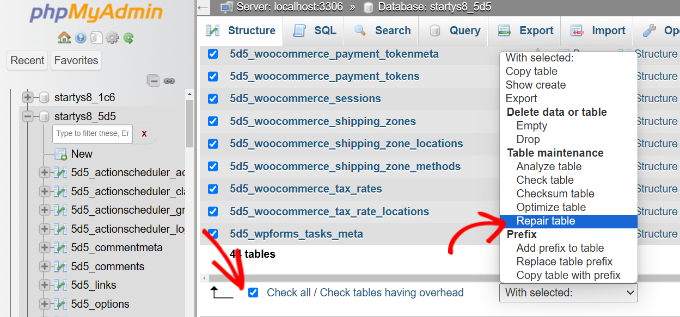
To repair a corrupt WordPress database, enable WordPress’s built-in repair tool by adding define('WP_ALLOW_REPAIR', true); to your wp-config.php file. Then visit /wp-admin/maint/repair.php and run the repair process. You can also repair database tables through phpMyAdmin or WP-CLI. Always create a full backup before making any database changes.
You can manually clean up your database by removing post revisions, spam comments, trashed content, expired transients, and leftover tables from deleted plugins. Using phpMyAdmin, optimize the remaining tables to reduce overhead and improve database efficiency. Always back up your site before performing manual cleanup.
Refreshing a WordPress database typically involves exporting the current database, creating a fresh copy, and re-importing the data. Developers often use this process when migrating sites, testing changes, or restoring data from a backup. Make sure you have a recent backup before refreshing the database.
The fastest way to fix a corrupted database is to use WordPress’s repair feature or repair tables through phpMyAdmin. If the corruption is severe, restore a clean database backup and investigate the underlying cause, such as plugin conflicts, server issues, or failed updates.
Yes, a WordPress database can be restored from a backup using phpMyAdmin, hosting backup tools, or WordPress backup plugins. Restoring a database returns your website data, settings, and content to the state captured in the backup file.
Start by verifying the database credentials in your wp-config.php file. If the credentials are correct, repair the database, check server logs for errors, and confirm that the database server is running properly. Restoring a backup may be necessary if the issue persists.
To manually optimize a WordPress database, open phpMyAdmin, select your database, choose the tables you want to optimize, and click Optimize Table. This process removes unnecessary overhead, improves query performance, and helps keep your website running efficiently.
Resetting a WordPress database removes all website content, settings, users, and customizations, returning the site to a fresh installation state. This can be done through phpMyAdmin or a database reset plugin. Always create a backup before performing a reset because the process is irreversible.
A database connection error is usually caused by incorrect database credentials, a corrupted database, or a database server outage. Verify the database name, username, password, and host settings in wp-config.php, then repair the database if necessary. If the problem continues, contact your hosting provider for further investigation.

Elevate your WordPress hosting with 30-day money-back guarantee, free migration, and 24/7 support.
Sign Up Today


Before You Go… Get 1 Month FREE on Rocon Hosting!

Experience lightning-fast speeds

No downtime or hidden fees

Dedicated 24/7 expert support

Leave a Reply