How to Fix the WordPress 403 Forbidden Error: Quick Fixes
June 9, 2026 Written by Maria


June 9, 2026 Written by Maria


WordPress 403 Forbidden error is one of the most common access-related issues website owners encounter. It typically appears when the server understands your request but refuses to grant permission to access a specific page, file, or resource. Whether you’re trying to log in to the WordPress dashboard or visitors are unable to view parts of your website, this error can quickly disrupt normal site operations.
Unlike some WordPress errors that provide detailed messages, a 403 error often offers very little information about the underlying cause. In many cases, the problem is linked to incorrect file permissions, corrupted .htaccess rules, security plugin restrictions, firewall settings, or server-level configurations that block access to certain resources.
Although the error can seem alarming at first, it is usually straightforward to diagnose and resolve. By systematically reviewing your site’s permissions, plugins, security settings, and server configuration, you can often identify the source of the problem and restore access without significant downtime.
In this guide, you’ll learn what causes the 403 Forbidden error in WordPress, how to troubleshoot it effectively, and the practical steps you can take to prevent it from reappearing in the future.
The 403 Forbidden error is an HTTP status code that means your server understands your request but refuses to let you access the page you’re trying to get to. Think of it as trying to open a door you know exists but being denied entry despite having the key. It’s a server-side communication issue that signals restricted access.
Common variations of the message include:
This error typically arises due to issues like misconfigured file permissions, incorrect .htaccess rules, blocked IPs, or certain security plugins overstepping their bounds. Sometimes it’s just a wrong URL and sometimes it’s hotlink protection misconfigured.
Annoying as it is, 403 is not a dead end. It’s a clear sign that something is preventing the server and your browser from talking to each other. With a methodical approach, such as checking file permissions or deactivating plugins, you can figure out and fix the problem.
Knowing the root cause of the 403 Forbidden error is important not only to fix it but also to prevent future interruptions to your WordPress site.
403 Forbidden error happens when your server blocks access to specific resources due to configuration issues. Here’s a breakdown:
File permissions dictate who can read, write, or execute files on your server. If permissions are misconfigured, your server will deny access to important files or directories and you’ll get a 403 Forbidden error. For example, if your directories lack the correct 755 permission or files aren’t set to 644, WordPress might struggle to load resources. These overly restrictive settings prevent public or administrative access. Conversely, permissions that are too loose, such as 777, might activate hosting security mechanisms to block access due to potential vulnerabilities.
Solution: To resolve this, use a File Manager or an FTP client to adjust permissions. Set directories to 755 and files to 644. Avoid granting excessive privileges as they increase security risks. Hosting providers often provide tools to diagnose and adjust these settings, ensuring compatibility with your server environment.
Plugins add functionality but a poorly coded or incompatible plugin can cause mayhem. Security plugins might mistake legitimate user actions for malicious activity block access and trigger the 403 error. Plugin conflicts can happen when two plugins try to modify the same settings or resources and cause unexpected errors. Outdated plugins or plugins that are not compatible with the current WordPress version will make these problems worse.
Solution: Deactivate all plugins and see if the site works. If it does, reactivate plugins one by one to find the culprit. Make sure all plugins are updated to the latest version and from trusted developers. If needed, replace the problematic plugin with a better one.
The .htaccess file is where you manage server rules like redirects, caching, and access restrictions. Even a small mistake can block resource access. For example, bad rewrite rules or leftover code from uninstalled plugins can break the file and give you a 403. Plugin updates or changes to WordPress settings can corrupt this file unintentionally.
Solution: Rename the .htaccess file via FTP or File Manager (e.g. .htaccess-old). This will disable the current file. Then log in to your WordPress dashboard, go to Settings > Permalinks, and save changes to regenerate a new .htaccess file. Check for errors and manually add back any customizations.
Hotlink protection is a great security feature to stop other sites from embedding your media files (images or videos) on their site without permission. However, misconfigured rules can block legitimate requests from your own site or users. This happens when the protection is too strict or essential domains (your CDN or subdomains) are not allowlisted.
Solution: Check your hotlink protection settings in your hosting or CDN control panel. Allowlist your site’s domain and any subdomains. Make sure your settings can differentiate between legitimate requests and hotlinking attempts.
The Domain Name System (DNS) translates your domain name into the server’s IP address. Misconfigured DNS records (like A records or outdated name servers) can stop your browser from connecting to the right server. This miscommunication can result in a 403 Forbidden error.
Solution: Check your DNS with your domain registrar or hosting provider. Make sure your A record points to the right server IP. Update name servers if needed and allow 48 hours for DNS to propagate. Tools like WhatsMyDNS can help you check if your settings are live worldwide.
Some hosting providers or security tools block IP addresses they consider suspicious. While this protects against attacks, it can block legitimate users or even site admins. This can happen with shared IP addresses or overzealous security settings.
Solution: Check your server’s access logs or security plugin settings to find the blocked IPs. allowlist your IP or the blocked IPs of legitimate users. If using a security plugin, adjust the settings to minimize false positives while still being secure.
Ownership issues occur when server resources are not assigned to the right user or group. For example, if your web server runs as www-data but the files are owned by another user, the server will deny access and give a 403. These happen during manual file uploads or server migrations.
Solution: Use the chown command via SSH to fix ownership. Set ownership to match your web server’s user.
For example:
Sudo chown -R www-data:www-data /path/to/wordpress
If SSH isn’t an option, contact your hosting provider for assistance.
Getting a 403 Forbidden error is annoying but usually fixable with a step-by-step approach. Follow these full solutions to fix the issue:
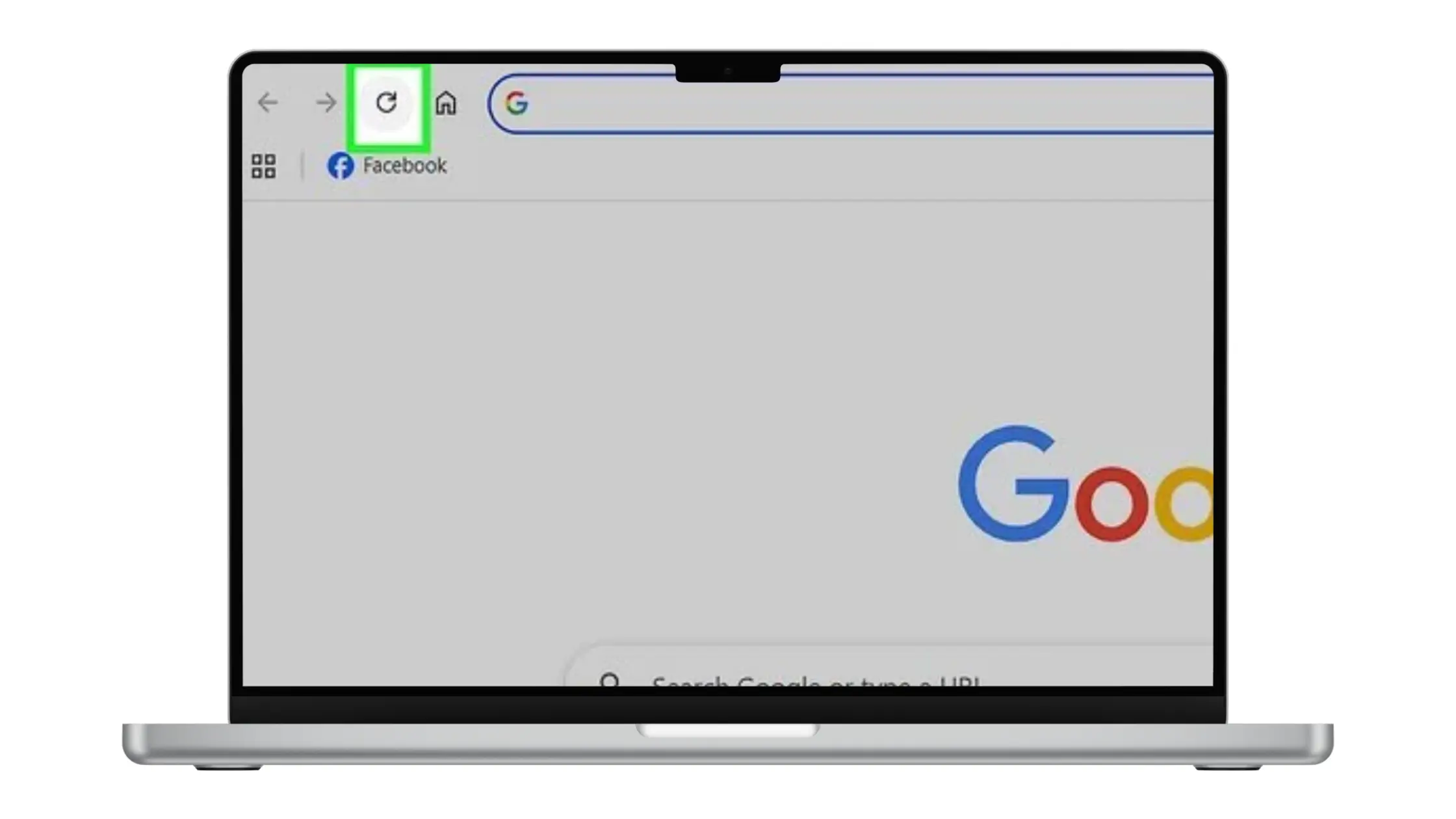
Why: Typos in the URL or accessing restricted directories can cause the error. For example, accessing /wp-admin instead of /wp-login.php will give you a forbidden response.
What to do:
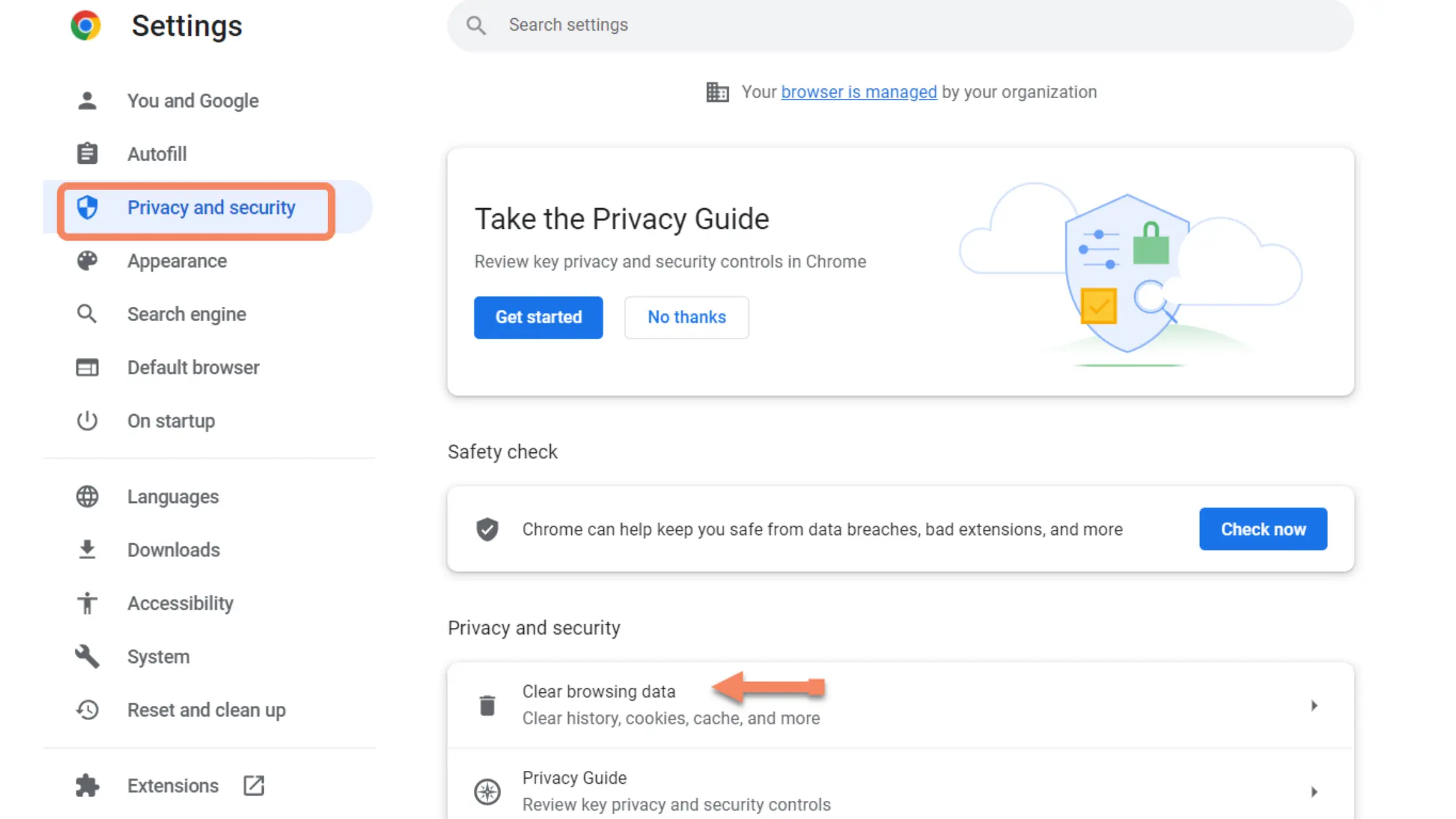
Why: Cached data or cookies might be conflicting with the server response and showing old errors.
What to do:
Why: File permissions might be set incorrectly restricting access to files or directories and causing a 403 error.
Why: A corrupted .htaccess can cause server config issues and forbidden errors.
What to do:
Why: Plugins can conflict with each other or WordPress and cause access issues.
What to do:
Why: Hotlink protection settings in your control panel can block legitimate users or resources.
What to do:
Why: Server-side issues like ownership conflicts or misconfiguration need professional help.
What to do:
Here’s how to avoid this annoying error:
Update your WordPress Core, plugins, and themes to the latest versions. Updates fix security holes and bugs that can cause a 403 error.
A good hosting provider ensures server settings are optimized and prevents common server issues that cause errors like 403.
Use UpdraftPlus to back up your site regularly. If something goes wrong you can restore your site without downtime.
Plugins like Wordfence or iThemes Security can block access attempts and prevent changes that can cause a 403 error.
.htaccess file controls server rules for your site. Only edit this file as needed and always back up before making changes so you don’t lock yourself out. By doing these you will reduce 403 Forbidden issues and have a smooth site.
A WordPress 403 Forbidden error can be frustrating, especially when it prevents you from accessing important areas of your website. While the error may seem serious at first, it is typically caused by permission settings, security configurations, corrupted files, or plugin-related conflicts that can be identified and resolved with a structured troubleshooting process.
The key to fixing this issue is to work through the possible causes one step at a time. Reviewing file permissions, regenerating the .htaccess file, testing plugins, and checking security settings will resolve most 403 errors without requiring advanced technical knowledge.
To reduce the chances of encountering this problem in the future, keep WordPress, themes, and plugins updated, perform regular backups, and monitor your website’s security settings carefully. Consistent maintenance not only helps prevent access-related errors but also improves the overall stability and security of your WordPress site.
With the right approach, a 403 Forbidden error is usually a temporary setback rather than a long-term problem. Once the root cause is addressed, your website should return to normal operation and remain accessible to both administrators and visitors.
403 Forbidden means your server is blocking access to a resource because of configuration issues like file permissions or security settings.
Yes! Start with simple steps like clearing your browser cache, checking your URL or deactivating plugins For more complex issues follow guides or contact your host for help.
Go to your WordPress files using FTP or your host’s File Manager. Make sure folders are 755 and files are 644. Avoid overly restrictive or loose permissions.
Yes, especially security plugins or those with coding conflicts. Deactivate plugins temporarily and reactivate them one by one to find the culprit.
Rename your existing .htaccess file using FTP or File Manager. Then log in to your WordPress dashboard, go to Settings > Permalinks, and click Save Changes.
A good host minimizes the risk of server-side issues, misconfigurations, and blocked IPs which can cause 403 errors.

Elevate your WordPress hosting with 30-day money-back guarantee, free migration, and 24/7 support.
Sign Up Today


Before You Go… Get 1 Month FREE on Rocon Hosting!

Experience lightning-fast speeds

No downtime or hidden fees

Dedicated 24/7 expert support

Leave a Reply